
Check your input, then listen to a short recording before your next call.
Open the free microphone testYou start a FaceTime call and the other person sees a black square. Or you open the camera on your iPhone, flip to selfie mode and the front camera just doesn't come on. Or your ASUS laptop says "We can't find your camera" five minutes before a meeting. It feels like the camera broke, but most of the time it hasn't. A permission is off, another app is holding the camera, a privacy shutter is closed, or the software needs a restart.
This guide covers the cases people search for most: the FaceTime camera not working on iPhone and Mac, the iPhone front camera not working, an Android phone camera not working, and an ASUS or ASUS Zenbook laptop camera not working on Windows. First, a one-minute check that tells you which kind of problem you have.
Why is my camera not working?
These are the usual causes, roughly from most to least common:
- Something is covering it. A laptop privacy shutter, a phone case, a screen protector or film over the front camera, or plain dirt on the lens.
- Camera permission is off. iPhone, Mac, Android and Windows all let you block the camera for every app or for one app. Screen Time can hide the camera and FaceTime completely.
- Another app is using it. On Windows especially, a camera can usually only be used by one app at a time. Zoom, Teams, a browser tab or the flashlight can all keep hold of it.
- The camera is switched off. In a FaceTime call, with a laptop hotkey (F10 on many ASUS models), or in Device Manager.
- A software or driver glitch. Common after an iOS, Android or Windows update.
- Hardware damage. A drop, liquid or a screen repair can damage the camera or its cable. Real, but less common than people think.
First, test whether the camera works anywhere
Before changing settings, find out whether the problem is one app or the camera itself. That one fact points to the cause.
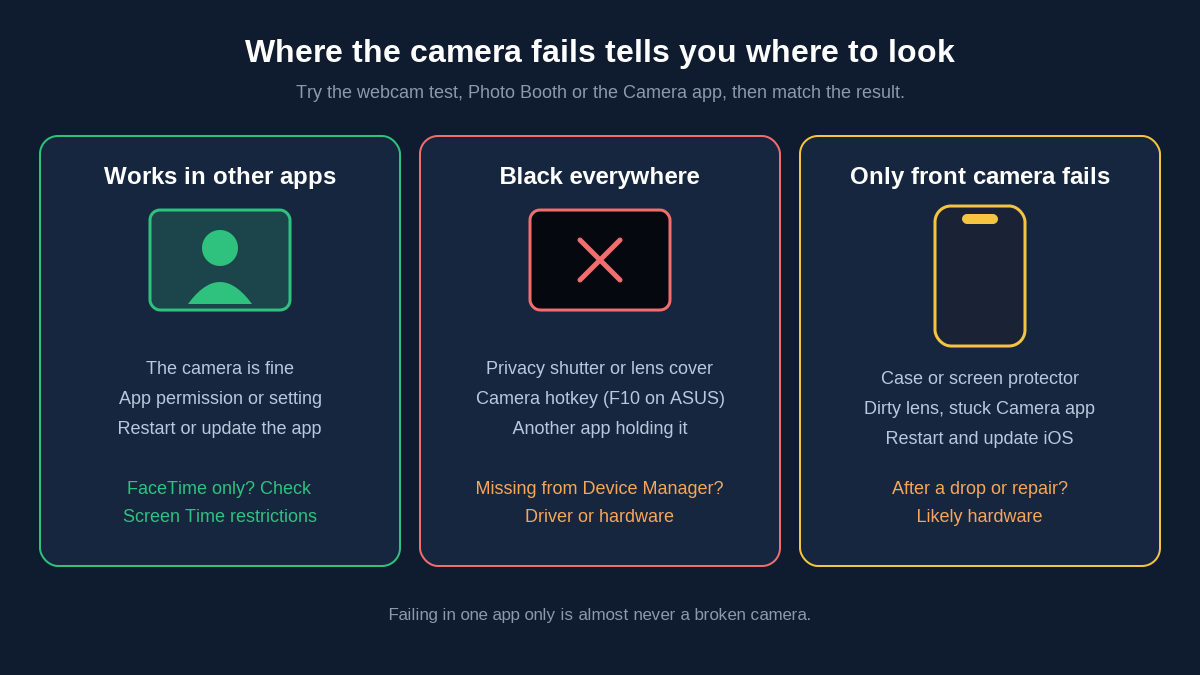
- On a laptop or desktop, open our webcam test. It runs in your browser and nothing is uploaded. If you see yourself, the camera and driver are fine.
- On an iPhone, open the Camera app and tap the rotate button to switch between the back and front cameras. Apple's guide if the camera on your iPhone isn't working starts with the same test: check whether one camera or both fail.
- On a Mac, quit FaceTime and open Photo Booth. If the camera works there, FaceTime is the problem, not the camera.
- On Android, open the built-in Camera app and then a second app that uses the camera, such as WhatsApp or Google Meet.
What the results tell you
- Works in other apps, not in FaceTime or one app: it's that app's permission, a setting inside the app, or the app needs a restart or update.
- Works nowhere, black screen everywhere: check for something covering the lens, a privacy shutter, a camera hotkey, then restart. If it's still black, it's the driver (on a PC) or hardware.
- Only the front camera fails, the back camera works: check the case and screen protector near the top of the screen first. If those are fine and the phone was dropped or repaired, it's likely hardware.
FaceTime camera not working on iPhone
If FaceTime connects but the other person can't see you, or your own picture is black, go through these in order.
1. Check the camera button in the call
During a FaceTime call, tap the screen to show the controls and check the camera button. If it has a line through it, your video is off. Tap it to turn the camera back on. It's easy to tap by accident when you pick the phone up.
2. Make sure Camera and FaceTime aren't restricted
Screen Time can block the camera completely, which also stops FaceTime video. Go to Settings > Screen Time > Content & Privacy Restrictions > Allowed Apps & Features and make sure Camera and FaceTime are both on. Apple's page on FaceTime calls not working on iPhone lists the same check, especially if the FaceTime setting is missing from Settings.
3. Turn FaceTime off and on
Go to Settings > Apps > FaceTime (just Settings > FaceTime on iOS 17 and earlier), turn FaceTime off, wait a few seconds and turn it back on. While you're there, check that Settings > General > Date & Time > Set Automatically is on, because a wrong date can stop FaceTime connecting.
4. Restart and update
Restart the iPhone. If the camera is still black, force restart it: press and release volume up, press and release volume down, then press and hold the side button until the Apple logo appears. Then go to Settings > General > Software Update and install any update.
iPhone front camera not working
When people ask "why is my front camera not working on my iPhone", it's usually the selfie camera only: the back camera works fine, but flipping to the front gives a black screen, a frozen frame or a blurry picture.
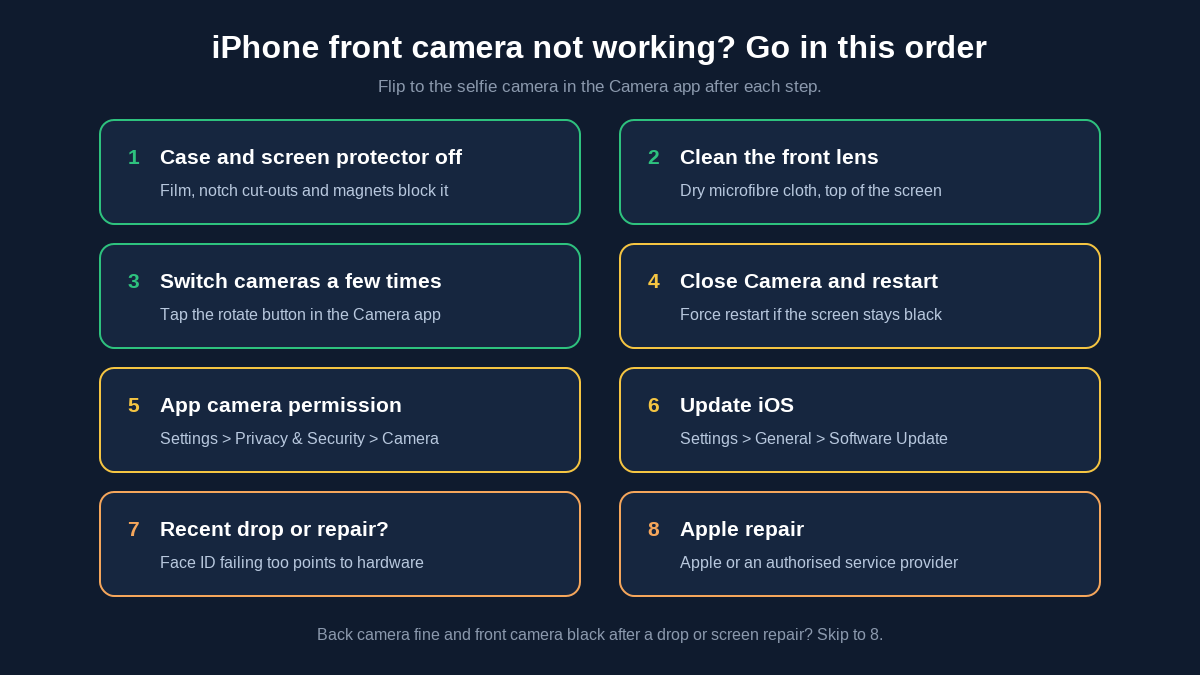
- Take off the case and screen protector. Apple's first step is to remove any case, film or accessory that might block the camera or put a magnet near it. A screen protector with a badly cut notch, or a magnetic case or wallet, often causes a black or blurry front camera.
- Clean the front lens. It sits at the top of the screen, right where your face and ear touch it. Wipe it with a dry microfibre cloth.
- Switch cameras a few times. In the Camera app, tap the rotate button several times. If the front camera opens after a few tries, it's software and a restart should fix it.
- Close the Camera app and restart. Swipe up from the bottom of the screen, swipe the Camera app away, then restart the iPhone.
- Check app permissions for third-party apps. If the front camera works in the Camera app but not in WhatsApp, Instagram, Zoom or Snapchat, go to Settings > Privacy & Security > Camera and turn that app on.
- Update iOS. Bugs that break one camera are often fixed in the next update.
- Think about recent damage or repairs. On iPhones with Face ID, the front camera sits in the same module as the Face ID sensors. If the front camera and Face ID both stopped after a drop or a screen replacement, the problem is almost certainly hardware.
If the front camera still shows a black screen, Apple's guide points you to its diagnostics, and to service if the camera still fails. Book a repair with Apple or an authorised service provider. Apple notes that cameras replaced with non-genuine parts can cause focus and app problems.
FaceTime camera not working on a Mac
On a Mac, "FaceTime camera" usually means the built-in camera at the top of the screen. The green light next to it turns on when an app is using it.
- Quit FaceTime and reopen it, or restart the Mac. Apple's guide if FaceTime isn't working on your Mac starts here.
- Test the camera in Photo Booth. If Photo Booth shows you, the camera is fine and FaceTime is the problem.
- Pick the right camera. If you have an external webcam, a display with a camera, or an iPhone used as a webcam (Continuity Camera), open FaceTime, click Video in the menu bar and choose the camera you want.
- Quit other video apps. Close Zoom, Teams, Google Meet tabs and screen recorders, then try again.
- Check Screen Time. Go to System Settings > Screen Time > Content & Privacy and make sure the camera isn't blocked.
- Check permissions for other apps. For apps like Zoom or Chrome, go to System Settings > Privacy & Security > Camera and turn the app on. FaceTime itself doesn't need to be listed there.
- Update macOS in System Settings > General > Software Update.
If the camera doesn't work in Photo Booth either, even after a restart, and the green light never turns on, it's time to contact Apple support.
ASUS laptop camera not working
ASUS laptops get their own section, because a few ASUS-specific things cause most camera problems on Zenbook, Vivobook, ROG and TUF models. ASUS's own camera troubleshooting guide covers the same steps.
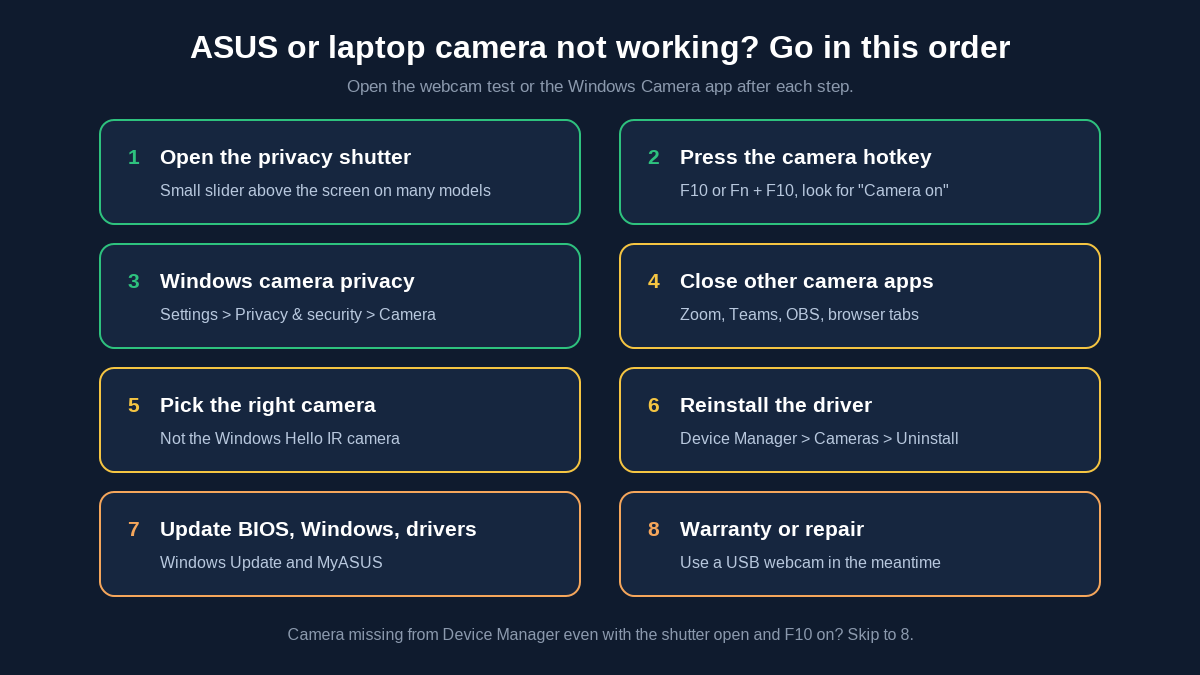
1. Open the privacy shutter
Many ASUS laptops, including most recent Zenbook and Vivobook models, have a small privacy shutter that slides over the camera. When it's closed you get a black picture, or a dark grey one with a small dot. Slide it open. On some models it's tiny and sits right in the top edge of the screen frame, so look closely.
2. Press the camera hotkey
Many ASUS laptops have a camera key, usually F10, with a camera icon on it. Press F10, or Fn + F10 depending on your hotkey setting, and watch for a Camera on message on screen. If it says Camera off, press it again.
3. Check Windows camera privacy settings
On Windows 11, go to Settings > Privacy & security > Camera. Turn on Camera access, Let apps access your camera, and Let desktop apps access your camera. Desktop apps include Zoom, Chrome, Edge and Teams. On Windows 10, the same switches are under Settings > Privacy > Camera. If a switch is greyed out, an administrator (often a school or work IT team) has turned it off.
4. Close other apps using the camera
Close Zoom, Teams, Skype, Discord, OBS, the Windows Camera app and browser tabs that might have the camera open, then try again. Microsoft's error code 0xA00F4243 means another app is using the camera.
5. Pick the right camera
If you see a camera picker in your app, choose the normal webcam, often called ASUS FHD webcam, USB2.0 HD UVC WebCam or similar. Laptops with Windows Hello have a separate infrared camera that only gives a dark, grainy picture.
6. Reinstall the camera driver
Right-click Start and open Device Manager. Expand Cameras (or Imaging devices). If the camera has a down arrow, right-click it and choose Enable device. Otherwise right-click it, choose Uninstall device, tick the option to delete the driver if it's offered, then click Action > Scan for hardware changes. Windows puts the driver back. If the camera isn't listed at all, open the privacy shutter and try F10 first, then scan for hardware changes.
7. Update BIOS, Windows and drivers
Run Windows Update, then update the BIOS and drivers through MyASUS or your model's page on the ASUS support site. Check MyASUS for any camera setting that's turned off too. Microsoft's camera doesn't work in Windows page explains the common error codes: 0xA00F4244 means Windows can't find the camera at all.
8. When it's hardware
If the camera isn't in Device Manager after the shutter is open and F10 is on, and it's still missing after updates, the camera or its cable inside the screen may be damaged. This is common after a screen replacement or a drop. Use a USB webcam in the meantime and contact ASUS if the laptop is still under warranty.
These steps work for laptops from Dell, HP, Lenovo, Acer and other brands too. Only the hotkey and the app name change, so look for a key with a camera icon on it.
Phone camera not working on Android
If your Android phone camera is not working, shows "Camera failed" or "Can't connect to camera", try these in order. Google's guide to fixing the Camera app on Pixel uses the same order, and the steps work on Samsung and most other Android phones.
- Restart the phone. Turn it fully off and on again, not just the screen.
- Turn off the flashlight and close other apps. The torch uses the camera's flash, and video apps can hold the camera.
- Clear the Camera app's cache. Go to Settings > Apps > Camera > Storage & cache > Clear cache. This doesn't delete your photos.
- Check permissions. In Settings > Security & privacy > Privacy > Camera access (the name varies by phone), make sure camera access is on. Then check the app you're using under Settings > Apps > [app] > Permissions > Camera.
- Update the Camera app and Android from the Play Store and Settings > System > Software update.
- Try safe mode. If the camera works in safe mode, an app you installed is the cause. Uninstall recent apps one at a time, starting with the newest.
- Remove the case and clean the lenses. A case, lens cover or film can block the camera or make it blurry.
If every app that uses the camera fails, even in safe mode, it's likely hardware and needs a repair.
Frequently asked questions
Why is my FaceTime camera not working on my iPhone?
Usually the camera was turned off during the call, Screen Time is blocking the Camera or FaceTime, or the iPhone needs a restart. Tap the camera button in the call, check Settings > Screen Time > Content & Privacy Restrictions, then restart and update iOS.
Why is my front camera not working on my iPhone but the back camera works?
Most often a case, screen protector or dirt is covering the front lens, or the Camera app is stuck. Remove the case and protector, clean the lens, close the Camera app and restart. If it started after a drop or screen repair, and Face ID stopped too, it's hardware.
Why is my ASUS laptop camera not working?
On ASUS laptops the most common causes are a closed privacy shutter, the camera turned off with the F10 hotkey, or Windows camera privacy settings. Open the shutter, press F10 or Fn + F10, and turn on camera access in Settings > Privacy & security > Camera.
Why is my ASUS Zenbook camera showing a black screen?
Most Zenbooks have a small sliding privacy shutter above the screen. Slide it open, then press the camera hotkey. If it's still black, close other apps using the camera and reinstall the camera driver in Device Manager.
How can I test my camera online?
Open our free webcam test in any browser and allow camera access. If you see yourself, the camera works and the problem is the app you were using. Nothing is recorded or uploaded.
Why is my phone camera not working after an update?
An update can leave the Camera app in a bad state. Restart the phone, clear the Camera app's cache on Android, and install any newer update, as bugs that break the camera are often fixed quickly.
Check the rest of your setup
Before your next video call, run the webcam test and the online microphone test so you know both work. If the call itself is in Teams, see how to test your mic and camera in Microsoft Teams. And if people can see you but not hear you, read why your iPhone microphone is not working or how to fix a microphone that's not working.
Test your microphone now
Record a 10-second clip, play it back and hear exactly how you sound.