
Surround Sound Test (5.1 & 7.1)
Play a tone through each speaker on its own: front left and right, center, subwoofer, surround and rear. Find out in a minute if every channel is wired and set up right.
Runs in your browser. No download, no sign-up and no microphone.
Test each surround channel
Turn the volume down before you start. The subwoofer tone is low and can be loud on a big system.
Ready. Lower your volume, then play a channel.
Each channel plays for 2 seconds. The full 7.1 run takes 16 seconds. Sound goes to your computer’s current output device.
How to test surround sound
Set your output to 5.1 or 7.1 first
This is the step people miss. If Windows or macOS thinks you have stereo speakers, the browser only gets two channels and the test can’t reach the rest. The setup steps below take about a minute.
Pick your layout and turn the volume down
Choose 5.1 surround or 7.1 surround above to match your system. Start low. You can always turn it up, and a 60 Hz subwoofer tone at full volume is not fun.
Play each speaker on its own
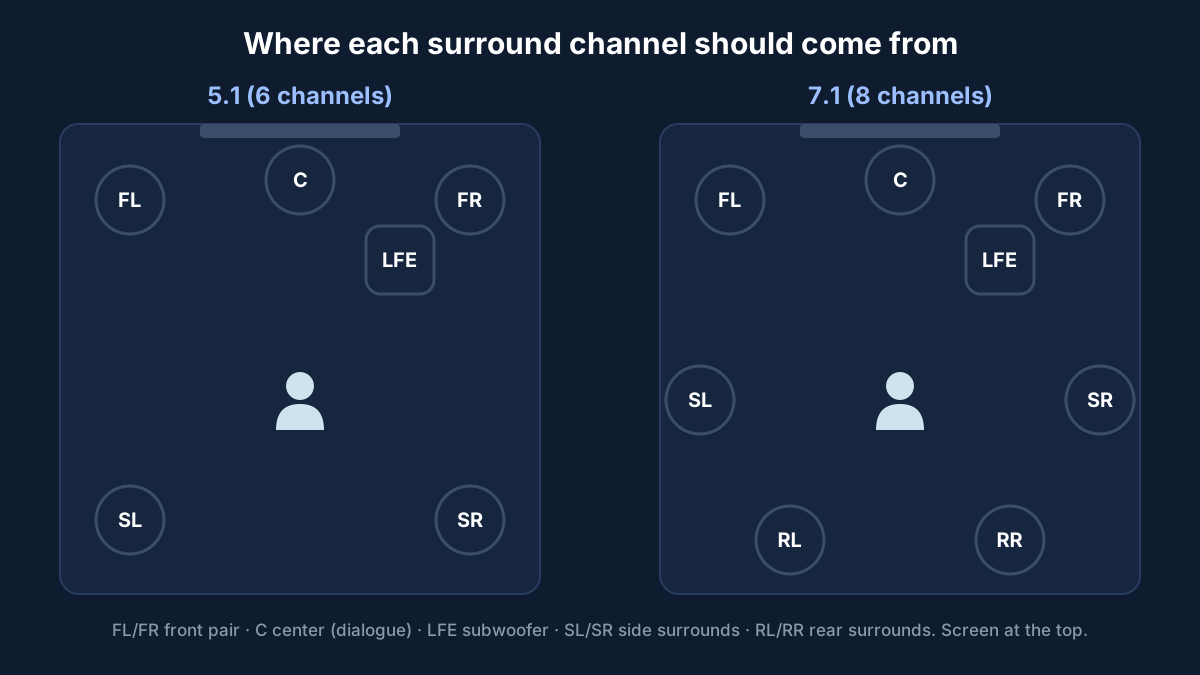
Press a channel button and listen. Only that one speaker should play, and the matching circle in the diagram lights up. Sit in your normal spot, because from the couch it’s much easier to tell a side speaker from a rear one.
Run the full sequence
Play all channels in order goes front left, front right, center, subwoofer, then the surrounds. It’s the quickest way to hear if the sound moves around the room the way it should.
Check the channel count under the tool
After the first tone, the tool shows how many output channels your browser can use. You need 6 for 5.1 and 8 for 7.1. If it says 2, the surround channels are being mixed into the front speakers, and the fix is in your system settings, not your speakers.
Your output device must support multichannel audio
A surround sound test only works if every link in the chain carries 6 or 8 channels: the browser, the operating system, the cable and the receiver or speakers. Stereo anywhere along the way and you get two channels out the other end.
Windows 11 and 10
Open Control Panel > Hardware and Sound > Sound (or search “mmsys.cpl”). On the Playback tab, select your receiver, HDMI output or sound card, click Configure, pick 5.1 Surround or 7.1 Surround and finish the wizard. If those options aren’t listed, the device or driver only offers stereo. Then reload this page.
Mac
Open Audio MIDI Setup (in Applications > Utilities), select your HDMI or USB audio device, click Configure Speakers, choose Multichannel and pick 5.1 or 7.1. Assign each speaker to the right channel if it asks.
HDMI to an AV receiver
HDMI carries 8 channels of normal audio, so a PC to receiver connection is the best way to test real surround. Optical (S/PDIF) can’t carry 6 or 8 uncompressed channels, so over optical you’ll only get stereo here.
Headsets and virtual surround
A “7.1 gaming headset” usually has two drivers and uses software to fake the positions. The test still plays, but you’re hearing processing, not separate speakers. If the tool reports 2 channels, the headset app isn’t taking multichannel input from the browser.
Chrome, Edge and Firefox on Windows and Mac can all output more than two channels when the system is set up for it. Phones and most TV browsers play stereo only.
What your surround sound test results mean
Every tone comes from the right speaker
Your wiring, receiver and system settings agree with each other. If movies still sound flat, check the audio setting inside the app or game, since many default to stereo.
Surround channels play from the front
The system is set to stereo, or the connection is optical. Set 5.1 or 7.1 in your sound settings and use HDMI where you can.
Left and right, or side and rear, are swapped
Check the speaker wires at the receiver and in your speaker setup. Some drivers order the 7.1 rear and side pairs differently, so compare with the receiver’s own test tones.
One speaker is silent
Check its wire, that it’s enabled in the receiver’s speaker setup, and its level. A powered subwoofer needs its own power and volume turned up.
What this test can’t tell you
The tool sends a 440 Hz tone (60 Hz for the subwoofer) to one channel at a time. It checks routing: is each channel reaching the right speaker? It doesn’t measure frequency response, speaker distance, delay or room acoustics, and it can’t hear the result for you. For calibration, use your receiver’s auto setup with its microphone.
Want to know how low your subwoofer goes? The bass test sweeps from 20 to 200 Hz. Only have a pair of speakers or headphones? The speaker and headphone test checks left and right on their own. Testing a headset? Check its mic too with the online microphone test. And if there’s no sound at all, our guide to headphones not working on PC goes through output devices and drivers step by step.
Surround sound test questions
Why do I only hear the front speakers?
Almost always because the output device is set to stereo. In Windows, open Control Panel > Sound, select your speakers or receiver, click Configure and choose 5.1 or 7.1. On a Mac, use Audio MIDI Setup > Configure Speakers. Then reload this page and test again.
Can I run a 7.1 surround sound test on headphones?
Normal stereo headphones have two drivers, so there is nothing to send the extra channels to. Virtual surround (Windows Sonic, Dolby Atmos for Headphones, DTS Headphone:X or a headset app) fakes the positions with processing. Whether the browser can feed it six or eight channels depends on that software. If the page says it found only 2 channels, you are hearing a downmix.
Why is the subwoofer tone so quiet?
The LFE test is a 60 Hz tone, and small speakers or laptop speakers can barely play it. With a real subwoofer, check that it is switched on, its own volume knob is up, and the receiver has the subwoofer set to Yes. Some receivers also send bass from small speakers to the sub, so you may hear it during other channels too.
The rear and side channels are swapped. Is my system broken?
Not necessarily. Windows and most receivers put the rear pair before the side pair in 7.1, which is the order this test uses, but some devices and drivers use a different order. Check the speaker wiring and the receiver setup first, then compare with a known 7.1 test file or game.
Does this work on a phone or TV browser?
Phones play stereo at most, so you will only hear the front pair. A TV browser or streaming stick usually outputs stereo too. A Windows or Mac computer connected to an AV receiver over HDMI is the most reliable way to test real surround.
Is anything recorded or uploaded?
No. The tones are generated in your browser and the page never asks for microphone access. Nothing about your speakers is sent anywhere.
Still stuck? Contact us with your browser, operating system and the channel count the tool showed.