
Free Online Noise Meter for Classroom
A free online noise meter for classroom use. See a live sound level bar, set a “too loud” limit with a visual alert, and switch to fullscreen classroom mode so every student can see it. No app or sign-up.
- Works on any device
- Nothing is recorded
- Fullscreen class mode
Shows a relative level from your microphone, not a calibrated decibel reading.
Classroom noise level
Not listening
Too-loud limit: 75
Adjust so a normal, acceptable class sits in the green.
- Peak
- 0
- Average
- 0
- Times too loud
- 0
How to use the noise meter in your classroom
The classroom noise meter takes less than a minute to set up. Put the device where it hears the whole room, not right next to one group of students.
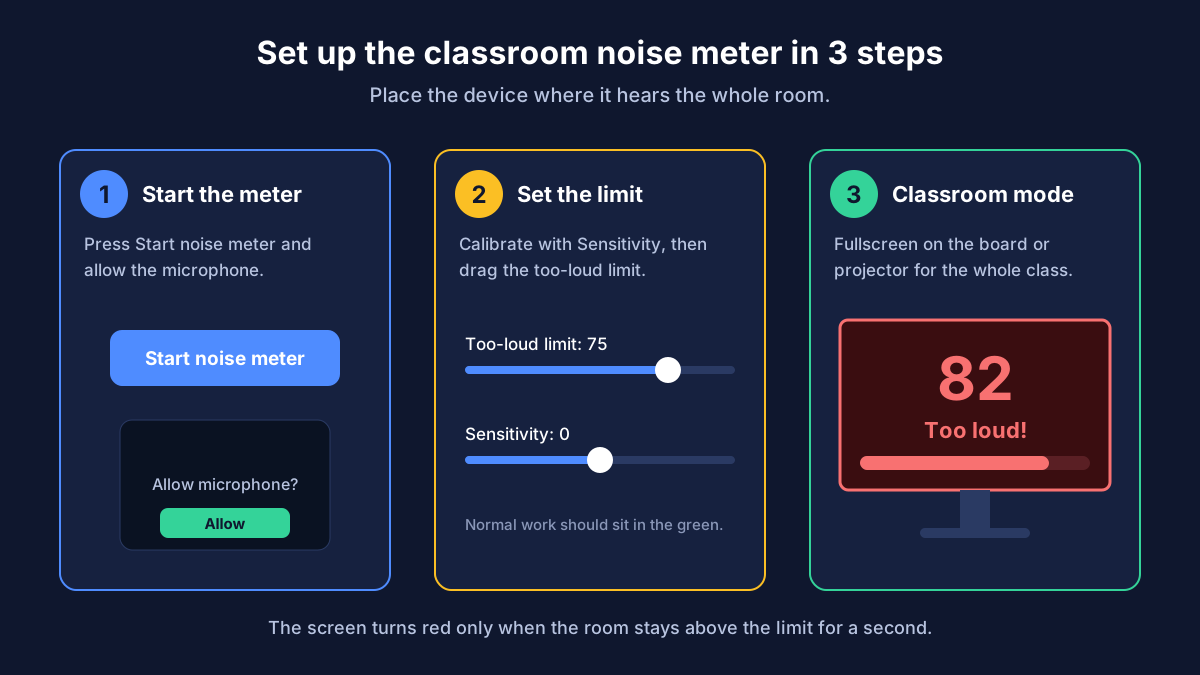
Press Start and allow the mic
Select Start noise meter and allow microphone access when your browser asks. A laptop, Chromebook or tablet mic is fine.
Calibrate to your class
During normal, acceptable work, move the Sensitivity slider until the bar sits in the green.
Set the too-loud limit
Drag Too-loud limit to the level you want to stay under. The white line on the bar shows it.
Go fullscreen
Select Classroom mode to fill the screen or projector. The background turns red when the room stays too loud for a second.
What the colours and numbers mean
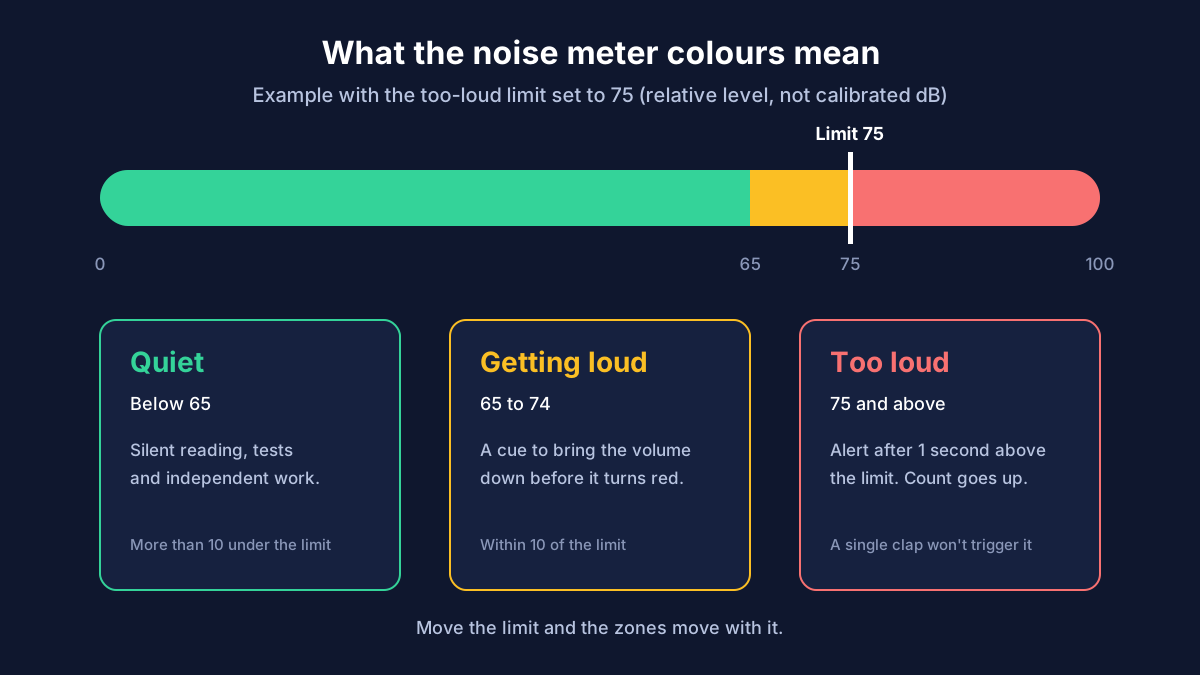
Green: quiet
More than 10 points below your limit. Good for silent reading, tests and independent work.
Amber: getting loud
Within 10 points of the limit. A cue for the class to bring the volume down before it turns red.
Red: too loud
Above the limit for at least a second. The count of times too loud goes up once per alert.
The one-second delay means a single clap, a dropped book or a door does not set off the alert. Only noise that lasts does. Peak shows the loudest moment, Average the typical level since you started, and Reset stats starts a new lesson.
Relative level, not a calibrated decibel meter
This free decibel meter shows a relative level. It measures how strong the microphone signal is and places it on a 0–100 scale labelled “relative dB”. Louder sound gives a higher number, and the steps behave like decibels, so it is good for comparing quiet and noisy moments in the same room.
It is not a calibrated sound level meter. Browsers do not know your microphone's real sensitivity, and devices apply their own processing, so the number is not a true dB(A) or dB SPL value. Do not use it for hearing protection, workplace noise checks or legal disputes. For those, use a calibrated meter.
Getting steady readings
- Keep the same device in the same place each lesson.
- Do not cover the microphone or put the laptop in a bag or drawer.
- Use the built-in mic or one USB mic, not a headset worn by one person.
- Close video-call apps that may turn the mic down or apply noise cancelling.
- Plug in the laptop: classroom mode keeps the screen awake while it runs.
No signal? Run the free online mic test to check the microphone first.
Decibel meter on iPhone, iPad and Chromebook
You do not need to install a decibel meter app on iPhone to use this tool. Open this page in Safari, press Start noise meter and allow the microphone. It also works on iPad, Android phones, Chromebooks, Windows and Mac.
Fullscreen depends on the device: on iPhone, Safari may keep its toolbar visible, but classroom mode still fills the page. If you need readings closer to real dB(A) on an iPhone, a dedicated sound level meter app that supports calibration will be more accurate than any website.
Tips for a calmer classroom
- Agree on the limit with the class and show them the green, amber and red zones first.
- Use different limits for different activities: low for reading, higher for group work.
- Praise time spent in the green rather than only reacting to red.
- Check the “times too loud” count at the end of a lesson and set a goal for the next one.
Privacy: nothing is recorded
The noise meter only reads the loudness of the microphone signal in your browser. It does not record speech, save audio or send anything to a server. The microphone stops when you press Stop or close the tab. Read the privacy policy for details.
Also on Mic Testing Tool: the online microphone test, the speaker and headphone test and the webcam and mic test. Our guide on how to test your microphone helps if the meter does not react.
Classroom noise meter questions
Is this a real decibel meter?
It is a relative noise meter. It turns your microphone signal into a 0–100 reading that rises and falls with the sound in the room, which is ideal for spotting when a class gets louder. It is not a calibrated dB(A) sound level meter, so do not use it for hearing safety, workplace noise or legal measurements.
Is the noise meter for classroom use free?
Yes. The classroom noise meter is free, needs no account or app, and works in Chrome, Edge, Firefox and Safari on laptops, Chromebooks, tablets and phones.
Does the noise meter record my class?
No. The microphone signal is analysed in your browser to draw the level. Nothing is recorded, saved or uploaded, and the microphone turns off when you press Stop or close the page.
What "too loud" limit should I use?
Start the meter during normal, acceptable group work and note the reading. Set the limit about 5 to 10 points above that. Lower it for silent reading and raise it for active work. Every microphone and room reads differently, so set it by ear, not from a chart.
Why do the readings differ between devices?
Each microphone has its own sensitivity, and laptops, tablets and phones place it in different spots. That is why the reading is relative. Use the Sensitivity slider so a normal class sits in the green, and keep the same device in the same place.
Can I use it as a decibel meter on iPhone?
Yes, open this page in Safari on your iPhone or iPad, press Start and allow the microphone. The reading is still relative. For a closer estimate of real dB(A) on iPhone, use a dedicated sound level meter app.
Why does the meter show a low number or nothing at all?
Check that you allowed microphone access, picked the right microphone and that it is not muted. If the level never moves, run the free microphone test linked on this page to check the mic itself.
Still stuck? Contact support with your browser, device and what the meter showed.