
Check your input, then listen to a short recording before your next call.
Open the free microphone testYou plug your headphones in, press play, and the sound comes out of the laptop speakers. Or nothing comes out at all. It's one of the most annoying computer problems because it feels like it should just work.
Most of the time the headphones are fine. Windows is sending the sound somewhere else, or something's muted. I'll start with the quick checks that fix most cases, then go through wired, USB and Bluetooth headphones and headsets separately, because each one goes wrong in its own way.
If you want to know right away whether any sound is reaching your headphones, open our speaker and headphone test and play the left and right channels. If you hear the tones, the headphones work and the problem is in a specific app.
Why are my headphones not working? Quick checks first
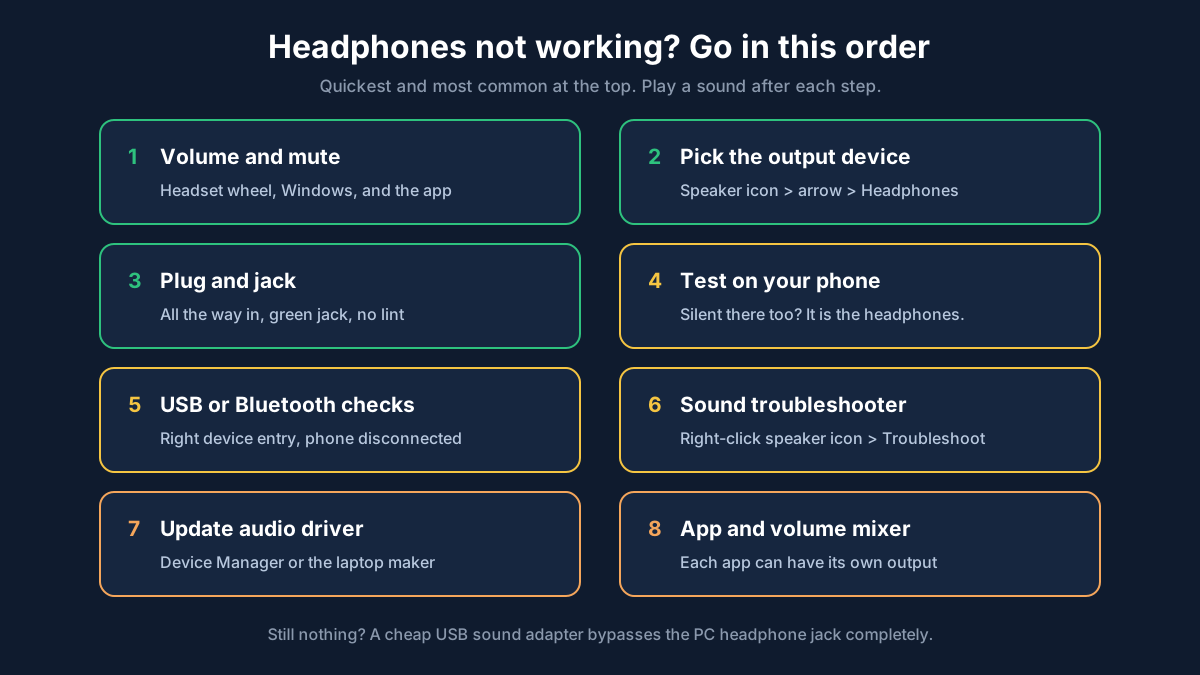
Do these before anything else. They take two minutes and solve a surprising number of "headphones not working on PC" problems.
- Check the volume in three places: the volume on the headphones themselves (a lot of headsets have a wheel on the cup or a slider on the cable), the Windows volume in the taskbar, and the volume inside the app or video you're playing.
- Check nothing is muted. Click the speaker icon in the taskbar. If there's a cross on it, click it. Also check the mute button on the headset cable, which is easy to knock.
- Try the headphones on your phone. If they're silent there too, it's the headphones or the cable. If they work on the phone, the PC is the problem.
- Restart the PC. Not just close the lid. A proper restart clears a stuck audio service more often than you'd expect.
Pick the right output device in Windows
This is the number one cause. Windows has a list of output devices (speakers, headphones, the monitor, a TV over HDMI, a Bluetooth speaker you used last week) and it doesn't always switch to your headphones when you plug them in.
On Windows 11, click the speaker icon in the taskbar, then the little arrow next to the volume slider. You'll see a list of outputs. Click your headphones.
On Windows 10, click the speaker icon and then the device name above the slider. Pick your headphones from the list.
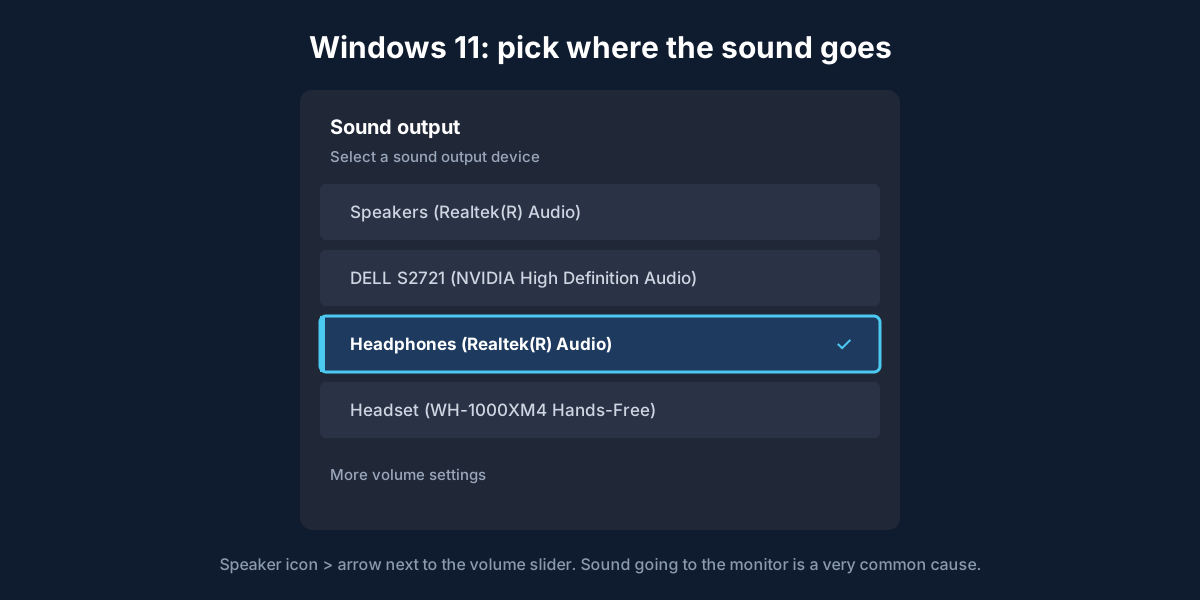
You can also go to Settings > System > Sound and choose your headphones under Output. If you don't see them in the list at all, scroll down to All sound devices and check they aren't listed as Not allowed. If they are, click them and press Allow.
Monitors are a common sneaky one. If your screen is connected with HDMI or DisplayPort, Windows might be sending sound to the monitor's tiny speakers (or to a monitor with no speakers at all). Pick the headphones and it's sorted.
Microsoft's Windows support site has an official guide to fixing sound problems with the same steps and a few more.
Wired headphones not working (3.5 mm jack)
If you're wondering how to fix wired headphones with no sound, check these in order.
Push the plug all the way in. Sounds silly, but phone cases and thick laptop edges stop the plug going in fully. You should feel a click. A half-in plug often gives sound in one ear only, or very quiet sound.
Check which jack you're using on a desktop PC. The green port is headphones/speakers. Pink is the microphone. Blue is line in. Plugging into pink or blue gives you nothing. Front-panel jacks on a PC case are also connected by a small internal cable, and sometimes it's loose or was never plugged in, so try the green port on the back.
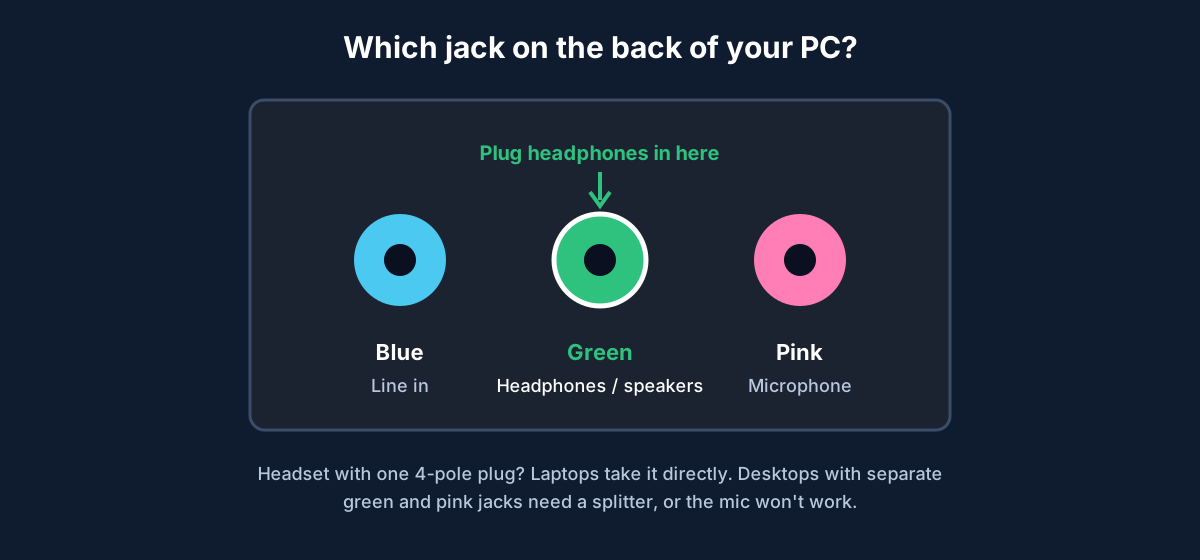
Headset with one plug, PC with two jacks (or the other way round). Most gaming headsets and phone earphones have one 4-pole plug that carries both sound and mic. Laptops have a combo jack and it just works. Desktop PCs usually have separate green and pink jacks, so you'll need a cheap splitter, or the sound works but the mic doesn't (or neither does). A headset with two plugs going into a laptop with one jack needs the opposite adapter.
Clean the jack. Pocket lint gets packed into the headphone jack, especially on laptops that live in bags. Turn the laptop off and look in with a torch. A wooden toothpick can gently pull out fluff. Don't use metal.
Wiggle test. Play some music and gently bend the cable near the plug and near where it enters each ear cup. If the sound cuts out or crackles when you move it, the wire is broken inside. That's the headphones, not the PC.
Check Realtek Audio Console. On many PCs and laptops with Realtek audio, there's an app called Realtek Audio Console (or the older Realtek HD Audio Manager). Open it and look for Device advanced settings. Turning on Make front and rear output devices playback two different audio streams simultaneously, or turning on jack detection, can make headphones show up properly. If you plug in and nothing pops up asking what you connected, this is worth a look.
Headphones not working on a laptop
Laptops add a couple of extra things to check.
- Function keys. Most laptops have a mute key (F1, F4 or similar, often with a speaker icon). Press it, or hold Fn and press it.
- Manufacturer audio apps. Dell, HP and Lenovo laptops often ship with an audio app like Dell's Waves MaxxAudio, HP's Bang & Olufsen Audio Control or Lenovo's Dolby app. These sometimes take over the headphone jack. Open it and check the headphones are detected and not muted, or try turning the effects off.
- Sound only through speakers. If the laptop keeps playing through speakers even with headphones in, it's not detecting the plug. Clean the jack, then reinstall the audio driver (below).
USB headset not working on PC
USB headsets have their own sound card built in, so they appear as a separate device in Windows, usually with the brand name in it (like "HyperX Cloud" or "Logitech G435").
- Make sure that device is selected as Output in Settings > System > Sound, not "Speakers (Realtek)".
- Try another USB port, ideally directly on the PC, not on a hub or the keyboard.
- If the headset has its own app (G Hub, HyperX NGENUITY, SteelSeries GG, Razer Synapse, Corsair iCUE), open it. Updating the headset firmware from there fixes many no-sound issues, and the app can have its own volume or mute.
- Some gaming headsets show up as two devices, a "Game" and a "Chat" output. If you can hear Discord but not your game, set the game to the Game output (or the other way round).
If the headset's mic is the part that's not working, check it with our online microphone test.
Bluetooth headphones not working on PC
- Make sure they're not still connected to your phone. Most Bluetooth headphones only connect to one thing at a time, and the phone usually wins. Turn the phone's Bluetooth off for a moment.
- In Settings > Bluetooth & devices, check they say Connected, not just Paired. If they're only paired, click them and choose Connect.
- Look at the output list. Bluetooth headphones can appear twice: one stereo entry for music and one Headset or Hands-Free entry. The Hands-Free one sounds awful, like a bad phone line. For music, pick the stereo one.
- If nothing helps, click the three dots next to them, choose Remove device, put the headphones back into pairing mode, and pair them again.
Run the Windows audio troubleshooter
Right-click the speaker icon in the taskbar and choose Troubleshoot sound problems. On newer Windows 11 versions, this opens the Get Help app, which walks you through checks and can restart the audio service for you. It won't fix everything, but it catches the obvious stuff and sometimes resets a stuck setting you couldn't find.
Update or reinstall the audio driver
If Windows doesn't see your headphones at all, the driver is the next suspect.
- Right-click Start and open Device Manager.
- Expand Sound, video and game controllers.
- Right-click your audio device (often Realtek(R) Audio or Realtek High Definition Audio) and choose Update driver > Search automatically for drivers.
- If that finds nothing, right-click it again, choose Uninstall device, and restart. Windows reinstalls it on boot.
For laptops, the best driver usually comes from the laptop maker's support site (Dell, HP, Lenovo, ASUS, Acer). Download the audio driver for your exact model and install it.
Check the app
If headphones work for YouTube but not in one game or app, that app has its own audio setting. Discord, Zoom, Teams, Spotify and most games let you pick an output device in their settings, and they often stay on whatever was there when you first installed them. Set it to your headphones, or to Default, which follows Windows.
There's also Settings > System > Sound > Volume mixer, where every open app has its own volume and its own output. One app might be set to 0, or sent to the speakers.
Headphones still not working?
Plug them into another device. If they're silent everywhere, with the volume up, the headphones are faulty. If they work everywhere except your PC, and a different pair also doesn't work on that PC, the jack or the audio chip on the PC might be the issue. A cheap USB sound adapter (or a USB headset) bypasses the PC's jack completely, and it's a quick way to get going again.
Frequently asked questions
Why are my headphones not working on my PC?
Usually Windows is sending sound to a different output (speakers, a monitor or a Bluetooth device). Click the speaker icon in the taskbar, open the output list and pick your headphones. If they're not listed, check the plug, the port and the audio driver.
Why is there no sound in my wired headphones?
The plug isn't in all the way, it's in the wrong jack (pink or blue instead of green), the jack is full of lint, or the cable is broken. Try them on your phone to rule out the headphones.
Why are my headphones not working on my laptop but working on my phone?
The laptop isn't detecting them or is using another output. Pick them in the sound output list, check the mute function key, clean the jack, and update the audio driver from the laptop maker.
How do I test if my headphones are working?
Play the left and right tones on our speaker and headphone test. You should hear each tone in the matching ear. If one side is silent, it's usually the plug or the cable.
Why does my headset work but not the mic?
The headset is probably plugged into a jack that only carries sound, or the mic isn't set as the input. Our guide to microphone not working covers that one in detail.
Test your microphone now
Record a 10-second clip, play it back and hear exactly how you sound.