
Check your input, then listen to a short recording before your next call.
Open the free microphone testYour friend says you sound like you're "in a tunnel", or WhatsApp voice notes come out completely silent, or Google Assistant just sits there waiting. On Android, that almost never means the microphone is dead. Far more often the Mic access switch got turned off, one app lost its permission, or a pair of earbuds in your bag is still connected and grabbing the audio.
So let's start where most people start: why is my microphone not working on my phone? After that I'll show you how to test the mic on Android properly, and then the fixes in the order I'd actually try them.
Why is my microphone not working on my phone?
These are the usual causes on Android, roughly from most to least common:
- Mic access is turned off. Android 12 and newer has a switch that blocks the microphone for every app at once. It's easy to tap by accident when you pull down Quick Settings.
- The app doesn't have permission. Or it had it, and Android removed it because you hadn't opened that app in a few months.
- Bluetooth is taking over. Earbuds, a smartwatch, a speaker or your car can take the call audio and use their own mic.
- Something is covering the mic hole. A case, a phone grip, lint packed into the bottom grille, or your own hand if you hold the phone low.
- Another app is holding the mic. Call recorders, voice changers and some screen recorders keep it busy so nothing else can use it.
- Actual hardware damage. Usually after a drop or water. Less common than people assume.
The test below tells you which of these you're dealing with, so do that before changing settings at random.
How to test your microphone on Android
Most Android phones have at least two microphones: one on the bottom edge next to the USB-C port, and one on the top edge or near the rear camera that cancels background noise and records video sound. On some phones the bottom one sits on the left or right of the port, so look for the small pinhole that isn't the speaker grille.
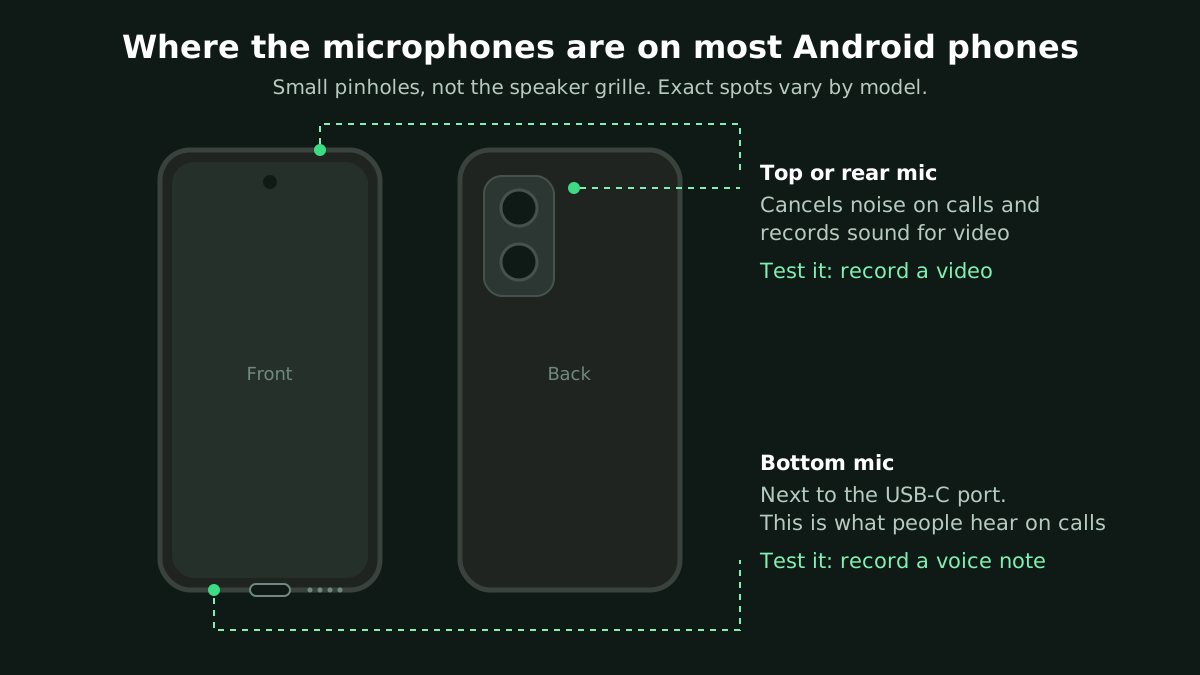
Take the case off first, then run these three quick checks.
- Record a voice note. Open your phone's recorder app: Recorder on Pixel, Voice Recorder on Samsung, or Sound Recorder on Xiaomi and many others. Talk at normal volume from about 20 cm away for ten seconds, then play it back. This tests the bottom mic, the one people hear on calls.
- Record a video with the back camera. Say a sentence while recording, then play it back with the volume up. Video mostly uses the top or rear mic, so this checks the second one.
- Try voice typing. Open any text box, tap the microphone on the keyboard (Gboard or Samsung Keyboard) and say a sentence. If the words show up, apps can reach the mic too.
Mic test on Android in your browser
You can also open our free online mic test in Chrome on your phone. Tap Allow when Chrome asks to use your microphone and talk. The level bar moves as you speak, and you can record a short clip and play it back. Nothing is uploaded, the clip stays on your phone.
If Chrome never asks, two things can block it. First, Chrome itself needs the permission: Settings > Apps > Chrome > Permissions > Microphone. Second, the site needs it: in Chrome tap the three dots, then Settings > Site settings > Microphone, and make sure it isn't blocked.
Samsung: use the built-in mic test
Samsung phones have a proper hardware check hidden in the Samsung Members app. Open it, go to Support (or Get help on older versions), tap Phone diagnostics and pick Mic. It records a short sample and plays it back to you. It's handy because it skips app permissions entirely, so if this passes, the hardware is fine.
What the results tell you
- Voice note, video and voice typing all work: the microphone is fine. Your problem is one app, Bluetooth or a call setting. Go to fixes 2 to 5.
- Voice note is silent or muffled but video sounds OK: the bottom mic is blocked or dirty. Start with fix 3.
- Everything is silent, even the browser test: check the Mic access tile first (fix 1). If it's on and you still get silence after a restart, keep going down the list.
Microphone not working on Android? Fix it in this order
These go from ten-second checks to the slower stuff. Run a quick voice note after each one, and stop when it sounds right.
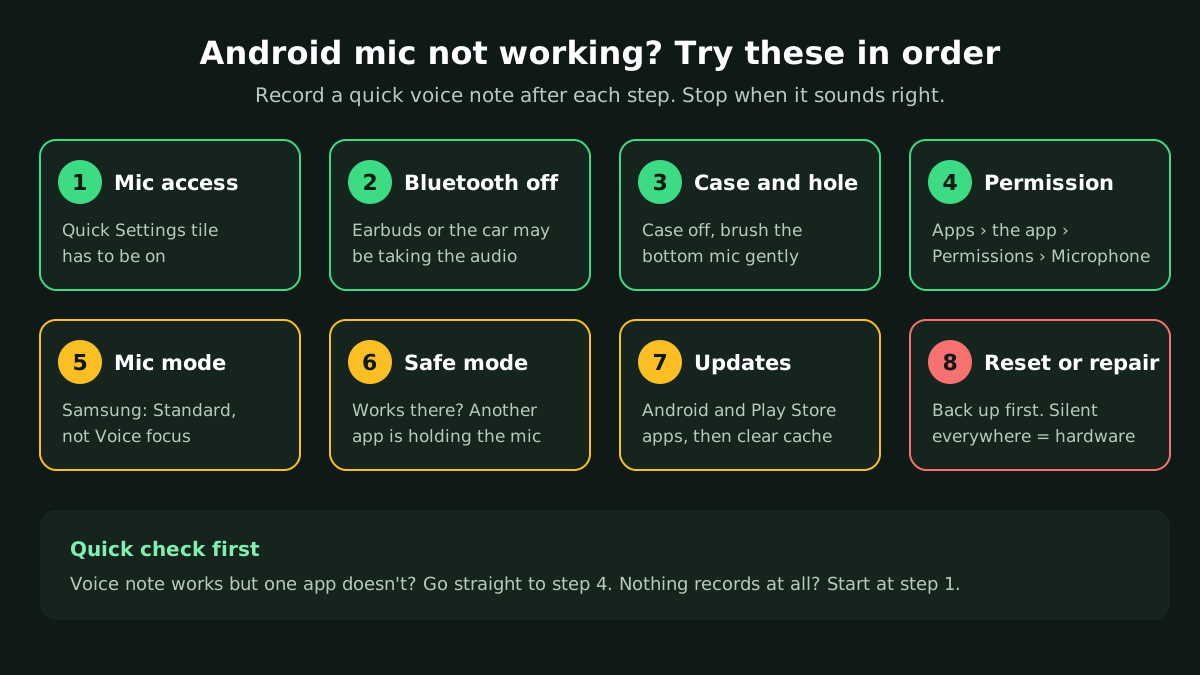
1. Turn Mic access back on
On Android 12 or newer, swipe down twice from the top of the screen to open the full Quick Settings panel. Look for a tile called Microphone access or Mic access (Samsung). If it's greyed out, tap it. You may have to tap the pencil icon and drag it in if it isn't in the panel.
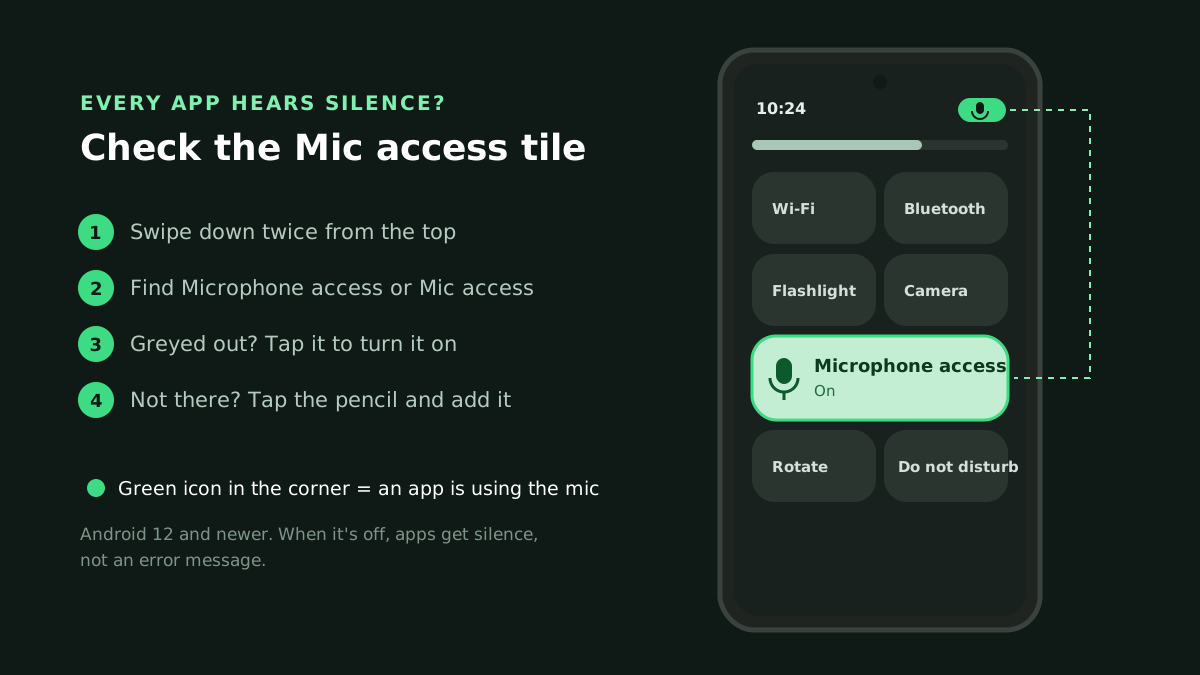
When this switch is off, apps don't crash or show an error. They just get silence, which is why it's so confusing. The same setting lives in Settings > Security & privacy > Privacy controls > Microphone access on Pixel and Settings > Security and privacy > Privacy on Samsung.
A related clue: when an app is using the mic, Android shows a small green icon in the top-right corner. If you're on a call and that green dot never appears, the app isn't reaching the mic at all.
2. Disconnect Bluetooth
This catches a lot of people. Galaxy Buds in their case, a smartwatch, or the car you just got out of can still be connected, and the phone sends call audio there. Turn Bluetooth off in Quick Settings and test again.
During a call, tap the audio button on the call screen (it might say Bluetooth, Speaker or show the earbuds' name) and pick Phone to force it back to the built-in mic.
3. Remove the case and clean the mic hole
Phone cases are made for many models at once, and the cutout doesn't always line up with the mic. Take it off and test. Grips and ring holders stuck near the bottom edge can do the same.
To clean the hole, brush across it gently with a dry, soft toothbrush. Don't push a SIM pin or needle into it. There's a thin mesh behind the opening and it's easy to puncture. If the phone got wet, let it dry for a day before deciding the mic is broken.
4. Check the app's microphone permission
If the recorder works but WhatsApp, Instagram, Discord or a game can't hear you, it's nearly always permission.
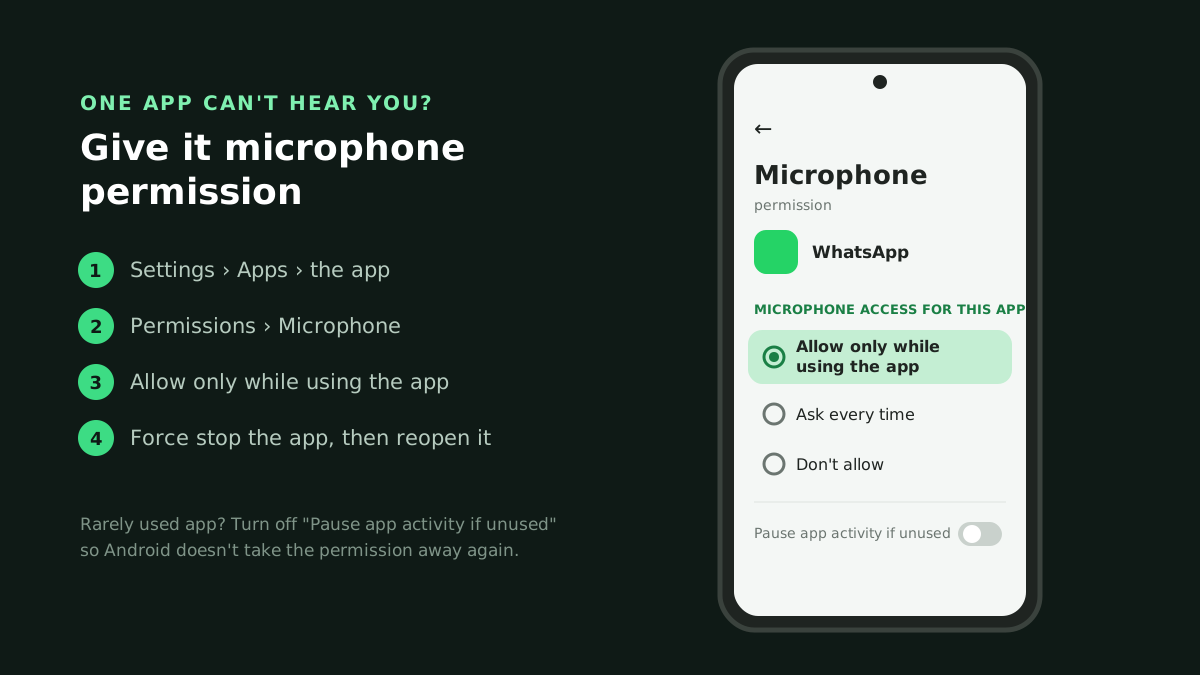
- Go to Settings > Apps and tap the app (you may need See all apps first).
- Tap Permissions > Microphone.
- Choose Allow only while using the app.
- Force stop the app and open it again.
While you're on that app's page, look for Pause app activity if unused (it's called Remove permissions if app is unused on some phones). Android 11 and later quietly strips permissions from apps you haven't opened in a few months. If you only use an app for the odd call, turn that off for it.
To see every app with mic access in one list, open Settings > Security & privacy > Privacy controls > Permission manager > Microphone. On Samsung it's under Settings > Security and privacy > Permission manager. Google's help page on changing app permissions on Android shows the same steps with screenshots.
5. Check call settings and Mic mode
Samsung phones have Mic mode in the Quick panel during voice and video calls in apps like WhatsApp: Standard, Voice focus and All sound. Voice focus cuts background noise but can chop off quiet speech. If people say you're breaking up, swipe down during the call and switch to Standard.
On other phones, open the Phone app's settings and look for a noise reduction or clear calls option. Turn it off, make a test call, and compare.
Also check you aren't simply muted. The mute button on the call screen is right where your cheek lands.
6. Restart, then try safe mode
A restart clears a stuck audio service more often than you'd expect, especially if the mic died suddenly mid-call. Do that first.
If the mic is still silent, boot into safe mode, which turns off every app you installed yourself. On most phones, press and hold the power button (or power and volume down on newer Samsung models), then press and hold Power off until Safe mode appears. Tap it.
Now record a voice note. If it works in safe mode, one of your apps is grabbing the mic. Call recorders, voice changers, game voice-chat overlays and "battery saver" apps are the usual suspects. Restart normally and uninstall the most recent ones one at a time.
7. Update Android and the app
Go to Settings > System > Software updates (or Settings > Software update on Samsung) and install anything waiting. Then open the Play Store, tap your profile picture, Manage apps & device, and update everything. Audio bugs do get fixed this way, and an outdated app on a new Android version can lose the mic entirely.
If one app keeps failing, clear its cache: Settings > Apps > the app > Storage > Clear cache. Don't tap Clear storage unless you're happy to log in and set it up again.
8. Factory reset (last resort)
If the recorder, the browser test and Samsung's diagnostics are all silent after every step above, it's either a deep software fault or hardware. A factory reset rules out the first, but it erases the phone, so back everything up first. Most people should skip straight to a repair shop at this point, honestly. A bottom mic is often part of the charging port board, and replacing it is a common and cheap-ish repair.
Phone mic not working on calls only
If voice notes record fine but people can't hear you on normal phone calls:
- Bluetooth is connected. See fix 2.
- Wi-Fi calling or weak signal. A bad connection sounds exactly like a bad mic to the other person. Try the call somewhere with better signal, or toggle Wi-Fi calling in the Phone app's settings.
- The top mic is covered. Phones use it for noise cancelling on calls. A screen protector or case lip over the top edge can make you sound muffled.
- Your carrier. If calls are bad but WhatsApp calls are clear, try a call to a different number or ask your carrier to check the line.
Mic not working in one app only
Run through this quickly:
- Microphone permission is set to Allow for that app (fix 4).
- The app has its own mute, push-to-talk or input device setting. Discord and most games do.
- No other app is using the mic in the background. Look for that green indicator before you open the app.
- Update or reinstall the app.
If the same app works on someone else's phone and everything else on yours is fine, contact the app's developer.
Frequently asked questions
How do I test the microphone on my Android phone?
Record a voice note in your recorder app and play it back, then record a short video to check the second mic. You can also open the online mic test in Chrome for a live level bar. On Samsung, use Samsung Members > Support > Phone diagnostics > Mic.
Why is my phone microphone not working all of a sudden?
Most often the Mic access tile got turned off, Bluetooth connected to something nearby, or Android removed an app's permission after it went unused. Check those three before anything else.
How do I check microphone access on Android?
Go to Settings > Security & privacy > Privacy controls > Permission manager > Microphone to see every app that's allowed, and check the Mic access tile in Quick Settings is on.
Why do people say my voice is muffled?
Something is partly covering the bottom mic: a case, lint or your hand. Remove the case, brush the hole gently and test again. On Samsung, also try Mic mode > Standard during the call.
Is there a hidden code to test the mic on Android?
Some phones have one. Samsung's *#0*# opens a test menu on many Galaxy models, and Xiaomi has *#*#6484#*#*. They vary by model and carrier, so the Samsung Members diagnostics or a simple recording are more reliable.
Still stuck?
If your phone tests fine but a headset or computer mic is the real problem, our guide to fixing a microphone that is not working covers Windows and Mac too. On an iPhone instead? See iPhone microphone not working. And for testing on any device, read how to test your microphone.
Test your microphone now
Record a 10-second clip, play it back and hear exactly how you sound.