
Check your input, then listen to a short recording before your next call.
Open the free microphone testIf people on a call keep saying "Hello? You there?" while you're talking normally, or your voice notes come out silent, the problem is usually not a broken microphone. Most of the time it's a case covering the mic hole, a pair of AirPods quietly stealing the audio, or one app that never got permission. The good news is you can find out which one in about two minutes.
This guide starts with the question a lot of people actually type in first: why is there an orange microphone on my iPhone? Then it shows you how to test your iPhone microphone properly (there are three of them, not one), and finally the fixes, in the order I'd try them myself.
Why is there an orange microphone dot on my iPhone?
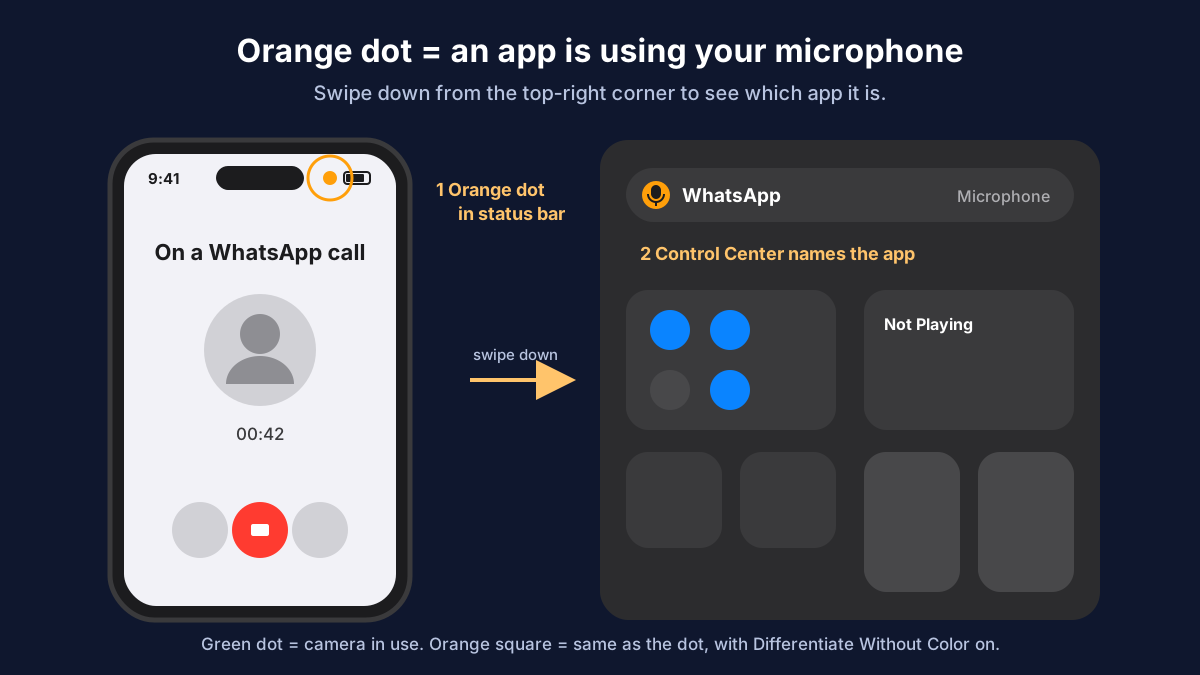
The orange dot in the top-right corner of your screen means an app is using your microphone right now. It's a privacy feature Apple added in iOS 14, and it's not a fault. You'll see it during phone calls, WhatsApp or FaceTime calls, while recording a voice memo, when you dictate a message, or while Siri is listening.
A green dot means something different: an app is using the camera (often with the mic too). Apple explains both on its page about the orange and green indicators.
How to see which app is using the mic
Swipe down from the top-right corner to open Control Center. At the top you'll see the app name next to a small microphone icon, for example "WhatsApp" or "Voice Memos". If the app finished using the mic a moment ago, it says recently.
Orange square instead of a dot?
That's the same indicator. It shows as a square when Settings > Accessibility > Display & Text Size > Differentiate Without Color is turned on. Nothing is wrong.
Can you turn the orange dot off?
No, and honestly that's the point of it. If the dot shows up when you aren't on a call or recording anything, check Control Center to see which app it is. If you don't trust that app with your mic, go to Settings > Privacy & Security > Microphone and turn it off there. The dot will stop appearing for that app.
One more thing worth knowing: if your mic isn't working but the orange dot does appear during a call, the phone thinks it's recording. That points to a blocked mic hole, a Bluetooth device, or a quiet setting rather than a dead app permission.
How to test your iPhone microphone
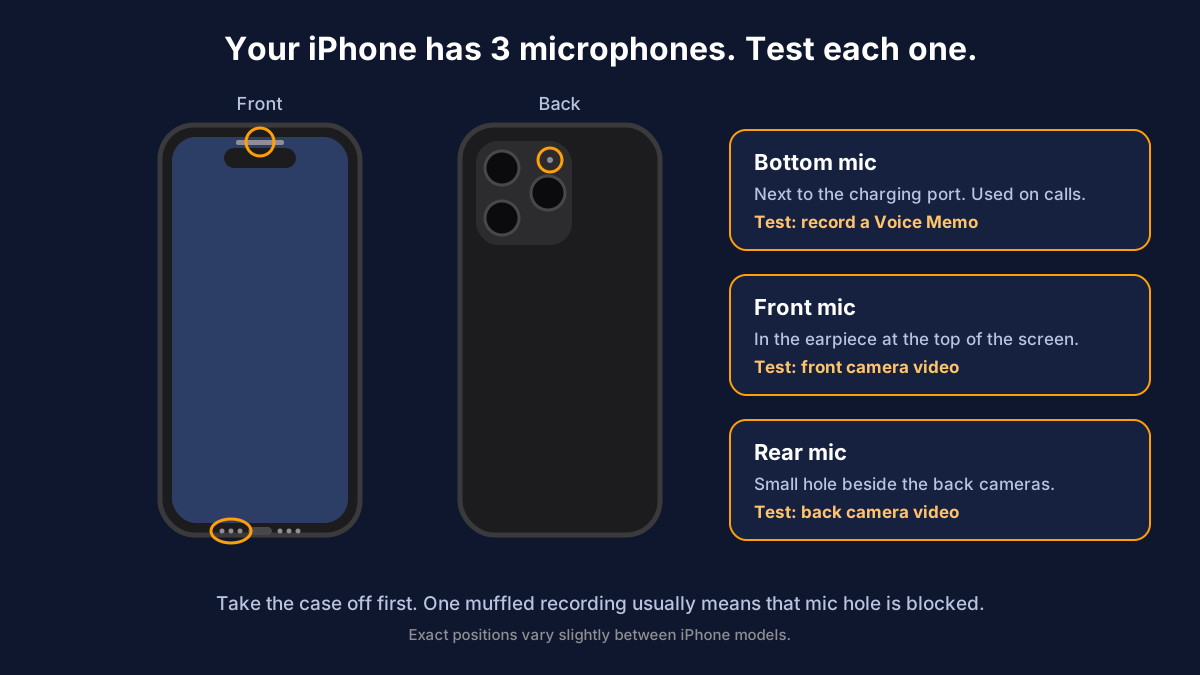
An iPhone has three microphones: one at the bottom next to the charging port, one at the top in the earpiece area, and one on the back near the rear camera. Each app picks the one it needs, so a call can sound fine while your videos are silent. Test all three before you decide anything is broken.
Take off the case first, then:
- Bottom mic: Voice Memos. Open Voice Memos, tap the red record button, and say a sentence at your normal volume, about 20 to 30 cm from the phone. Stop and play it back. This is the mic the other person hears on a normal call.
- Front mic: a selfie video. Open Camera, switch to Video, flip to the front camera and record a few seconds while talking. Play it back with the volume up.
- Rear mic: a normal video. Flip to the back camera and do the same thing.
Listen for silence, a muffled sound like you're under a blanket, or crackling. If one of the three sounds clearly worse than the others, that's the mic to focus on (and it's usually the one with fluff in it).
Quick iPhone mic test in your browser
If you'd rather not fill up Voice Memos, open our free online microphone test in Safari, tap Allow when it asks for the microphone, and speak. You'll see the input level move live, and you can record a short clip and play it back. Nothing gets uploaded; the recording stays on your phone.
If Safari never asks for permission, go to Settings > Apps > Safari > Microphone (on iOS 17 and older it's Settings > Safari > Microphone) and set it to Ask or Allow.
What your test results mean
- All three recordings are clear: the hardware is fine. The problem is in one app, a Bluetooth device, or a call setting. Jump to fixes 2 to 5 below.
- One recording is silent or muffled: clean that mic opening and remove any case or screen protector, then test again.
- All three are silent, even after a restart: this is rare and usually means a software glitch or hardware damage. Work through every fix below before booking a repair.
iPhone microphone not working? Fix it in this order
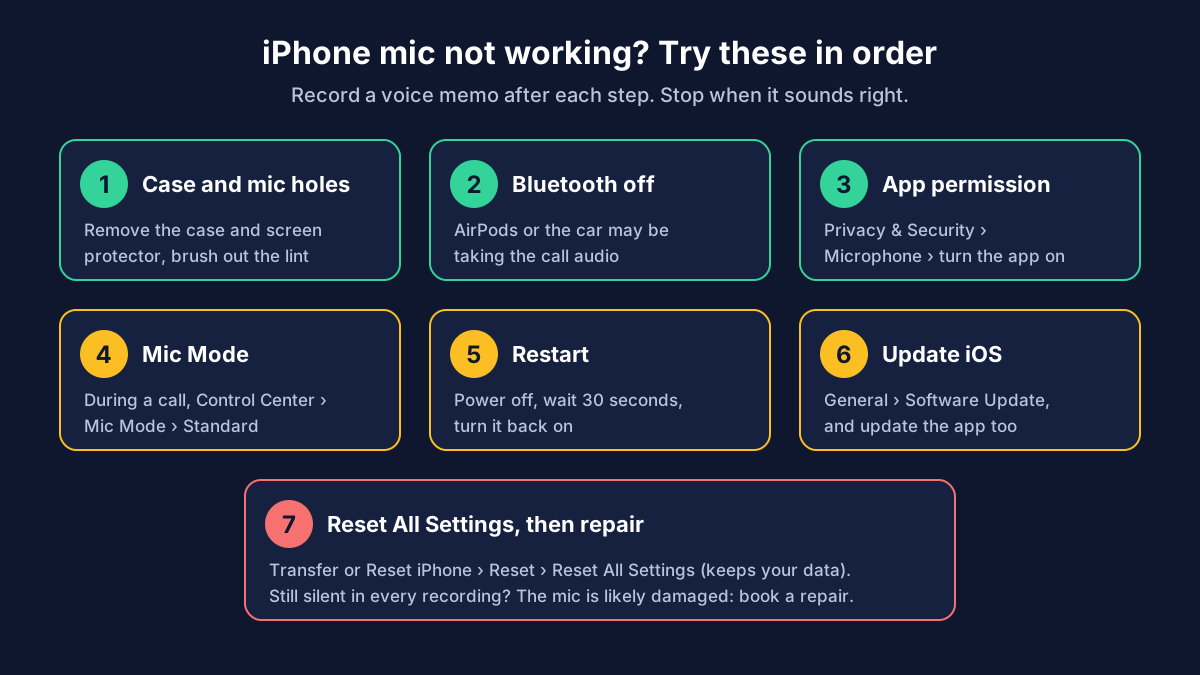
I've put these in order from "takes ten seconds" to "takes a while", which is also roughly the order of how often each one is the cause. Test again after each step.
1. Take the case off and clean the mic holes
This one fixes more "broken" iPhone mics than anything else. Thick or cheap cases sometimes sit slightly over the bottom mic, and a screen protector can cover the earpiece mic. Pocket lint packs into the bottom grille over months without you noticing.
Pull the case off and test again. To clean the openings, use a dry, soft-bristled brush (a clean, soft toothbrush works) and brush gently across the holes. Don't push a pin, toothpick or anything sharp inside, and don't blow compressed air into them. You can damage the mesh. Apple's own article on iPhone microphones not working gives the same advice.
If your phone got wet recently and sounds muffled, give it time to dry fully. Don't use a hairdryer.
2. Disconnect Bluetooth headphones and your car
If AirPods, a Bluetooth speaker or your car is connected, your iPhone may be sending the call audio there, and using that device's mic instead of its own. This catches people out a lot when AirPods are sitting in a pocket, still connected.
Open Control Center and turn Bluetooth off, then test. During a call, tap the Audio (speaker) button to see where the sound is going and pick iPhone.
Also check Settings > Accessibility > Touch > Call Audio Routing. It should be set to Automatic. If it's stuck on Bluetooth Headset, calls will try to use a headset even when it's not there.
3. Give the app permission to use the microphone
If your iPhone mic test works in Voice Memos but not in WhatsApp, Instagram, Zoom or a game, it's almost always permission.
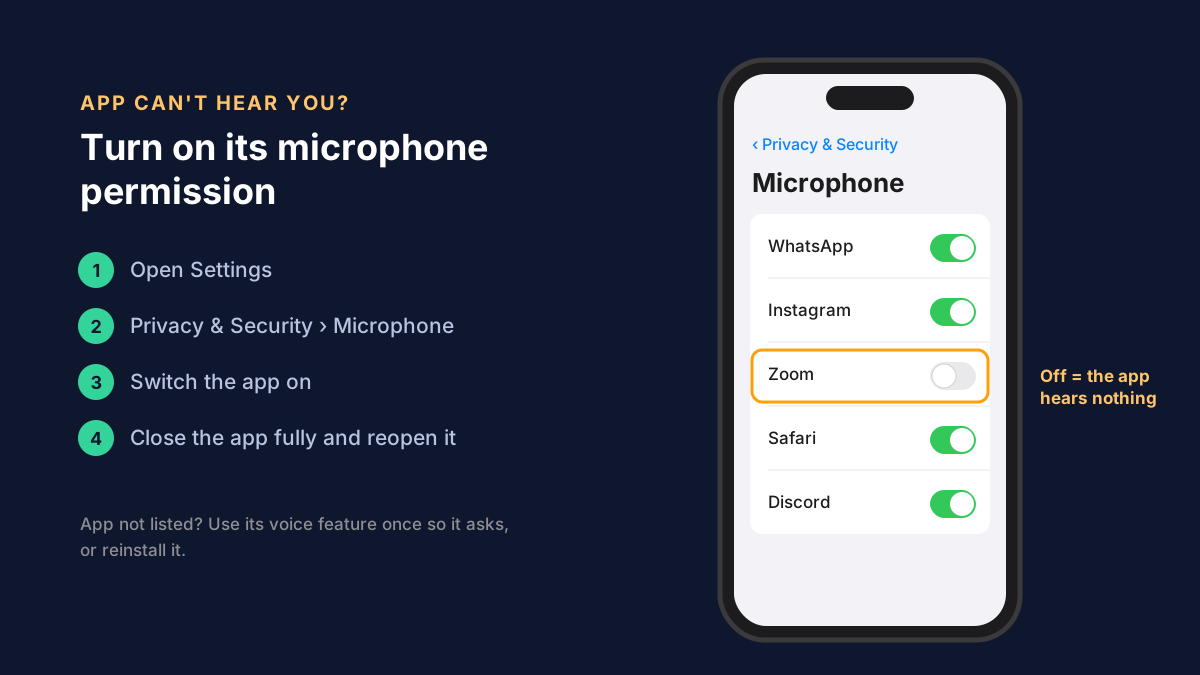
- Open Settings > Privacy & Security > Microphone.
- Find the app and turn the switch on.
- Close the app completely (swipe it away in the app switcher) and open it again.
If the app isn't in the list at all, it has never asked for the mic. Open the app and use its voice feature once, and it should ask. If it still doesn't, reinstall the app.
Kids' phones and work phones are a separate case: go to Settings > Screen Time > Content & Privacy Restrictions, scroll to Microphone and make sure it's set to Allow Changes. Otherwise the permission switches are locked.
4. Check Mic Mode during calls
iPhones have a Mic Mode option during calls: Standard, Voice Isolation and Wide Spectrum. Voice Isolation cuts background noise, which is great in a café, but some people find it makes them sound clipped or cuts quiet speech. Wide Spectrum does the opposite and picks up everything in the room.
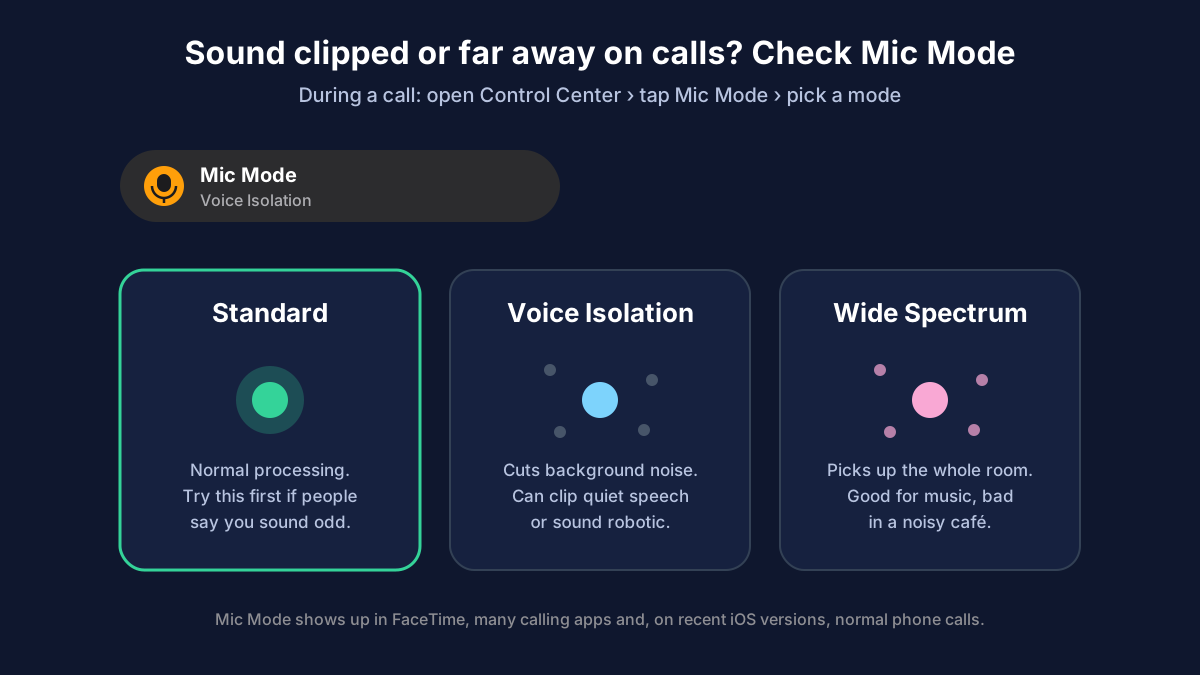
While you're on a call (FaceTime, WhatsApp or, on recent iOS versions, a normal phone call), open Control Center, tap Mic Mode at the top, and try Standard. If people said you sounded robotic or far away, this is often why.
5. Restart your iPhone
Boring, but it clears a stuck audio process more often than you'd think, especially if the mic stopped working suddenly after a call or after using a recording app. Press and hold the side button and either volume button until the slider appears, slide to power off, wait 30 seconds and turn it back on.
6. Update iOS
Go to Settings > General > Software Update and install anything waiting. Audio bugs do get fixed in iOS updates, and some apps stop working properly with the mic until both the app and iOS are current. Update the problem app in the App Store while you're at it.
7. Reset All Settings
If the mic still misbehaves in some apps but your hardware tested fine, reset settings. Go to Settings > General > Transfer or Reset iPhone > Reset > Reset All Settings. This doesn't delete your photos, apps or messages. It resets things like Wi-Fi passwords, privacy permissions, Bluetooth pairings and your wallpaper layout, so you'll need to set those up again.
Be careful to pick Reset All Settings and not Erase All Content and Settings. The second one wipes the phone.
When it's a hardware problem
If all three recordings are silent or badly muffled after a clean, a restart and an update, the mic itself is probably damaged. A drop or water damage is the usual cause. Book a repair with Apple or an authorized service provider. Before you go, back up your iPhone, because a repair can sometimes mean a replacement device.
iPhone mic not working on calls only
When Voice Memos sound fine but the person on the other end can't hear you on normal calls, it's usually one of these:
- You're muted. Sounds obvious, but the mute button on the call screen is easy to tap with your cheek. Check it's not highlighted.
- Bluetooth is connected. See fix 2 above.
- Phone Noise Cancellation on older models. Some iPhones have Settings > Accessibility > Audio & Visual > Phone Noise Cancellation. Try switching it off and on.
- Wi-Fi Calling or a weak signal. Bad reception sounds like a bad mic to the other person. Try the same call somewhere with better signal, or toggle Settings > Phone > Wi-Fi Calling.
- The earpiece mic is blocked. On calls held to your ear, the top mic helps cancel noise. A screen protector or dirt there can make you sound muffled.
iPhone mic not working in one app
If one specific app can't hear you but everything else works, run through this quickly:
- Permission is on in Settings > Privacy & Security > Microphone (fix 3).
- The app has its own mute or "push to talk" setting turned on (common in Discord and games).
- Another app is holding the mic. Close any recording, call or voice chat apps running in the background.
- The app needs an update, or a reinstall if it's been acting up for a while.
If none of that works and the app is fine on another phone, contact the app's developer.
Frequently asked questions
Why is there an orange microphone on my iPhone?
An app is using your microphone. Open Control Center to see which one. It's normal during calls, voice notes, dictation and Siri. If you don't recognize the app, turn off its access in Settings > Privacy & Security > Microphone.
How do I test the microphone on my iPhone?
Record a voice memo and play it back to test the bottom mic, then record a short video with the front camera and another with the back camera to test the other two. Or open the online mic test in Safari for a live input level.
Why is my iPhone microphone not working on calls but working in voice memos?
Usually a Bluetooth device is taking the call audio, the call is muted, or the earpiece mic is covered. Turn off Bluetooth, remove any screen protector and try again.
Why does my iPhone mic sound muffled?
Lint in the mic holes, a case covering them, or water that hasn't dried yet. Brush the openings gently with a soft brush and test again without the case.
How do I check mic input on my iPhone?
The fastest way is a browser mic test that shows a moving level bar as you speak, like ours. On the iPhone itself, the Voice Memos waveform also shows whether sound is coming in while you record.
Does my iPhone have more than one microphone?
Yes. Current iPhones have a bottom mic, a front mic near the earpiece and a rear mic near the camera. Different apps use different ones, which is why it's worth testing all three.
Still stuck?
If your iPhone checks out but a headset, USB mic or computer is the problem, our full guide to fixing a microphone that is not working covers Windows, Mac and Android as well. For a step-by-step look at testing on any device, read how to test your microphone.
Test your microphone now
Record a 10-second clip, play it back and hear exactly how you sound.