
Check your input, then listen to a short recording before your next call.
Open the free microphone testTo test your mic in Teams, open Microsoft Teams, select Settings and more (the ... next to your profile picture), then Settings > Devices. Choose your microphone under Audio devices and speak. If the level bar moves, Teams hears you. Then select Make a test call to record a short message and hear it played back. To test your camera in Teams, pick it in the Camera drop-down on the same page and check the live preview.
If the bar stays still or the preview is black, Teams is not getting a signal. That is usually a permission, device choice or another app holding the device, and the fixes below go through them in order. You can also check your hardware outside Teams first with our free online microphone test and webcam test. If they work there, the problem is in Teams or its permissions, not the device.
Quick answer: how to test mic and camera in Teams
- Open Teams and select Settings and more (...) > Settings > Devices.
- Under Audio devices, pick your Microphone and Speaker, then speak and watch the mic level.
- Select Make a test call, follow the prompt, record a short message and listen to it.
- Under Camera, choose your webcam and check the preview.
- Before a meeting, use the pre-join screen to turn the camera and mic on and check both again.
The test call ends with a summary of your microphone, speaker, camera and network. Teams deletes the recording straight after the call.
Method 1: Test your mic and camera in Teams Device settings
Device settings is the fastest way to test a microphone in Teams without calling anyone. It works the same in the Teams desktop app on Windows and Mac.
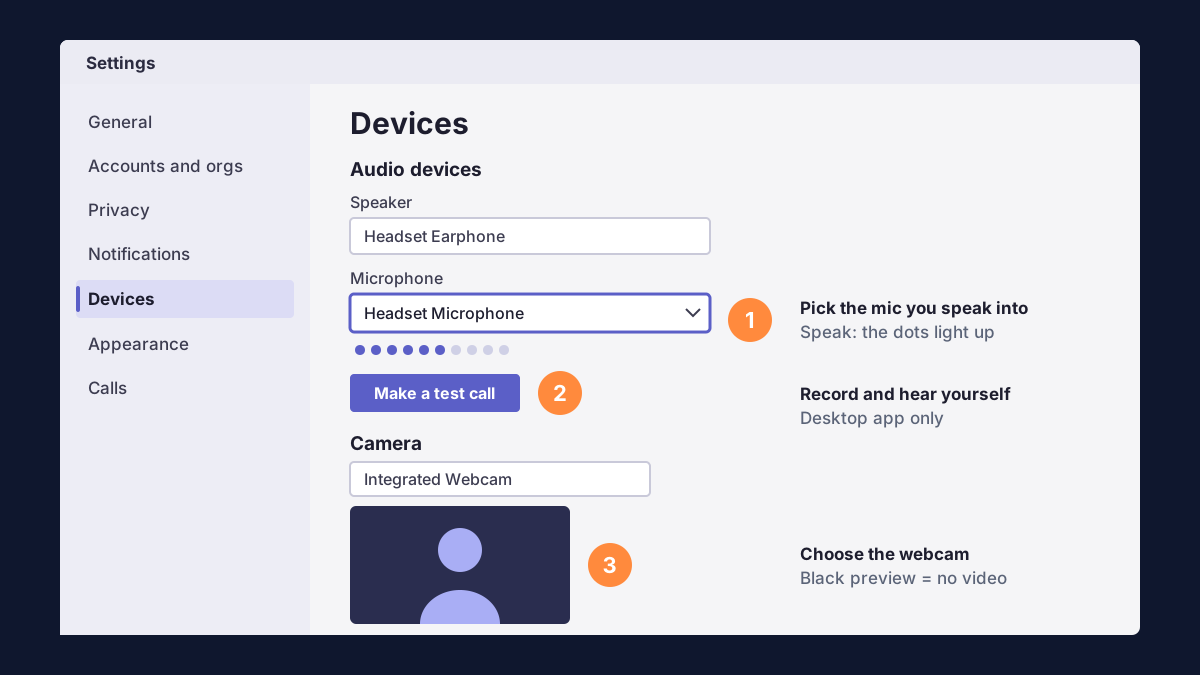
- Connect your devices first. Plug in your headset or USB mic and webcam before you open Teams, so they show up in the lists.
- Open Device settings. Select Settings and more (...) next to your profile picture, then Settings > Devices.
- Check the microphone. Under Audio devices, open Microphone and choose the mic you speak into. Speak normally. The level indicator should light up as you talk.
- Check the speaker. Choose your headphones or speakers under Speaker. If you use a headset, set both to the headset.
- Check the camera. Scroll to Camera, choose your webcam and look at the preview. If you have more than one camera, try each one.
If the mic level never moves, Teams is not receiving sound from that device. Go to the fixes for a microphone not working in Teams.
Method 2: Make a test call in Teams
A test call is the best way of testing Teams audio, because you hear yourself the way other people in the call will.
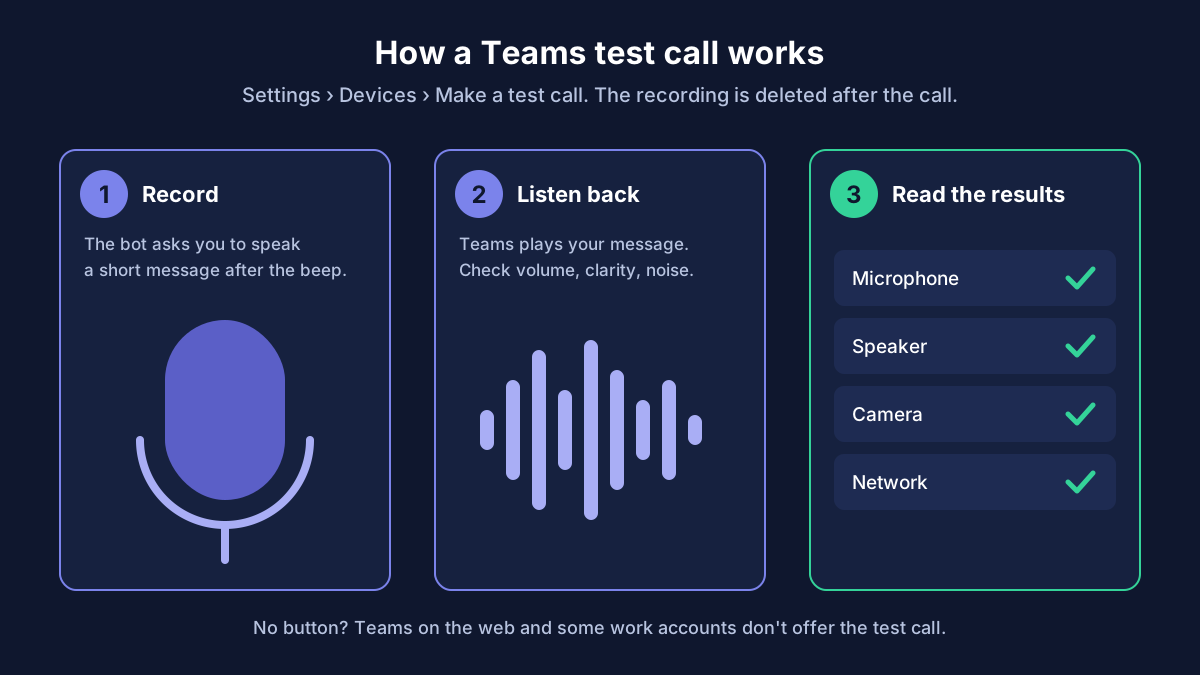
- Go to Settings and more (...) > Settings > Devices.
- Under Audio devices, select Make a test call.
- The test call bot asks you to record a short message. Speak after the beep, for example "Testing my mic in Teams at my normal volume."
- Teams plays the message back. Listen for volume, clarity and background noise.
- Read the summary at the end. It shows whether your microphone, speaker and camera worked, and the quality of your network connection.
Microsoft's Make a test call page describes the same steps. The test call works in the Teams desktop app for Windows and Mac. On Teams on the web, or if your organization has turned it off, the button does not appear. In that case use the pre-join screen below or record a clip in the online mic test.
Method 3: Check your camera and mic before a Teams meeting
The pre-join screen is your last chance to test camera in Teams before anyone sees you. You can also use it to test any time: go to Calendar, select Meet now and start a meeting with only yourself in it.
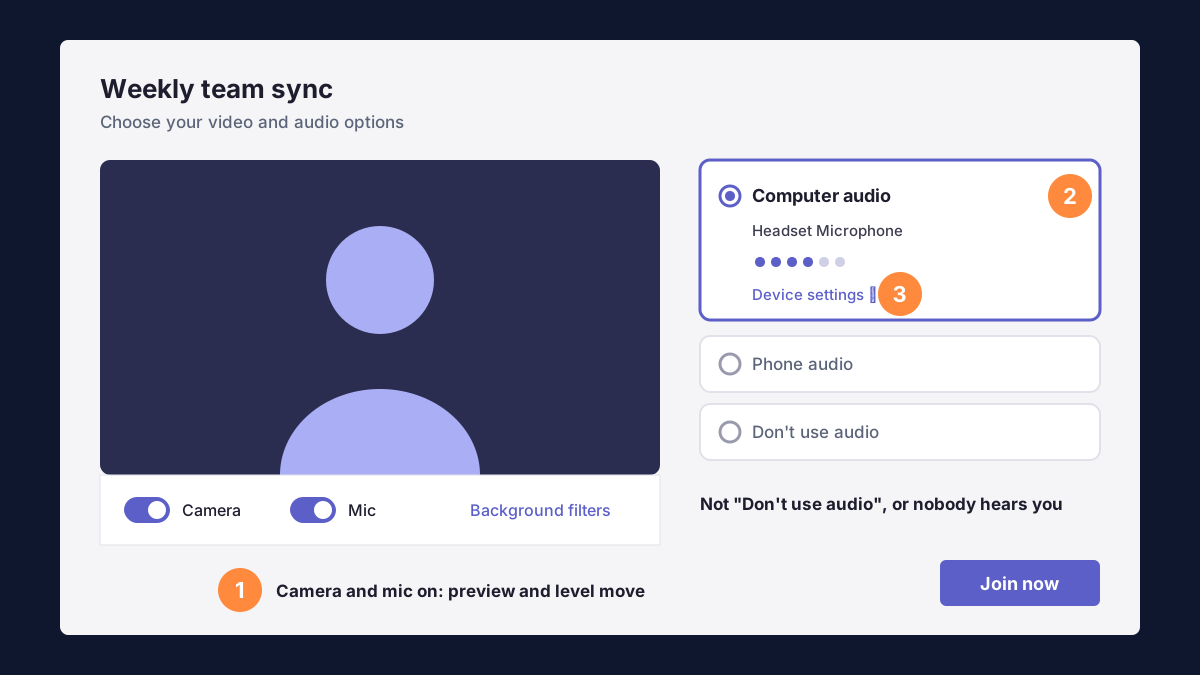
- Open the meeting and select Join.
- Turn on the camera toggle. Your video preview should appear.
- Turn on the microphone toggle and select Computer audio. Do not choose Don't use audio, or nobody will hear you.
- Open the device settings (the gear or audio settings link) to change the mic, speaker or camera. Speak and check that the mic level moves.
- Select Join now.
Already in a meeting? Select the small arrow next to the Mic or Camera button in the meeting controls, or go to More (...) > Settings > Device settings, and switch devices without leaving the call.
Microphone not working in Teams? Fix it in this order
If the level bar does not move, the test call plays back silence, or people in the meeting cannot hear you, work through these fixes in order and test again after each one.
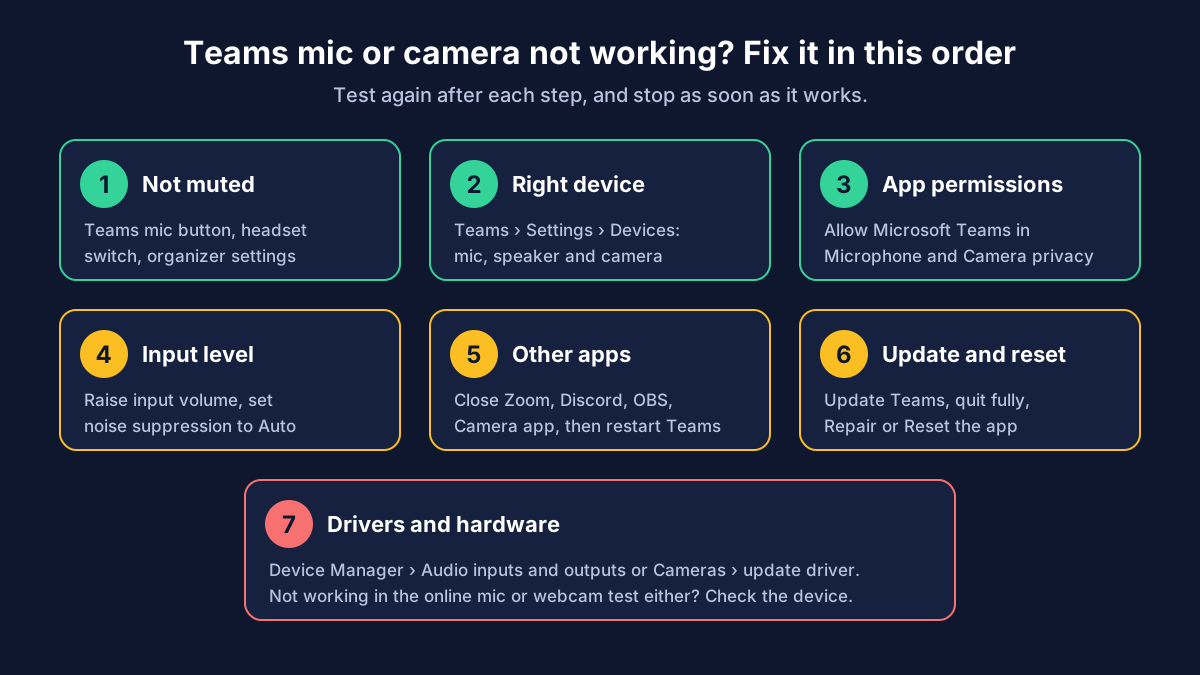
1. Check that you are not muted
- In Teams: the Mic button in the meeting controls should not have a line through it. Press Ctrl + Shift + M on Windows or Cmd + Shift + M on Mac to toggle mute.
- On the hardware: headsets, USB mics and some keyboards have their own mute switch or key. Teams may warn that your microphone is muted on your device or by system settings.
- By the organizer: in some meetings the organizer turns off mics for attendees. The Mic button is then greyed out, and you can raise your hand to ask to speak.
2. Choose the right microphone in Teams
Teams can ignore your computer's default device. Go to Settings > Devices and select the same mic you are speaking into. Laptops, webcams, docks and virtual audio apps all add extra entries, so pick the one with your headset or mic's name. If you see Custom setup, Teams is using a mix of devices; choose your headset for both Speaker and Microphone.
3. Allow Teams to use the microphone and camera
This is the most common reason the Teams mic or camera works in other apps but not in Teams.
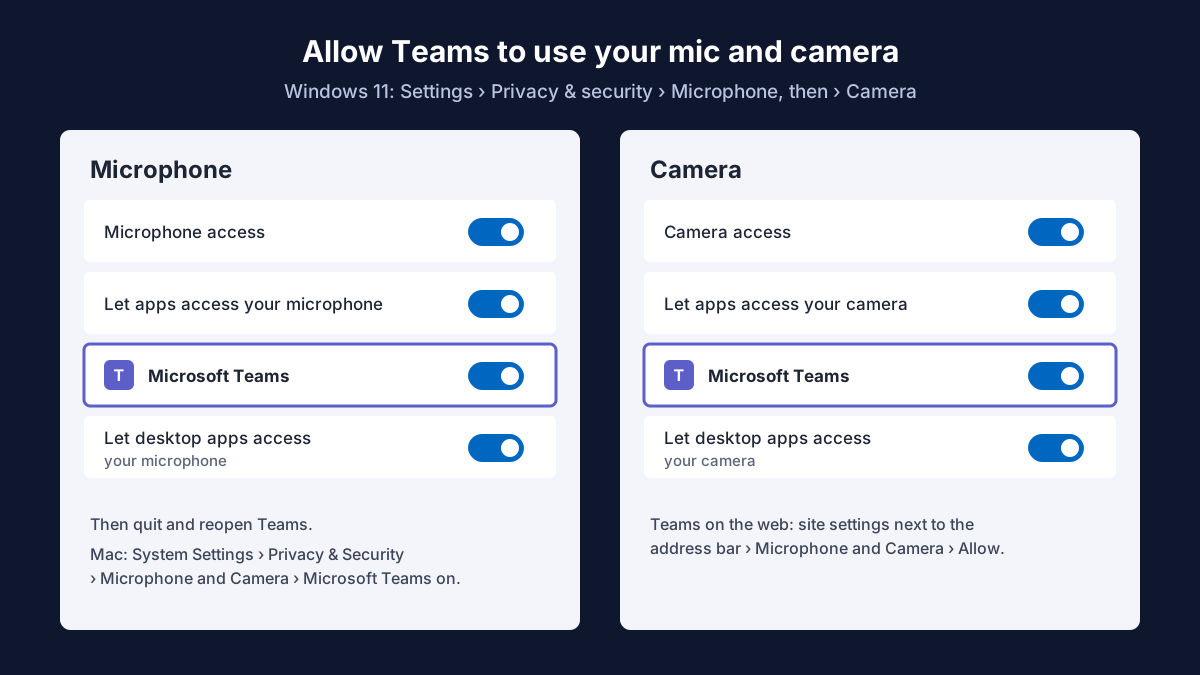
- Windows 11: go to Settings > Privacy & security > Microphone. Turn on Microphone access and Let apps access your microphone, make sure Microsoft Teams is on in the list, and turn on Let desktop apps access your microphone. Repeat under Privacy & security > Camera.
- Windows 10: go to Settings > Privacy > Microphone and Settings > Privacy > Camera and turn on the same settings.
- Mac: open System Settings > Privacy & Security > Microphone and turn on Microsoft Teams, then do the same under Camera. Quit Teams completely and open it again.
- Teams in a browser: select the site settings icon next to the address bar on teams.microsoft.com and set Microphone and Camera to Allow, then reload. Teams works best in Microsoft Edge or Google Chrome.
Quit and reopen Teams after changing permissions. On a work or school computer, your IT admin may control some of these settings.
4. Raise the input level in Windows or macOS
If people say you sound far away, the problem is volume, not Teams. On Windows, go to Settings > System > Sound, select your mic and raise the Input volume. On a Mac, go to System Settings > Sound > Input and raise the Input volume. Our guides on how to test a mic on Windows 11 and Windows 10 cover levels, Microphone Boost and exclusive mode step by step.
If your voice cuts in and out, open Settings > Devices in Teams and set Noise suppression to Auto or Low. A high setting can mistake quiet speech for noise.
5. Close other apps that use the mic or camera
A webcam can usually be used by only one app at a time. Close Zoom, Skype, Discord, OBS, the Windows Camera app and any browser tabs on video sites, then restart Teams. On Windows, the camera icon in the system tray shows which app is using it.
6. Update Teams, restart it and reset its cache
- Select Settings and more (...) and check for updates, or see Settings > About Teams for your version.
- Quit Teams fully. On Windows, right-click the Teams icon in the system tray and choose Quit. On a Mac, press Cmd + Q.
- If the problem stays, reset the app on Windows 11: go to Settings > Apps > Installed apps, find Microsoft Teams, select ... > Advanced options and choose Repair, then Reset if needed. Reset clears the Teams cache and signs you out.
7. Update the microphone and camera drivers
Right-click Start, open Device Manager, and expand Audio inputs and outputs for the mic or Cameras for the webcam. Right-click the device and choose Update driver. If that does not help, choose Uninstall device and restart the PC. For a USB headset or webcam, also try another USB port, plugged directly into the computer.
Microsoft Teams camera not working? Camera-only fixes
If your mic works but the camera is black, frozen or missing in Teams, check these first. Microsoft's My camera isn't working in Microsoft Teams page lists the same checks.
- Privacy shutter or camera key: many laptops have a sliding cover over the camera or a camera on/off key in the top row of the keyboard. Open the shutter or press the key.
- Wrong camera selected: in Settings > Devices > Camera, pick the right webcam. A laptop with an external webcam, or an app such as OBS, adds extra cameras to the list.
- Camera works elsewhere? Open the webcam test or the Windows Camera app. If you see video there, the camera is fine and Teams permissions or settings are the cause.
- Black or dark preview: turn off background effects in the pre-join screen and try again, and check your room lighting.
- Camera disabled in Windows: in Device Manager > Cameras, right-click the webcam and choose Enable device if it shows a down arrow.
- Video turned off by the organizer: in some meetings attendees cannot share video. The Camera button is greyed out.
Teams mic and camera on iPhone, iPad and Android
- iPhone and iPad: open Settings > Teams and turn on Microphone and Camera. Then close Teams fully and open it again.
- Android: open Settings > Apps > Teams > Permissions and allow Microphone and Camera.
- Bluetooth headset on a phone: in a Teams meeting, tap the speaker icon and choose your headset as the audio device.
For phones and other devices outside Teams, our full guide to fixing a microphone that is not working covers more causes. For plugs, adapters and Bluetooth pairing, see how to connect and set up a microphone.
Frequently asked questions
How do I test my mic in Teams without calling anyone?
Open Settings and more (...) > Settings > Devices, choose your mic and speak. If the level indicator moves, Teams hears you. Then select Make a test call: it calls a bot, not a person, and plays your message back.
How do I test my camera in Teams before a meeting?
Open Settings > Devices and check the preview under Camera, or start a meeting alone with Calendar > Meet now and turn on the camera on the pre-join screen.
Why is my microphone not working in Teams but working in other apps?
Usually Teams has a different mic selected, Microsoft Teams is turned off in your privacy settings, or another app has exclusive control of the device. Check Settings > Devices in Teams first, then the app permissions.
Why does Teams say my camera is not available?
Another app may be using the camera, the privacy shutter may be closed, or camera access for Teams may be off. Close other video apps, open the shutter and check the camera permission, then restart Teams.
Why can't I find Make a test call in Teams?
The button is only in the Teams desktop app, and some organizations turn it off. Use the pre-join screen or our online mic test instead.
Can I test my mic and camera for Teams online?
Yes. The online microphone test and webcam test run in your browser and nothing is uploaded. If they work but Teams does not, the problem is in Teams settings or permissions. For a full walkthrough, read how to test your microphone.
Test your microphone now
Record a 10-second clip, play it back and hear exactly how you sound.