
Check your input, then listen to a short recording before your next call.
Open the free microphone testTo test your mic on Windows 11, open Settings > System > Sound, select your microphone under Input, and choose Start test. Speak for a few seconds, then select Stop test. Windows shows the result as a percentage of total volume. If the number stays at 0%, Windows is not receiving sound from that microphone.
That built-in check tells you whether the signal arrives, but not how you sound. To hear yourself, record a short clip in our free online microphone test or turn on Listen to this device. This guide covers all three methods, explains how to change microphone sensitivity in Windows 11, and fixes common problems such as low volume on AirPods 4.
Quick answer: the fastest Windows 11 mic test
- Press Windows + I to open Settings.
- Go to System > Sound.
- Under Input, select the microphone you want to test.
- In the microphone's properties, find Test your microphone and choose Start test.
- Talk at your normal volume, then choose Stop test and read the result.
A result between about 50% and 90% during normal speech is a healthy range for most calls. Very low numbers mean you should raise the input volume; results that hit the top constantly may sound distorted.
Method 1: Test your microphone in Windows 11 Settings
The Settings test is the official microphone test in Windows 11. It works for built-in laptop mics, USB microphones, webcam mics, and wired or Bluetooth headsets.
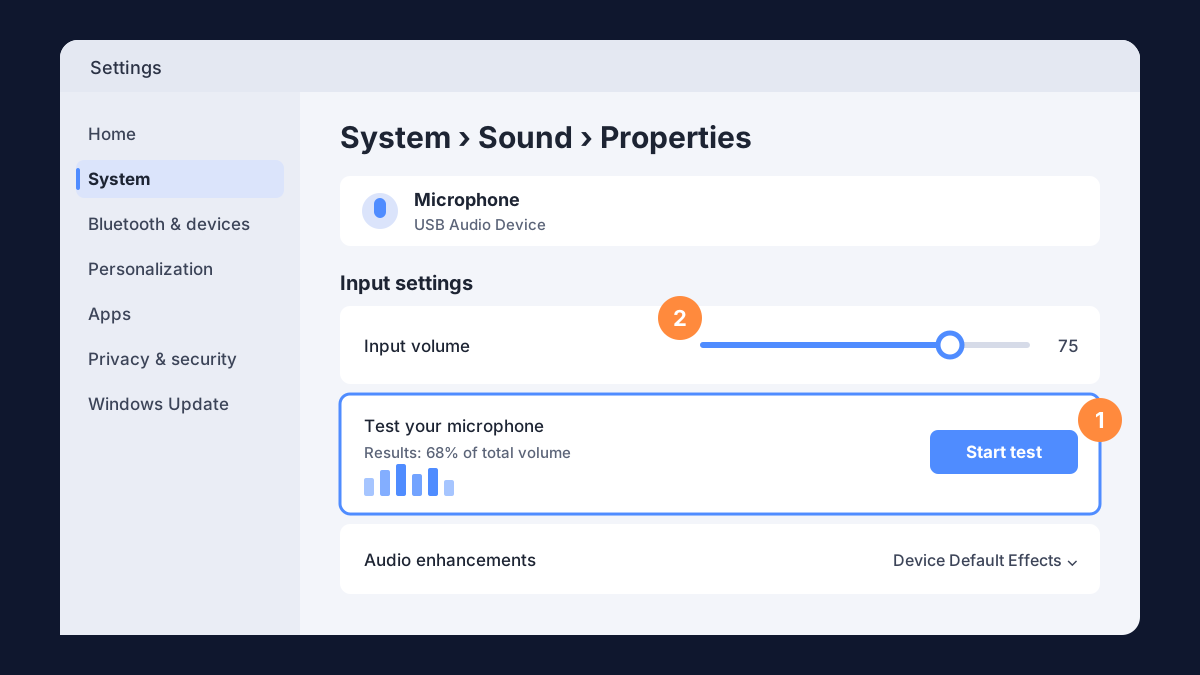
- Connect the microphone first. Plug in a USB or headset mic, or connect a Bluetooth headset, and switch off any hardware mute button.
- Open Sound settings. Right-click the speaker icon on the taskbar and choose Sound settings, or go to Start > Settings > System > Sound.
- Choose your input. Under Input, pick the device listed as your microphone. If several are listed, choose the one you are speaking into, not a webcam or virtual device you are not using.
- Open its properties. Select the arrow next to the device to open its input settings.
- Run the test. Under Test your microphone, choose Start test, speak a full sentence, and choose Stop test.
- Read the result. Windows reports something like "68% of total volume". Adjust Input volume and run the test again if needed.
Microsoft's microphone setup and testing instructions describe this same test. Menu names can vary slightly with your Windows 11 version and audio driver.
Tip: the percentage only measures loudness. It does not tell you about echo, background noise or a muffled voice. For that, you need to hear a recording.
Method 2: Hear yourself with "Listen to this device"
Where is Listen to this device in Windows 11? It is not on the main Settings page. It lives in the classic Sound control panel, under your microphone's Listen tab.
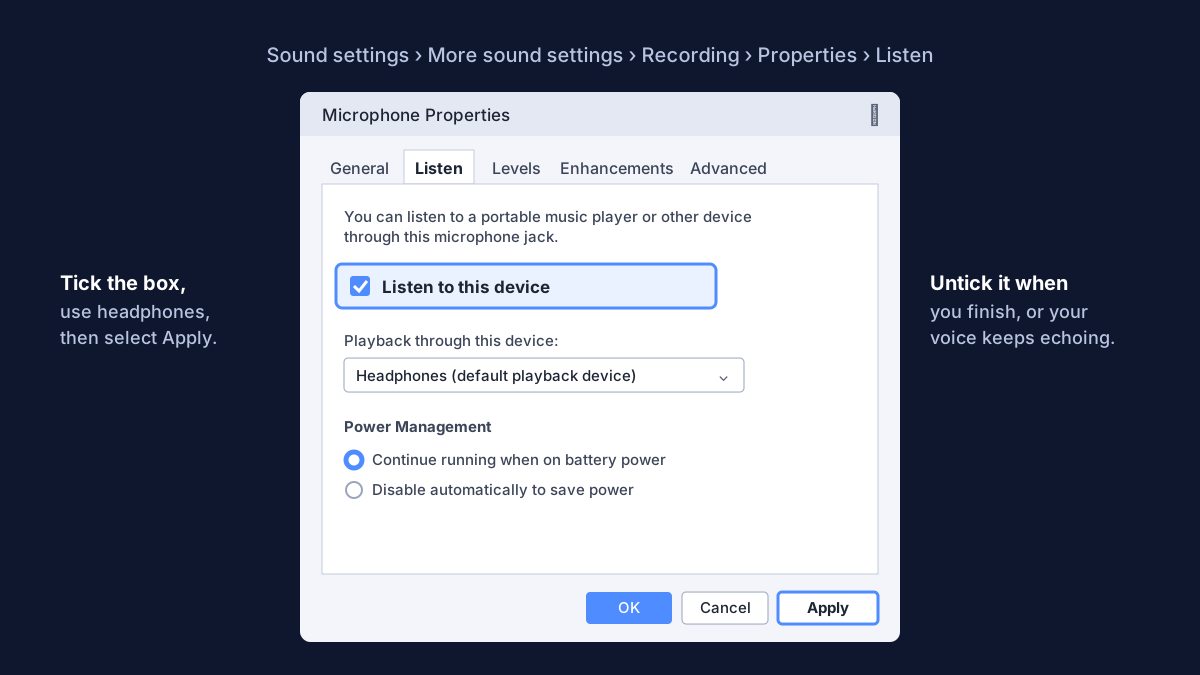
- Open Settings > System > Sound.
- Scroll to Advanced and choose More sound settings. (Shortcut: press Windows + R, type
mmsys.cpl, and press Enter.) - Open the Recording tab, right-click your microphone and choose Properties.
- Open the Listen tab and tick Listen to this device.
- Under Playback through this device, choose your headphones, then select Apply.
- Speak. You will hear your voice live through the playback device.
Use headphones for this test. With speakers, the microphone picks up its own output and creates loud feedback. When you finish, untick Listen to this device and select Apply again, or your voice will keep playing back during calls and games.
Method 3: Record and play back a test clip
Live monitoring is useful, but a recording is the most honest mic test: you hear exactly what other people hear, including pauses and background noise.
- Online: open the microphone tester, select your Windows input, allow access, record 10 to 15 seconds and play it back. Nothing to install.
- Sound Recorder app: search the Start menu for Sound Recorder, choose your microphone in the device menu, record, then play the clip.
Say the same sentence each time you change a setting, such as "Testing my microphone on Windows 11 at my normal speaking volume." A repeatable sentence makes small differences easy to hear. If you also need to check your headphones or speakers, use the speaker test.
How to change microphone sensitivity in Windows 11
Windows 11 has no setting called "sensitivity". Two controls do that job: Input volume in Settings and Microphone Boost in the classic control panel.
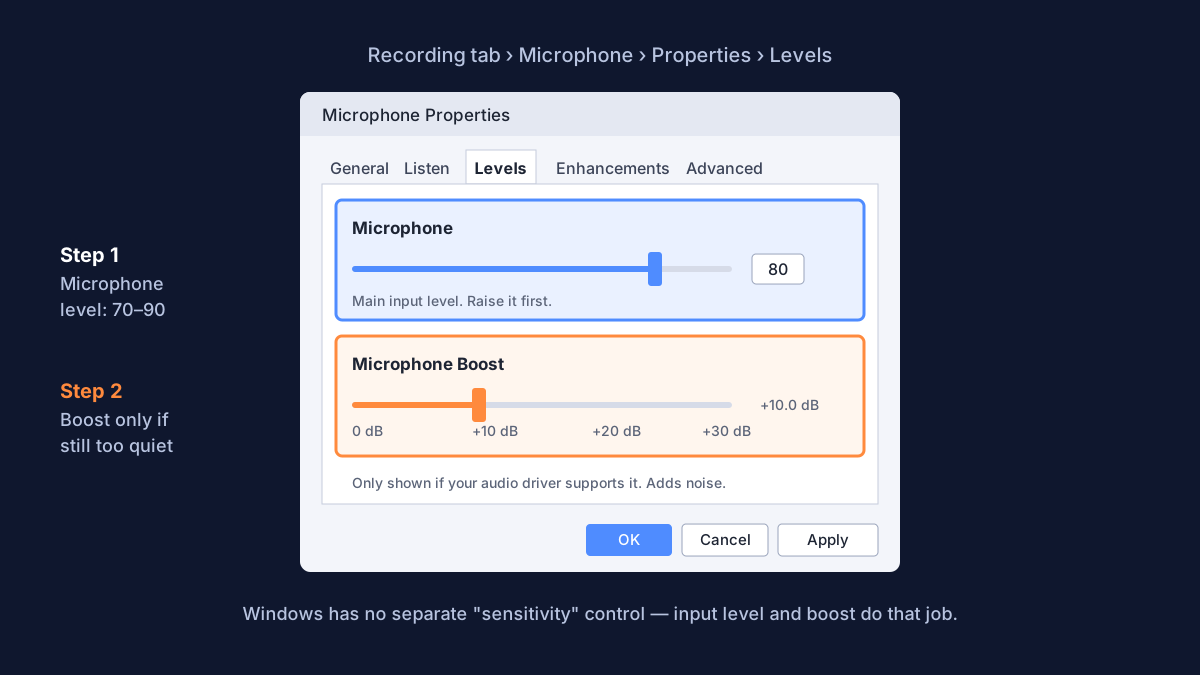
Step 1: Raise the input volume
Go to Settings > System > Sound, open your microphone, and move Input volume up. Start around 75, run Start test, and adjust in steps of 5 to 10. The same slider appears as Microphone on the Levels tab of the classic Properties window.
Step 2: Use Microphone Boost only if needed
- Open More sound settings > Recording.
- Right-click the microphone and choose Properties.
- Open Levels and raise Microphone Boost one step at a time (+10 dB is usually enough).
Boost amplifies everything, including fan noise, keyboard clicks and hiss. Not every driver offers it; if you do not see the slider, your device does not support it. A better long-term fix for a quiet mic is to move it closer: halving the distance to your mouth makes your voice noticeably louder without adding noise.
Step 3: Check audio enhancements
In the microphone's Settings page, Audio enhancements can apply noise suppression or other processing. If your voice sounds robotic, cut off or pumping, try turning enhancements off and test again. Many call apps, such as Teams, Zoom and Discord, also have their own noise suppression and automatic gain; adjust those in the app's audio settings.
Allow microphone access in Windows 11 privacy settings
If the Settings test moves but a browser or app hears nothing, Windows privacy settings are often the reason.
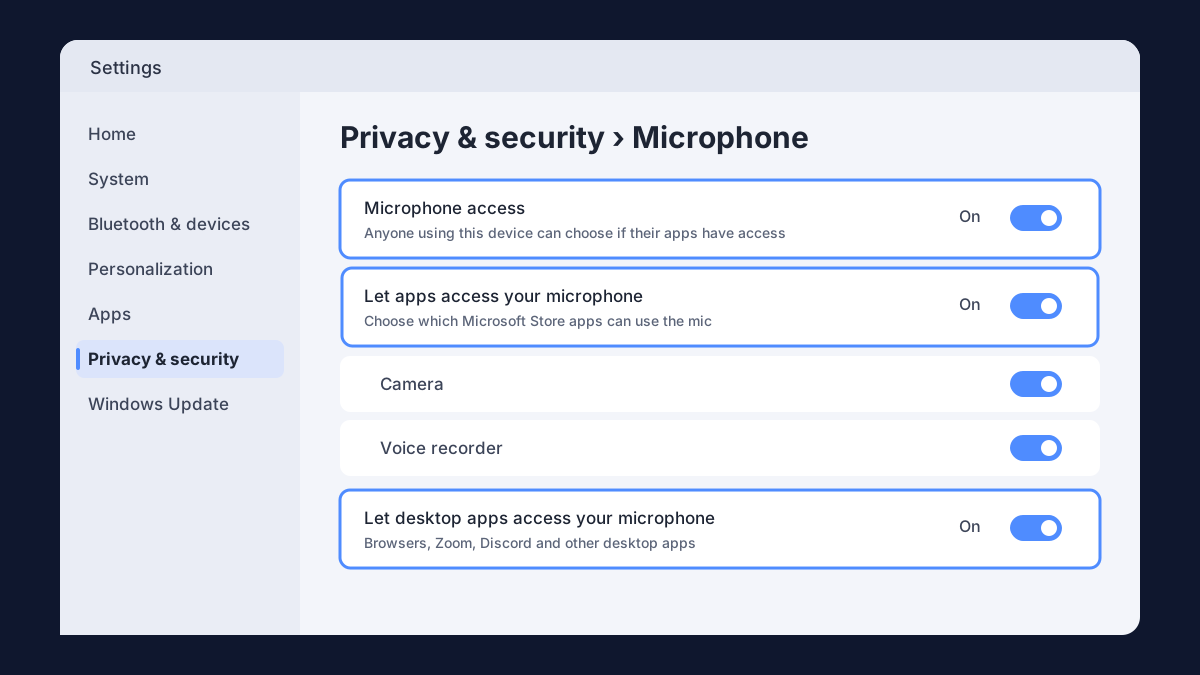
- Go to Start > Settings > Privacy & security > Microphone.
- Turn on Microphone access.
- Turn on Let apps access your microphone and check the app in the list.
- Turn on Let desktop apps access your microphone. Chrome, Edge, Firefox, Zoom and Discord all count as desktop apps.
Then reload the website or restart the app. On a work or school laptop, an administrator may control these switches. Microsoft's Fix microphone problems page covers the same privacy steps and the built-in input troubleshooter.
Low volume with AirPods 4 on Windows 11
AirPods 4 connect to Windows 11 as a standard Bluetooth headset. When any app opens the microphone, Windows switches them from stereo mode to hands-free mode. That switch is normal Bluetooth behavior, and it is the main reason AirPods sound quieter and flatter during calls.
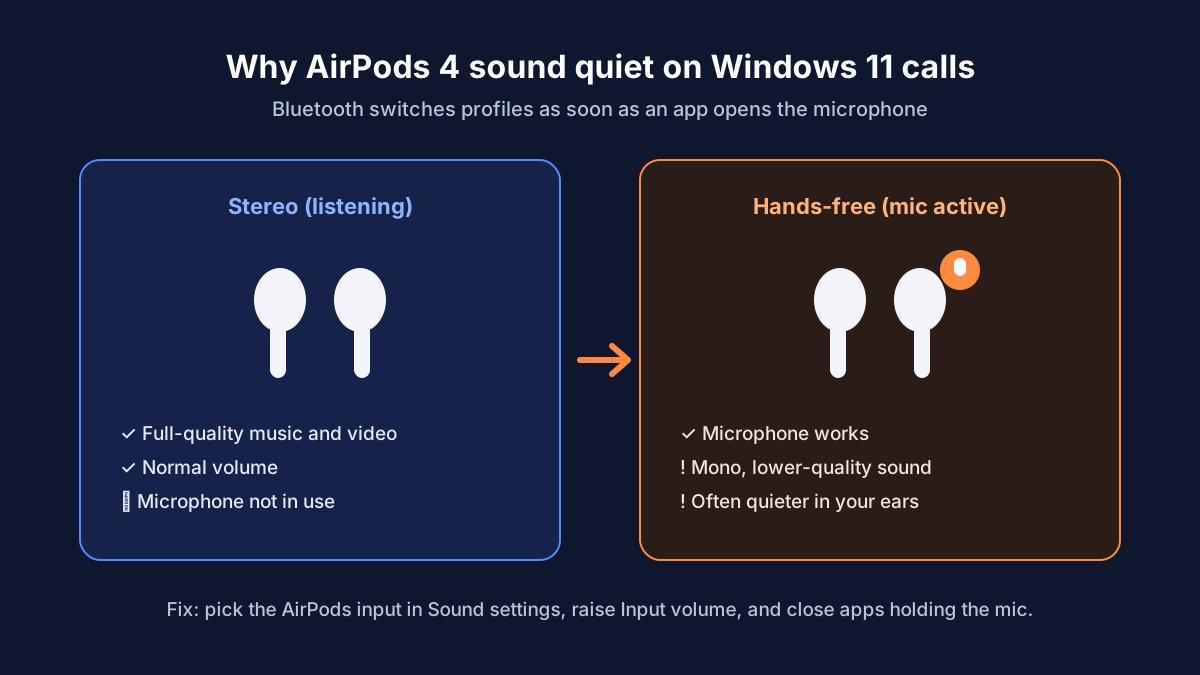
Try these fixes in order:
- Select the right input. In Settings > System > Sound > Input, choose the AirPods 4 entry and run Start test. If your PC lists a separate hands-free entry, that is the one that carries the microphone.
- Raise the input volume of that AirPods input to 90 or 100, then test again. AirPods do not offer Microphone Boost on Windows.
- Check the output volume too. If other people hear you but you hear them quietly, raise the volume in the call app and in the Windows volume mixer while the call is running, because the hands-free output has its own level.
- Close apps that hold the microphone. A chat app or browser tab left in a call keeps AirPods in hands-free mode. Close it to return to normal stereo volume.
- Re-pair the AirPods. Remove them under Settings > Bluetooth & devices, put them back in the case, open the lid, and pair them again.
- Update Bluetooth drivers. Use Windows Update > Advanced options > Optional updates or your PC maker's support site.
If your voice is still faint after these steps, a USB microphone or wired headset usually sounds clearer on Windows than any Bluetooth earbuds.
Windows 11 mic test not working? Quick fixes
- Test stays at 0%: the wrong input is selected or the mic is muted. Select the correct input, check mute switches and reconnect the device.
- Mic missing from the Input list: a driver or connection problem. Try another USB port, restart, or reinstall the driver in Device Manager.
- Settings test works, browser is silent: a privacy or site permission block. Turn on desktop app access and allow the site in your browser.
- Voice very quiet: low input volume or too much distance. Raise Input volume, then Boost, and move the mic closer.
- Echo or feedback: Listen to this device is still on, or you are using speakers. Untick Listen to this device and use headphones.
- Crackling or robotic voice: audio enhancements, a weak Bluetooth link or USB power. Turn off enhancements, move closer to the PC, or change port.
You can also run the built-in troubleshooter: in Settings > System > Sound, scroll to Advanced and choose Input devices under Troubleshoot common sound problems. For a full step-by-step fix list, read our guide on what to do when your microphone is not working.
Frequently asked questions
How do I test my microphone on Windows 11 without an app?
Use Settings > System > Sound, select the input and choose Start test. To hear yourself without installing anything, record a clip in the online mic test in your browser.
Why does the Windows 11 microphone test show 0%?
Windows is not receiving sound from the selected device. Check that the right input is selected, the hardware mute is off, the cable or Bluetooth connection is working and the device appears in Device Manager.
Is there a microphone sensitivity setting in Windows 11?
Not under that name. Use Input volume in Settings and, if your driver supports it, Microphone Boost on the Levels tab of the classic Sound control panel.
How do I stop hearing myself in Windows 11?
Open More sound settings > Recording, open your microphone's Properties, go to the Listen tab, untick Listen to this device and select Apply.
Does the online mic test work on Windows 11?
Yes. It runs in Edge, Chrome or Firefox. Allow microphone access when the browser asks, and make sure Let desktop apps access your microphone is on in Windows privacy settings. Still on Windows 10? Follow the Windows 10 microphone test guide. For other operating systems, see the general microphone testing guide.
Test your microphone now
Record a 10-second clip, play it back and hear exactly how you sound.