
Check your input, then listen to a short recording before your next call.
Open the free microphone testTo test your microphone on Windows 10, open Start > Settings > System > Sound. Under Input, choose your microphone in Choose your input device, then speak. If the blue Test your microphone bar moves with your voice, Windows 10 is receiving sound from that mic. If the bar stays empty, Windows is not hearing it, and the fixes later in this guide will help.
The moving bar shows the signal arrives, but not how you sound. To hear yourself, record a short clip in our free online microphone test or use Listen to this device. This guide covers three ways to test a microphone in Windows 10, then walks through what to do when the microphone is not working on Windows 10, in the order most likely to fix it.
Quick answer: how to test a microphone on Windows 10
- Press Windows + I to open Settings.
- Select System, then Sound.
- Under Input, pick your mic in Choose your input device.
- Speak at your normal volume and watch the Test your microphone bar.
- For a recording test, open the online mic test, record 10 seconds and play it back.
A bar that rises to about the middle or higher during normal speech is a good sign. A bar that barely moves means the input level is too low or the mic is too far away.
Method 1: Test your microphone in Windows 10 Settings
The Sound page in Settings is the quickest Windows 10 microphone test. It works for laptop mics, USB microphones, webcam mics and wired or Bluetooth headsets.
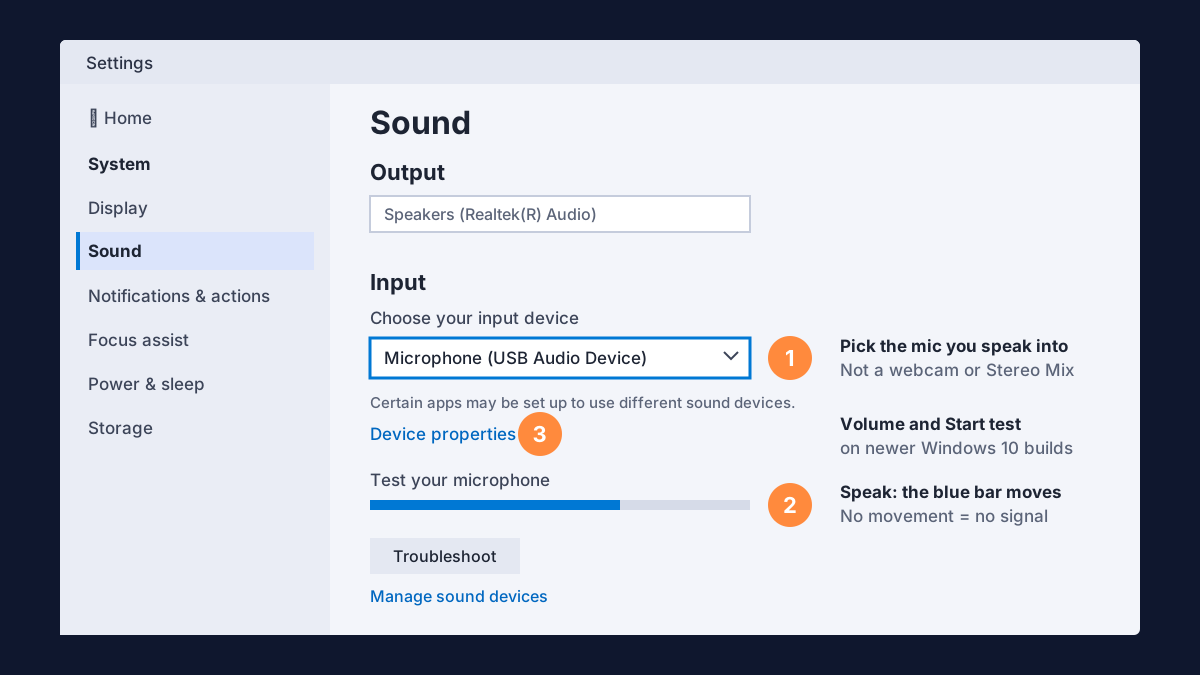
- Connect the microphone first. Plug in a USB or headset mic, or pair a Bluetooth headset, and turn off any mute switch on the cable or headset.
- Open Sound settings. Right-click the speaker icon on the taskbar and choose Open Sound settings, or go to Start > Settings > System > Sound.
- Choose your input device. Under Input, open the drop-down and select the microphone you are speaking into. Avoid entries such as Stereo Mix, which records your computer's own sound, not your voice.
- Speak and watch the bar. The Test your microphone bar should rise and fall as you talk.
- Adjust the volume. Select Device properties to change the input Volume. On recent versions of Windows 10 this page also has a Start test button that reports a percentage.
Microsoft's microphone setup and testing instructions describe the same steps. Exact labels can vary slightly with your Windows 10 version and audio driver.
Method 2: Check the level meter in the Sound control panel
The classic Sound control panel is still the most complete place for microphone settings in Windows 10. It shows a live meter for every input at once, which makes it easy to spot which device is actually picking up your voice.
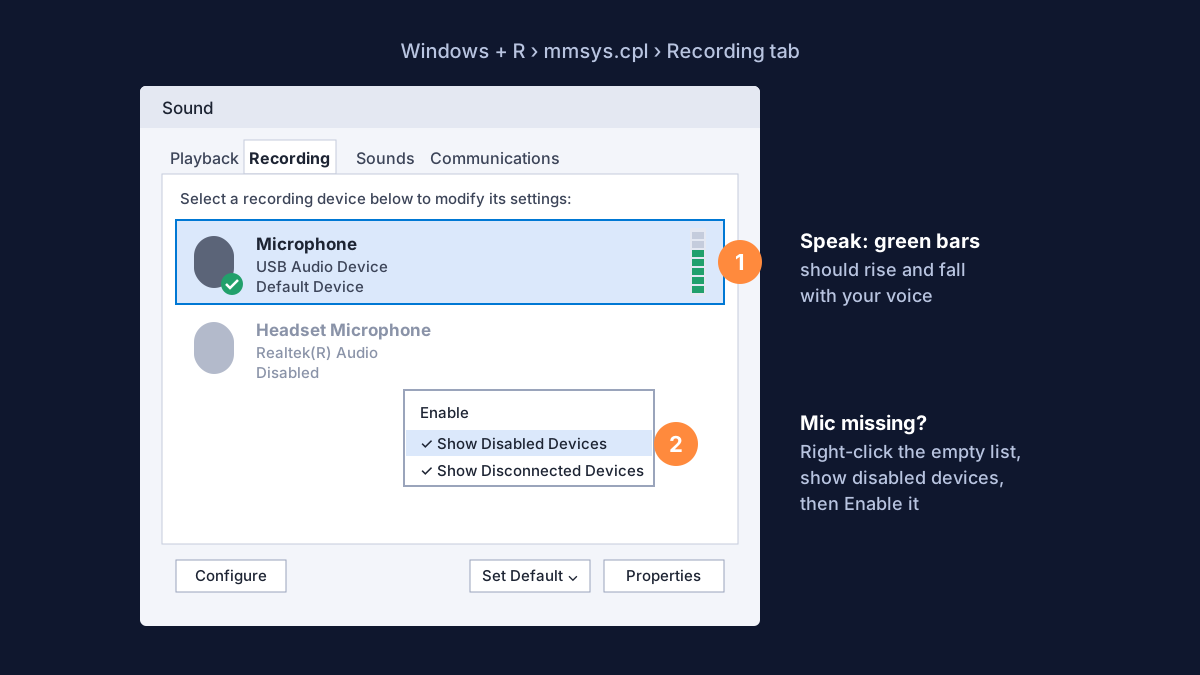
- Press Windows + R, type
mmsys.cpland press Enter. (Or open Sound settings and choose Sound Control Panel on the right.) - Open the Recording tab.
- Speak. The green bars next to the microphone you are using should rise and fall.
- If the wrong device has the green check mark, select your mic and choose Set Default.
Hear yourself with "Listen to this device"
To hear your microphone live through headphones, select it on the Recording tab, choose Properties, open the Listen tab and tick Listen to this device. Choose your headphones under Playback through this device, then select Apply.
Always use headphones for this. With speakers, the mic picks up its own output and you get loud feedback. When you finish, untick the box and select Apply again, or you will keep hearing yourself in calls and games.
Method 3: Record and play back a test clip
A recording is the most honest microphone test, because you hear exactly what other people hear: your voice, the pauses and the background noise.
- Online: open the microphone tester in Edge, Chrome or Firefox, choose your Windows 10 input, allow access, record 10 to 15 seconds and play it back. Nothing is uploaded.
- Voice Recorder app: search the Start menu for Voice Recorder, select the record button, speak, stop and play the clip.
Read the same sentence each time you change a setting, for example "Testing my microphone on Windows 10 at my normal volume." That makes small differences easy to hear. If you also want to check your headphones or speakers, run the speaker test. Before a video call, the webcam and mic test checks both devices together.
Microphone not working on Windows 10? Fix it in this order
If the bar does not move, the recording is silent, or your mic works in one app but not another, work through these fixes in order and test again after each one. The first three solve the most common causes.
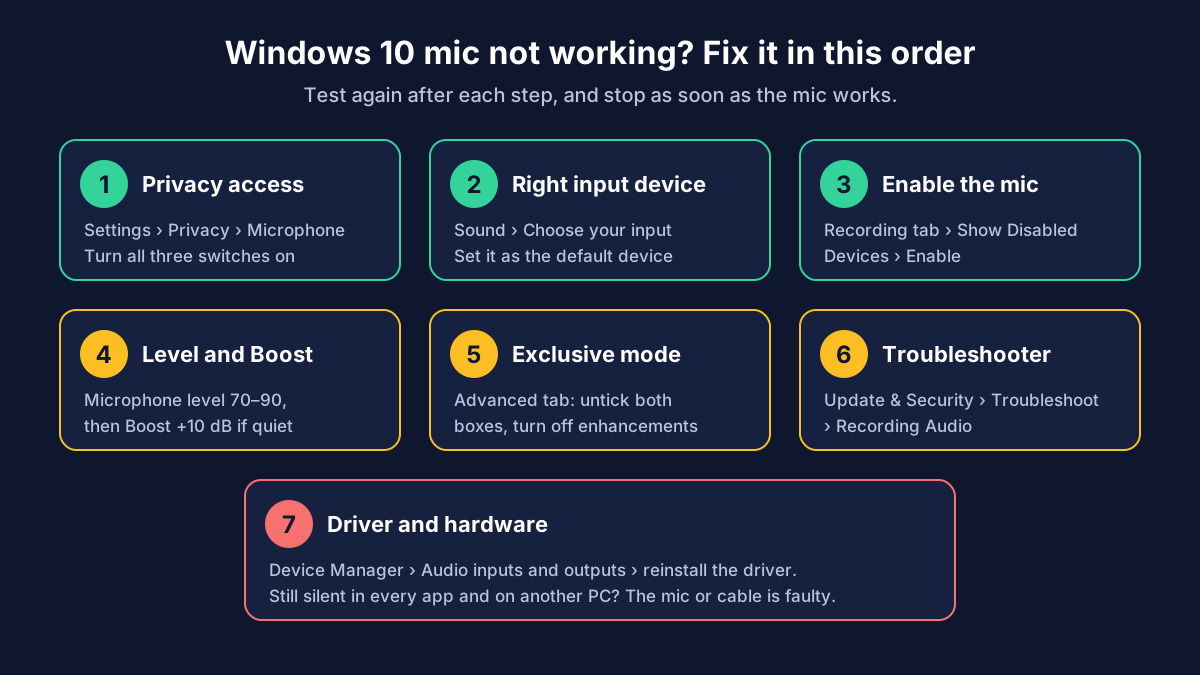
1. Allow microphone access in Windows 10 privacy settings
This is the most common reason a Windows 10 mic is not working in a browser, Zoom, Teams or Discord while the Settings bar still moves.
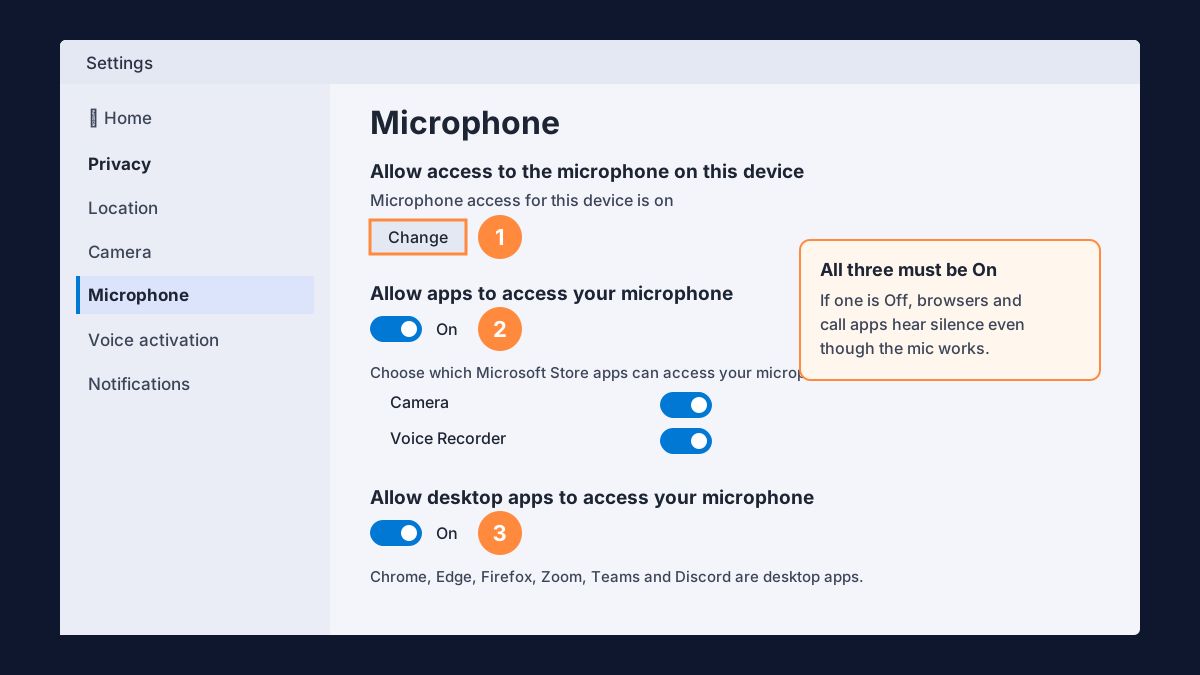
- Go to Start > Settings > Privacy > Microphone.
- Under Allow access to the microphone on this device, select Change and make sure it is On.
- Turn on Allow apps to access your microphone.
- Scroll down and turn on Allow desktop apps to access your microphone. Browsers and most call apps are desktop apps.
Restart the app or reload the website afterwards. In the browser, also check that the site itself is allowed to use the microphone. On a work or school PC, an administrator may lock these settings.
2. Choose the right input and make it the default
Windows 10 can list several microphones: a laptop mic, a webcam mic, a headset and virtual devices from apps. Select the right one under Settings > System > Sound > Input, then on the Recording tab of the Sound control panel, select it and choose Set Default. Also check the input chosen inside your call app's audio settings, because apps can ignore the Windows default.
3. Enable a disabled or hidden microphone
If your microphone does not appear anywhere, it may be disabled. On the Recording tab, right-click an empty part of the list and tick Show Disabled Devices and Show Disconnected Devices. If your mic appears greyed out, right-click it and choose Enable.
In Settings > System > Sound, you can also open Manage sound devices, find the mic under Input devices and select Enable.
4. Raise the microphone level and Microphone Boost
A mic that is "not working" is sometimes only very quiet.
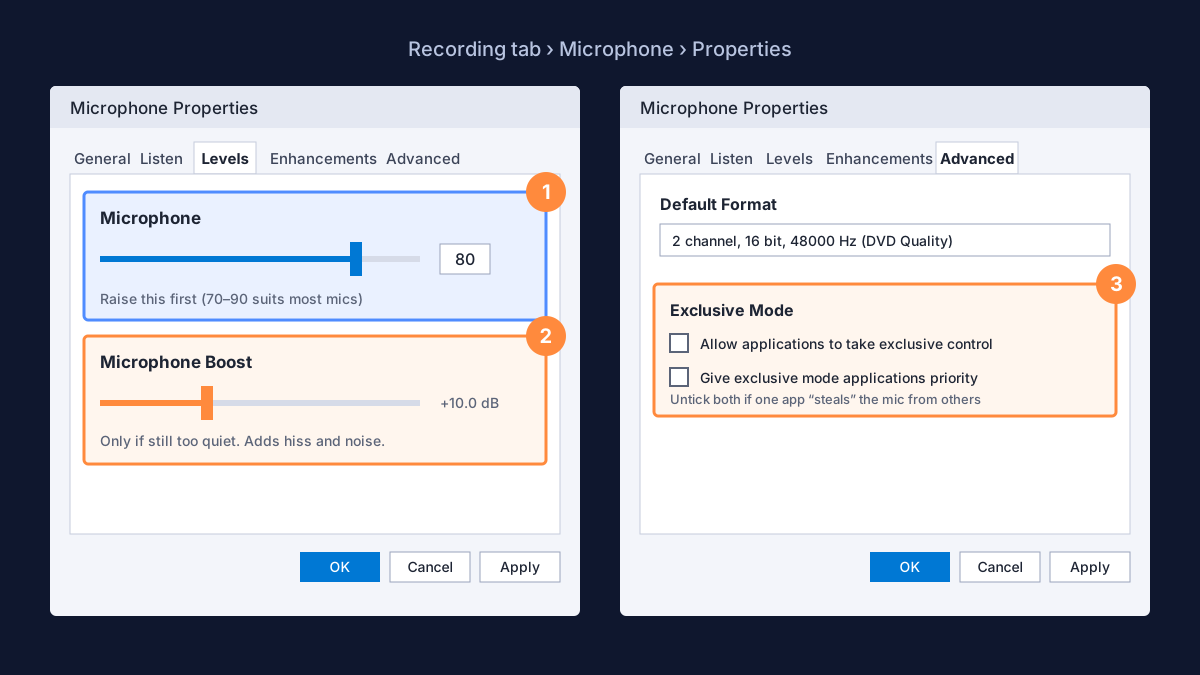
- On the Recording tab, select your mic and choose Properties.
- Open Levels and set Microphone to around 70 to 90.
- If your voice is still too quiet, raise Microphone Boost one step, usually +10 dB.
Boost makes background noise louder too, and not every driver offers it. Moving the mic closer to your mouth is often the cleaner fix.
5. Turn off exclusive mode and audio enhancements
If the mic works in one app but goes silent when another app opens, exclusive mode is a likely cause. In Properties, open Advanced and untick Allow applications to take exclusive control of this device and Give exclusive mode applications priority. Select Apply.
If your voice sounds robotic or keeps cutting out, open the Enhancements tab (or Advanced on some drivers) and turn off audio enhancements, then test again.
6. Run the Recording Audio troubleshooter
Go to Start > Settings > Update & Security > Troubleshoot > Additional troubleshooters and run Recording Audio. You can also select Troubleshoot under Input on the Sound page. On some updated versions of Windows 10, the same checks open in the Get Help app instead. Microsoft's Fix microphone problems page lists the same checks.
7. Update or reinstall the audio driver
- Right-click Start and open Device Manager.
- Expand Audio inputs and outputs and find your microphone.
- Right-click it and choose Update driver. If that does not help, choose Uninstall device, then restart the PC so Windows reinstalls it.
Windows 10 reached the end of regular Microsoft support on October 14, 2025, so new audio drivers mostly come from your PC or headset maker's website. Download the driver for your exact model.
Headset or front-panel mic not working on Windows 10
- One 3.5 mm plug, two sockets on the PC: a headset plug with four contacts carries both the mic and the audio. Desktop PCs with separate pink and green sockets need a splitter adapter.
- Realtek audio pop-up: when you plug into the jack, the Realtek audio app may ask what you connected. Choose Headset or Microphone, not Headphones, or the mic stays off.
- Front-panel jack is silent: try the rear socket on the motherboard. Front-panel connectors are sometimes not wired or not enabled.
- Bluetooth headset: the microphone runs through the Headset or Hands-Free entry, which sounds lower quality than stereo. Select that entry as your input.
- USB headset: plug it directly into the PC, not a hub, and try another USB port.
For plugs, adapters and XLR mics in more detail, see how to connect and set up a microphone.
Windows 10 vs Windows 11: where are the mic settings?
The steps are similar, but the menus moved:
- Privacy: Windows 10 uses Settings > Privacy > Microphone. Windows 11 uses Settings > Privacy & security > Microphone.
- Mic test: Windows 10 shows a live Test your microphone bar on the Sound page. Windows 11 uses a Start test button inside the microphone's properties.
- Classic control panel: the Recording tab and Listen, Levels and Advanced tabs are the same in both.
On a Windows 11 PC, follow our Windows 11 mic test guide. For phones, Macs and headsets on other systems, see the full guide to fixing a microphone that is not working.
Frequently asked questions
How do I test my microphone on Windows 10?
Open Settings > System > Sound, select your mic under Input and speak. If the Test your microphone bar moves, Windows hears you. To hear how you sound, record a clip in the online mic test.
Why is my mic not working on Windows 10?
The most common causes are microphone privacy settings turned off, the wrong input selected, a disabled device, a muted or very low level, or an outdated audio driver. Work through the seven fixes above in order.
Why does my mic work in Windows 10 Settings but not in Zoom, Teams or Discord?
Turn on Allow desktop apps to access your microphone in privacy settings, choose the same mic inside the app's audio settings, and turn off exclusive mode on the Advanced tab.
How do I make Windows 10 detect my microphone?
Reconnect it, then show disabled devices on the Recording tab and enable it. If it still does not appear, check Device Manager > Audio inputs and outputs, try another port and reinstall the driver.
How do I stop hearing myself on Windows 10?
Open the Sound control panel, go to Recording > Properties > Listen, untick Listen to this device and select Apply.
Does the online mic test work on Windows 10?
Yes. It runs in Edge, Chrome and Firefox on Windows 10. Allow microphone access when the browser asks, and make sure desktop app access is on in Windows privacy settings. For a broader walkthrough, read how to test your microphone.
Test your microphone now
Record a 10-second clip, play it back and hear exactly how you sound.