
Check your input, then listen to a short recording before your next call.
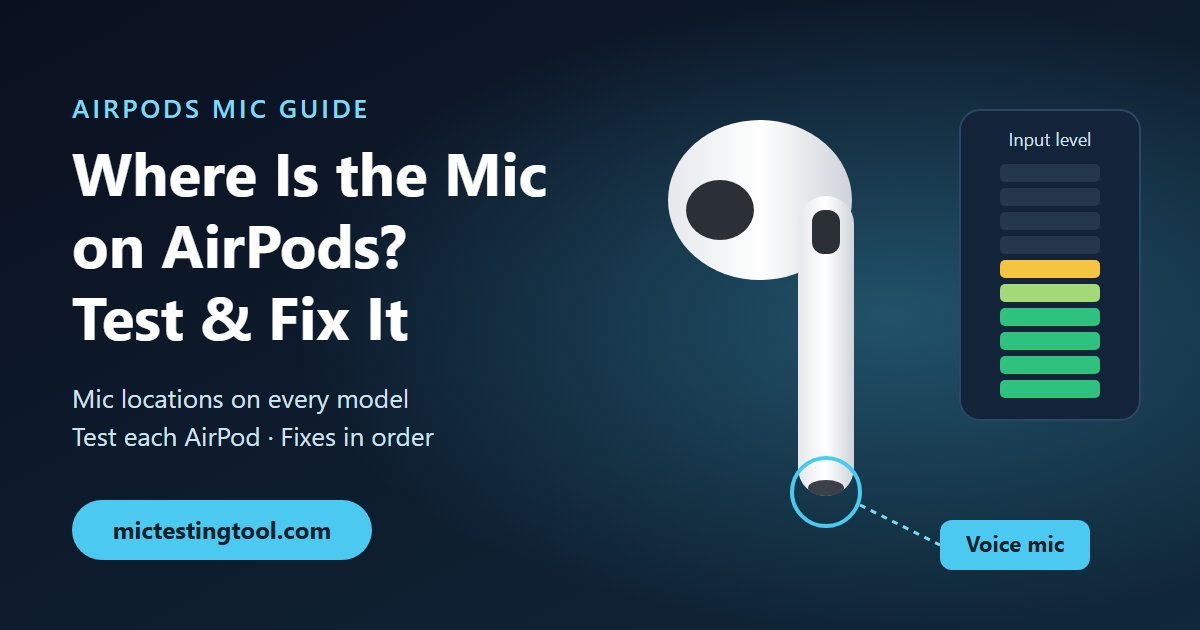
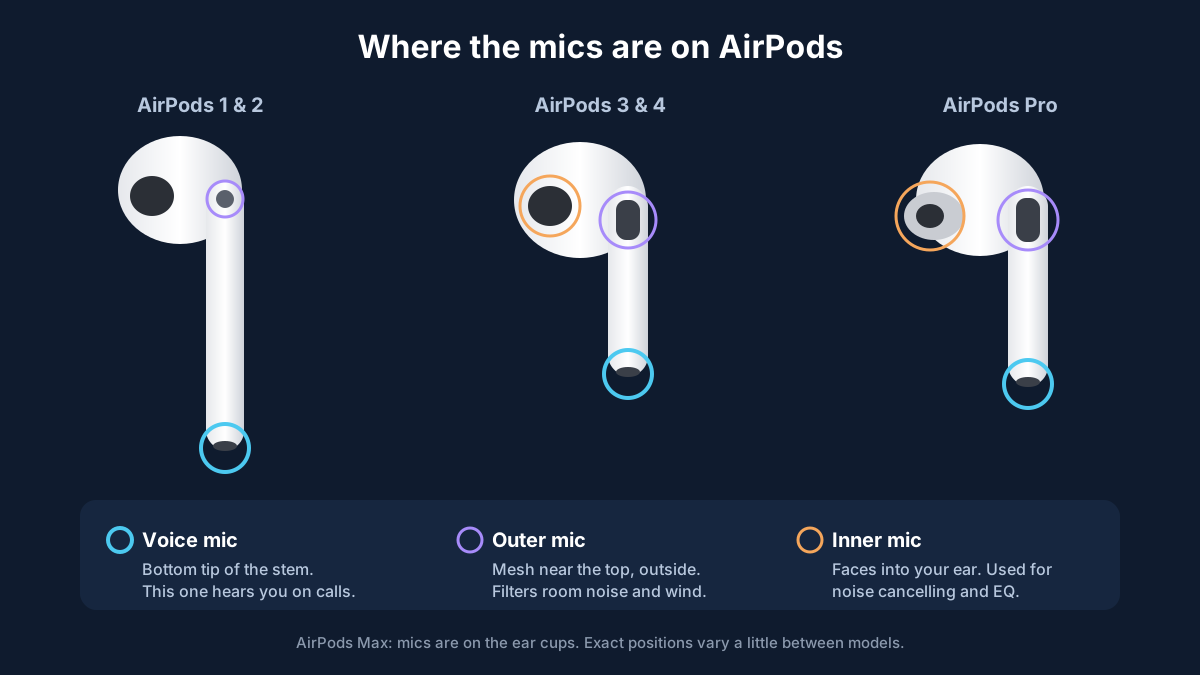
Open the free microphone testShort answer first: the mic on AirPods is at the bottom tip of each stem, the little oval of mesh furthest from your ear. That's the one that picks up your voice on calls. Each AirPod also has one or two other small mics for noise cancelling and wind reduction, but if someone says they can't hear you, the bottom of the stem is where to look first.
Both AirPods have a working mic, by the way. Not just the right one. That surprises a lot of people, and it matters when one side is the problem.
Where is the mic on AirPods? (every model)
The layout is a little different on each generation, so here's the quick version:
- AirPods (1st and 2nd generation): the voice mic is the small mesh at the bottom tip of the long stem. There's a second mic at the top of the stem, on the outside, that helps the AirPod focus on your voice and ignore the room.
- AirPods (3rd generation) and AirPods 4: the stem is shorter, but the voice mic is still at the bottom tip. The dark mesh panel near the top, on the outside, is the outer mic. These models also have a mic on the inside, facing your ear.
- AirPods Pro (1st and 2nd generation): same idea. Voice mic at the bottom of the stem, an outward-facing mic in the mesh near the top (the one that hears outside noise for noise cancellation and Transparency), and an inward-facing mic inside the ear tip area.
- AirPods Max: no stems, so the mics are spread around the ear cups. There are nine in total, and the voice ones sit on the outside of the cups, so don't cover them with your hand or a hood while you talk.
The AirPods microphone location matters more than you'd think. The stem is meant to point straight down toward your jaw. If you wear your AirPods rotated forward or backward, or you push one in with the stem angled out toward your cheek, people will say you sound far away even though nothing is broken.
How to test your AirPods microphone
You don't need any special app. Put both AirPods in, make sure they're connected (you'll see the AirPods icon in Control Center), and pick one of these.
Option 1: Voice Memos on iPhone
- Open Voice Memos and tap the red record button.
- Talk at your normal volume for 10 seconds. Turn your head a little while you do it.
- Stop, take the AirPods out, and play the recording through the iPhone speaker.
When AirPods are connected, Voice Memos records through them, not through the phone. If it sounds thin and a bit like a phone call, that's normal. Bluetooth mic audio is lower quality than the AirPods' music playback. What you're listening for is silence, crackling, or your voice cutting in and out.
Option 2: our online AirPods microphone test
Open the free online microphone test in Safari, Chrome or whatever browser you use, on a phone, Mac or Windows PC. Allow mic access, pick your AirPods in the input list if it shows one, and talk. The bar moves live as you speak, so you can see straight away whether any sound is getting through. You can record a few seconds and play it back too, and nothing gets uploaded.
This is the easiest way of testing AirPods mic input on a computer, because you'll see right away if the browser grabbed the laptop mic instead of the AirPods.
Option 3: call someone (or yourself)
FaceTime a friend, or call your voicemail and leave a message, then listen back. It's the only test that goes through the same path as a real call, including Mic Mode, which I'll get to below.
How to test each AirPod separately
If you think only one side is bad, force the mic to one side at a time:
- With the AirPods connected, open Settings and tap your AirPods' name near the top (on older iOS versions: Settings > Bluetooth, then the (i) next to them).
- Tap Microphone and pick Always Left AirPod.
- Record a voice memo or run the online test.
- Switch to Always Right AirPod and test again.
- When you're done, set it back to Switch AirPods Automatically.
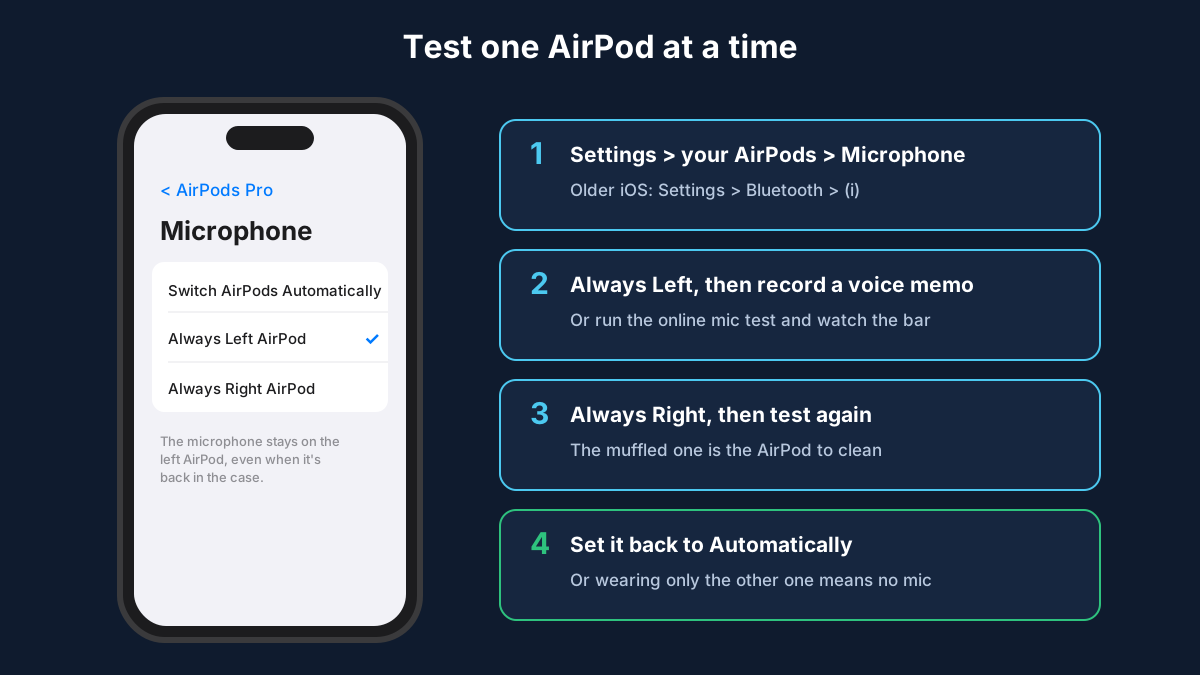
If the left recording is clear and the right one is muffled, you've found your problem, and it's nearly always dirt in the bottom mesh of that AirPod.
On a Mac you can do this without recording anything. Go to System Settings > Sound > Input, select your AirPods, and watch the Input level bars while you speak. On Windows it's Settings > System > Sound > Input. Our Windows 11 mic test guide has a section on AirPods sounding quiet on a PC.
Mic not working on AirPods? Try these fixes in order
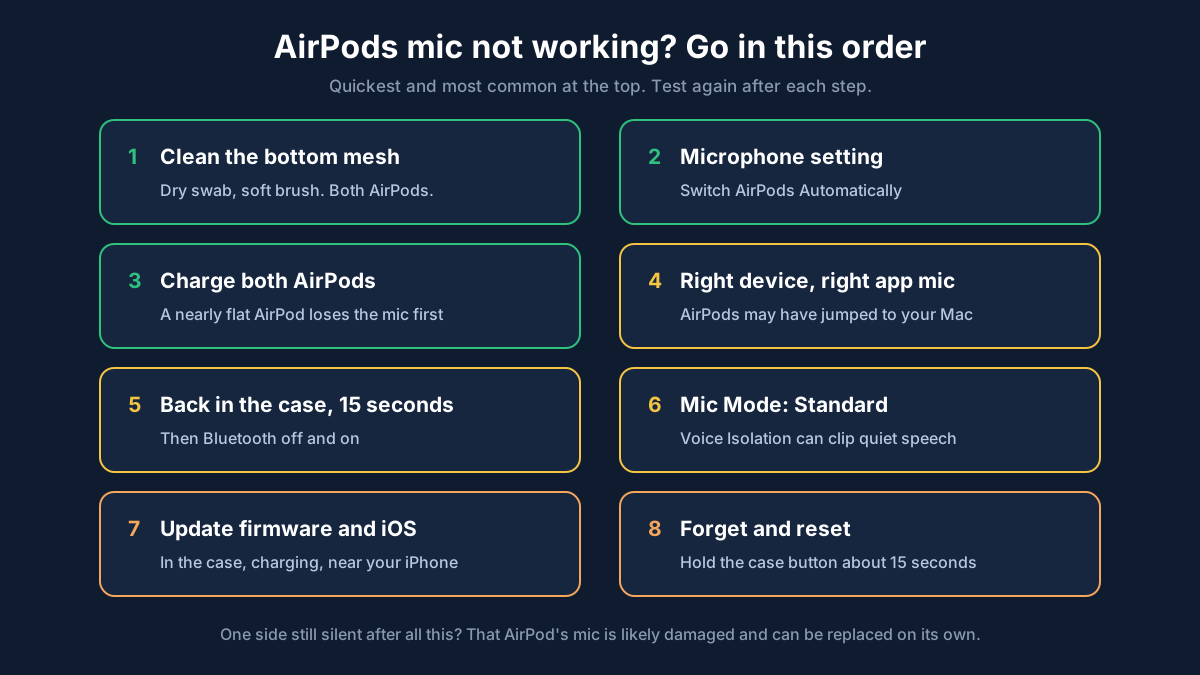
Go through these one by one and test again after each. The first three solve most cases.
1. Clean the mic mesh at the bottom of the stem
Earwax and pocket fluff build up on the bottom mesh slowly, and you won't notice until someone tells you you sound like you're underwater. Look at it in good light. If the mesh looks grey or shiny instead of clean black, that's it.
Use a dry cotton swab on the outside of the mesh, and a soft, dry brush (a clean soft toothbrush is fine) to lift out anything stuck in it. Don't use a pin, a toothpick, water or compressed air. You can push the gunk further in or tear the mesh. If something sticky won't shift, a cotton swab barely dampened with isopropyl alcohol on the outside only, then let it dry fully. Apple's AirPods support pages have the official cleaning steps for each model.
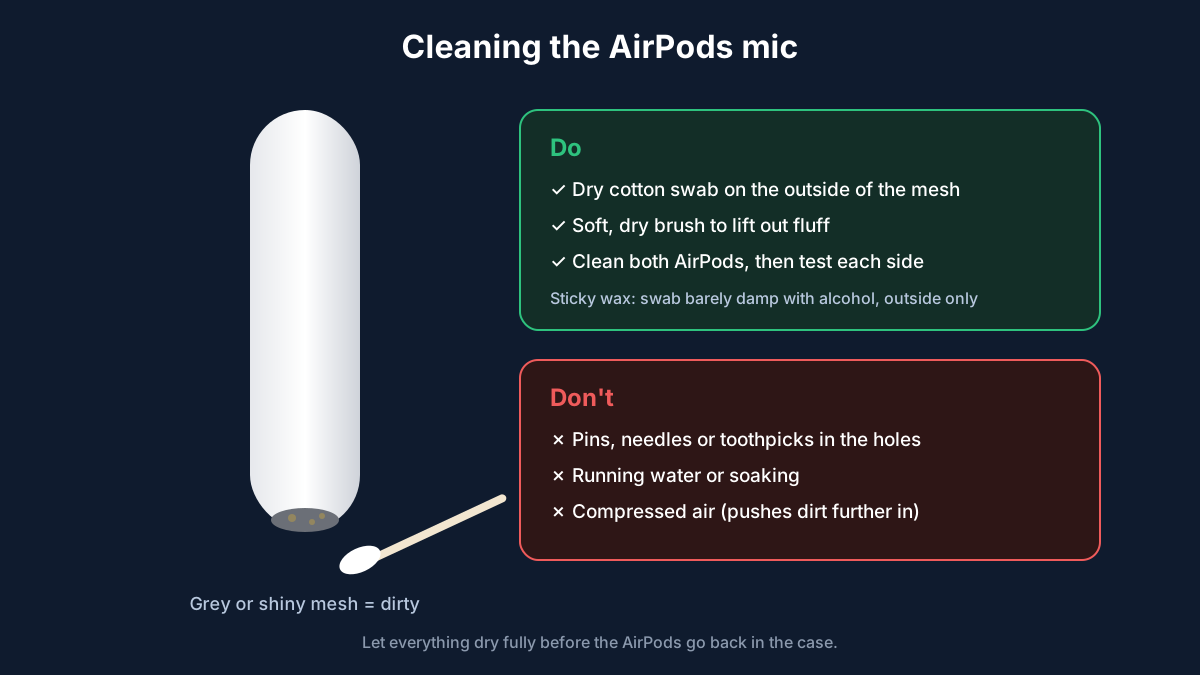
Do both AirPods, not just the one you think is bad.
2. Check the Microphone setting
If someone set it to Always Left AirPod to test something (or a kid did), and you're only wearing the right one, you have no mic at all. Go to Settings > [your AirPods] > Microphone and set it to Switch AirPods Automatically.
3. Charge both AirPods
When one AirPod is nearly flat, the mic can drop out before the sound does. Put both back in the case for 10 to 15 minutes. You can check each side's battery in the Batteries widget or by opening the case lid next to your iPhone.
4. Make sure the AirPods are connected to the right device
AirPods jump between your iPhone, iPad and Mac on their own if they're signed in to the same Apple Account. You think you're on a call through your phone, but the AirPods have quietly gone over to your MacBook.
On the device you're actually using, open Control Center, tap the AirPlay icon on the audio tile, and pick your AirPods. If this keeps happening, go to Settings > [your AirPods] > Connect to This iPhone and choose When Last Connected to This iPhone.
Also check the app. In Zoom, Teams, Discord and most browsers there's a separate mic dropdown, and it often stays on the built-in mic even after you connect AirPods.
5. Put them back in the case and reconnect
Put both AirPods in the case, close the lid, wait about 15 seconds, and take them out again. This resets the Bluetooth connection without forgetting anything. If it didn't help, turn Bluetooth off and on in Control Center.
6. Check Mic Mode during calls
During a FaceTime, WhatsApp or (on newer iOS versions) normal phone call, open Control Center and tap Mic Mode at the top. Voice Isolation cuts background noise, but with AirPods it sometimes clips the start of words or makes quiet speakers cut out. Try Standard and see if people hear you better.
7. Update the AirPods firmware
AirPods update on their own, but only when they're in the case, charging, and near an iPhone or Mac that's on Wi-Fi. If yours always go back in a bag, they might be months behind. Leave them in the case, plugged in, next to your phone for half an hour. You can see the version under Settings > [your AirPods] > About. While you're there, make sure iOS itself is up to date too.
8. Reset your AirPods
This clears anything stuck and pairs them fresh:
- Put both AirPods in the case and close the lid for 30 seconds, then open it.
- On your iPhone, go to Settings > [your AirPods] and tap Forget This Device, then confirm.
- With the lid open, press and hold the button on the back of the case for about 15 seconds, until the status light flashes amber and then white.
- Hold the open case next to your iPhone and follow the setup card that pops up.
AirPods 4 don't have a button on the case, so the reset uses taps on the front of the case instead. Apple's support site has the exact steps for that model.
If one AirPod is still silent after a clean and a reset, while the other is fine, the mic in that earbud is probably damaged. Apple can replace a single AirPod, and if you have AppleCare+ it's covered.
AirPods mic not working on a Mac or Windows PC
The mic usually works fine. The computer just isn't using it.
- Mac: go to System Settings > Sound > Input and click your AirPods. Then check the app's own audio settings, because Zoom and Teams remember their last mic. In the browser, the site needs permission under System Settings > Privacy & Security > Microphone.
- Windows: AirPods show up as two things: a stereo output for music and a Headset or Hands-Free entry that carries the mic. In Settings > System > Sound > Input, pick the AirPods headset entry and run Start test.
A trick that's worth knowing on both: when an app turns on the AirPods mic, the sound you hear drops to call quality. If you're on a long meeting and don't mind your laptop mic, set the laptop as the input and keep the AirPods as output only. You'll hear everyone much more clearly.
AirPods mic on Android
AirPods work with Android phones as a normal Bluetooth headset, and the mic works on calls. If it doesn't, go to Settings > Connected devices (or Bluetooth), tap the gear next to your AirPods, and make sure Phone calls or Call audio is turned on. Things like the Microphone left/right setting and firmware updates need an Apple device, so if you only have Android, a reset from the case button is your main tool.
Frequently asked questions
Where is the microphone on AirPods?
At the bottom tip of each stem. AirPods Pro, AirPods 3 and AirPods 4 also have an outer mic near the top of the stem and one facing into your ear, but the bottom one carries your voice. On AirPods Max, the mics are on the ear cups.
Do both AirPods have a microphone?
Yes. Either one works on its own, so you can take a call with just one in. By default the iPhone switches between them automatically.
How do I test my AirPods mic?
Record a voice memo with the AirPods connected and play it back through the iPhone speaker, or open our online microphone test and watch the level bar while you talk. To check one side at a time, set Microphone to Always Left or Always Right in your AirPods settings.
Why can't people hear me on my AirPods?
Most often it's a dirty mic mesh, the call going to another device, the app using a different mic, or the Microphone setting stuck on the side you're not wearing. Work through the fixes above in order.
Why does my AirPods mic sound muffled?
Dirt on the bottom mesh, or the AirPod sitting at an angle in your ear. Clean the stem tip with a dry swab and wear the AirPods with the stems pointing down.
Can I use AirPods as a mic for recording?
You can, for voice notes or a quick call. For podcasts or video voice-overs, they're not great, because the audio goes over a low-quality Bluetooth call connection. A wired or USB mic will sound much better.
Still having trouble?
If your AirPods tested fine but the iPhone itself can't hear you, read our guide to iPhone microphone not working. For other headsets, laptops and USB mics, the full microphone not working guide covers Windows, Mac and Android.
Test your microphone now
Record a 10-second clip, play it back and hear exactly how you sound.