
Check your input, then listen to a short recording before your next call.
Open the free microphone testPeople ask us two things about the online microphone test more than anything else. "Is my recording uploaded somewhere?" and "Why does my voice sound different here than on Zoom?"
Short answers: no, and because we switch off the processing Zoom adds. The longer answers are below. You don't need to be a programmer to follow along. I'll keep the code names in brackets for anyone who wants to look them up.
Step 1: the browser asks for your microphone
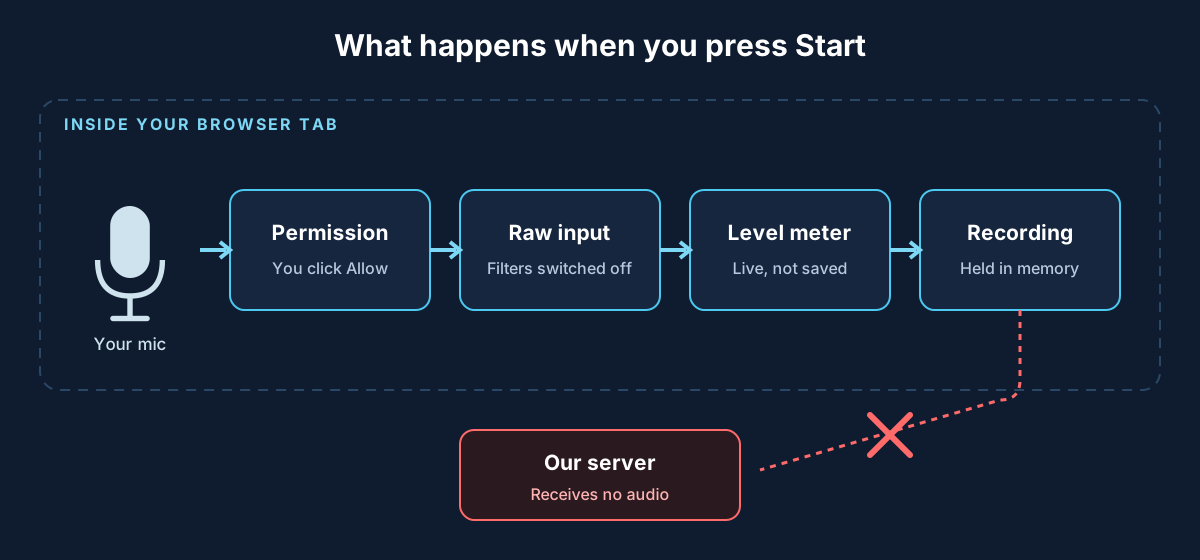
When you press Start, the page asks the browser for audio from your mic (that's the getUserMedia call). The browser, not our site, shows the permission prompt. Nothing happens until you click Allow, and you can take that permission back any time from the padlock icon next to the address bar.
If you have more than one mic, say a laptop mic and a USB headset, the dropdown lets you pick one. The browser only shows real device names after you've allowed access once. Before that, it hides them on purpose, so a site can't see what hardware you own without asking.
Step 2: we turn the "helpful" processing off
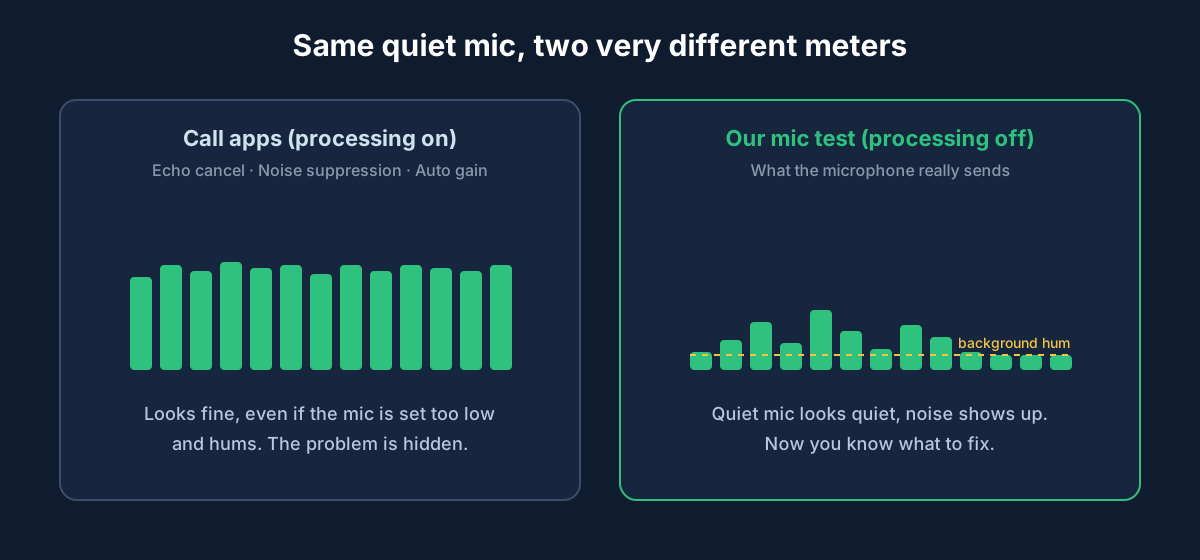
Browsers add three filters to the microphone by default: echo cancellation, noise suppression and automatic gain control. They're great on a video call. For a mic test, they get in the way.
- Noise suppression can hide a hum or a buzz that's actually coming from your mic or cable.
- Automatic gain control turns up a quiet mic on its own, so a mic that's set way too low can look fine.
- Echo cancellation can make your voice cut in and out when the hear-back monitor is on.
So we ask for the microphone with all three turned off. What you see and hear is much closer to what the mic is really picking up. That's also why your voice can sound a bit rougher or noisier here than on a call. Nothing is wrong. You're just hearing the mic without the cleanup.
The MDN documentation for getUserMedia lists these settings if you want the technical detail.
Step 3: the level meter
The moving bars come from the Web Audio API in your browser. Your mic signal goes through an analyser that measures how loud it is, many times a second, and the page draws the bars from that. Nothing is saved. It's a live reading that disappears as soon as it's drawn.
You'll also see the sample rate (usually 44.1 or 48 kHz) and the number of channels your mic reports. Most headsets and laptop mics are mono, so 1 channel is normal. If you were expecting stereo from a USB mic and see 1, check the mic's own settings.
One thing the meter can't tell you is decibels. Every mic and every sound card is different, so a browser can only show a relative level, not a calibrated dB number. Use it to compare: louder than before, too quiet, or flat with no signal at all.
Step 4: hear-back (monitoring)
The hear-back switch sends your mic straight to your speakers or headphones so you can hear yourself live. It starts muted, because with speakers and a nearby mic you'd get that loud feedback squeal right away. Use headphones before you turn it on.
Step 5: recording, playback and download
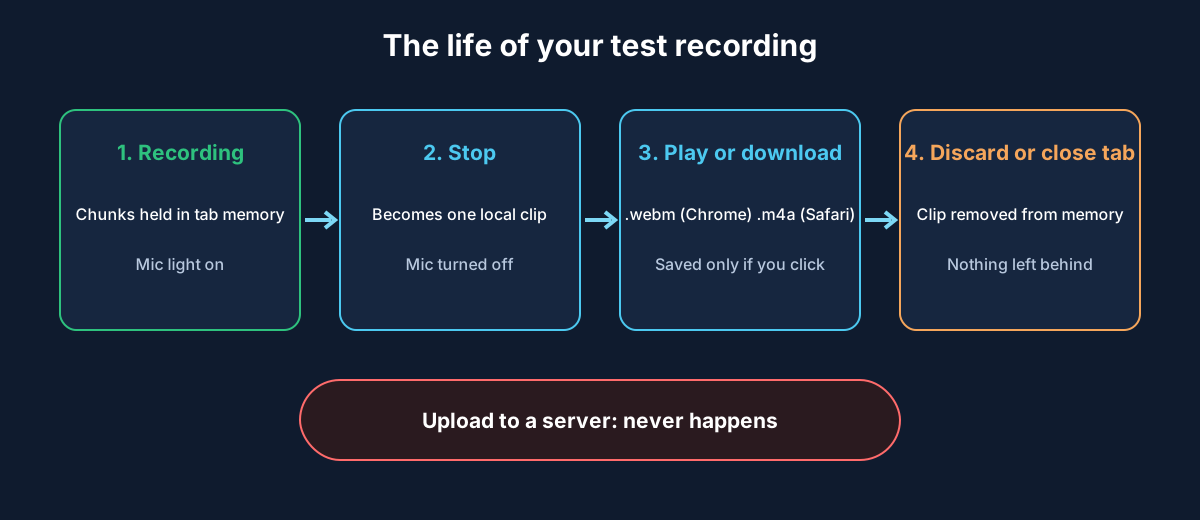
While the test runs, the browser records your mic (with MediaRecorder) into small chunks held in memory. When you press Stop, those chunks become one audio clip, still only inside your browser tab, and the player lets you listen back.
The download format depends on your browser:
- Chrome, Edge and Firefox save a
.webmfile (Opus audio). - Safari on Mac and iPhone saves an
.m4afile.
Both play in VLC and most modern players. If you need an MP3 or WAV for something specific, any free audio converter will do it.
Where does my recording go?
Nowhere. There's no upload button because there's no upload. The clip lives in your browser's memory until you press Discard, start a new test, or close the tab. When you stop the test, the page also stops the microphone, and the mic light or the orange or green dot on your device goes off.
The page itself, its fonts and its images still load from our server, like any website. But the audio never travels the other way. You can check this yourself: open your browser's developer tools, go to the Network tab, and run a test. You won't see any request carrying audio.
Our privacy policy has the full details.
Why we built it this way
Plenty of mic test sites work fine. We wanted one that was quick, worked on a phone, and didn't need you to trust us with your voice. Doing everything in the browser covered all three. It also means the test still works on a slow connection once the page has loaded.
The same approach runs the other tools on the site. The speaker and headphone test and the surround sound test generate their tones in the browser, and the webcam test keeps your video local in the same way.
Who built the tools
The microphone test, the speaker, surround and webcam tests, and the noise meter were built by web developer Umair Sadiq. He built them in React with the browser's own audio and media APIs, with no plugins, no extra audio libraries and no server-side processing. That's a big part of why the pages load fast and the audio stays private.
Frequently asked questions
Is the online mic test safe?
Yes. Your browser asks for permission first, the audio is processed in your tab, and nothing is uploaded. Stopping the test turns the microphone off.
Why does my mic sound worse here than on Zoom or Teams?
Zoom, Teams and Discord clean up your voice with noise suppression, echo cancellation and automatic gain. Our test turns those off so you hear the raw mic. If it sounds fine here, it'll usually sound better on a call.
Why can't I see my microphone's name in the list?
Browsers hide device names until you've allowed microphone access. Press Start, allow access, and the list fills in.
What format is the downloaded recording?
.webm in Chrome, Edge and Firefox, and .m4a in Safari. Both play in VLC and most media players.
Does the level meter show decibels?
No. It shows a relative level. A browser can't know your mic's sensitivity, so a real dB reading isn't possible without calibration.
If your mic isn't showing any level at all, our microphone not working guide walks through the fixes for Windows, Mac and phones.
Test your microphone now
Record a 10-second clip, play it back and hear exactly how you sound.