
Check your input, then listen to a short recording before your next call.
Open the free microphone testYou click once to select a file and it opens. You try to drag a window and it lets go halfway across the screen. You click a link and two tabs appear. If that sounds familiar, your mouse is double clicking, and you're not imagining it.
The good news: about half the time it's a setting or a software thing you can fix in a minute. The other half, it's the little switch under the left button wearing out, which is also fixable, just not always for free.
Here's how to work out which one you've got, and what to do about each.
Why is my mouse double clicking?
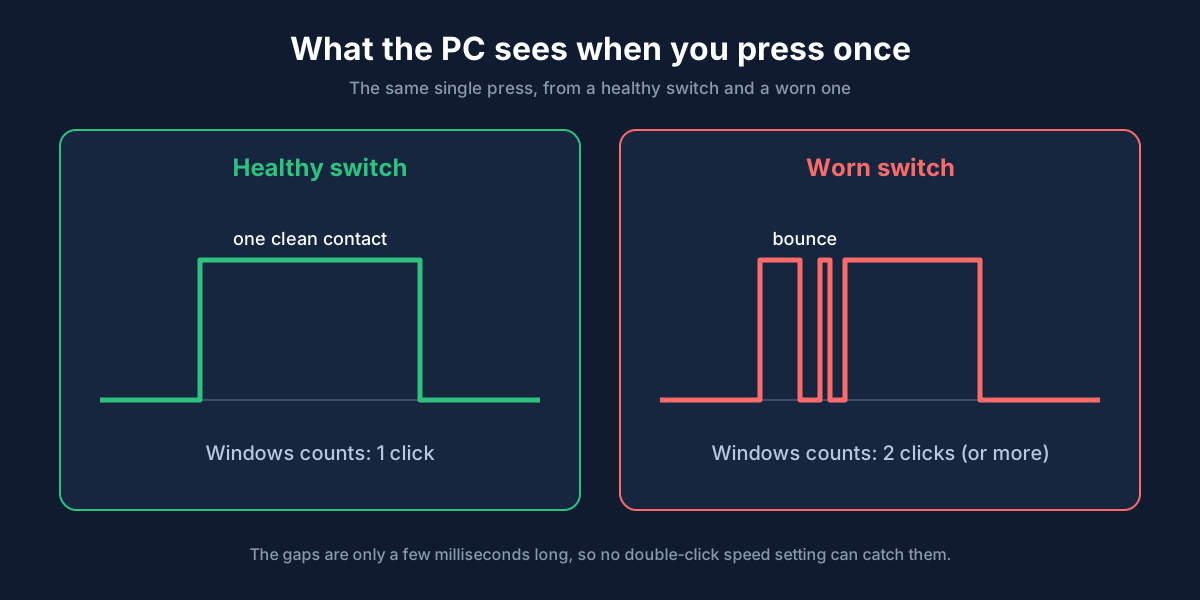
Under each mouse button there's a tiny switch (on most mice it's an Omron, Kailh or Huano switch about the size of a fingernail). When you press, a thin metal leaf inside snaps down and touches a contact. That's one click.
Over time, that metal leaf loses its spring or the contacts get a bit of oxidation on them. Instead of one clean contact, you get a quick "chatter": contact, tiny gap, contact again, all in a few milliseconds. The computer sees that as two clicks. That's why the problem usually starts slowly, gets worse, and is nearly always the left button (it's the one you press thousands of times a day).
Other causes that look exactly the same:
- Windows set to "single-click to open", so one click opens files that should only be selected.
- Double-click speed set too slow, so two separate clicks a second apart get treated as a double click.
- Mouse software (Logitech G Hub, Razer Synapse, SteelSeries GG and so on) with a macro or a button assigned to "double click".
- Low battery or a weak wireless signal, which can make clicks drop and repeat.
- Static build-up in the mouse, which sounds made up but does cause odd clicks on some cheap mice.
- Dirt or a sticky drink under the button.
First, check if it's the mouse or the computer
This takes two minutes and saves you from changing settings for no reason.
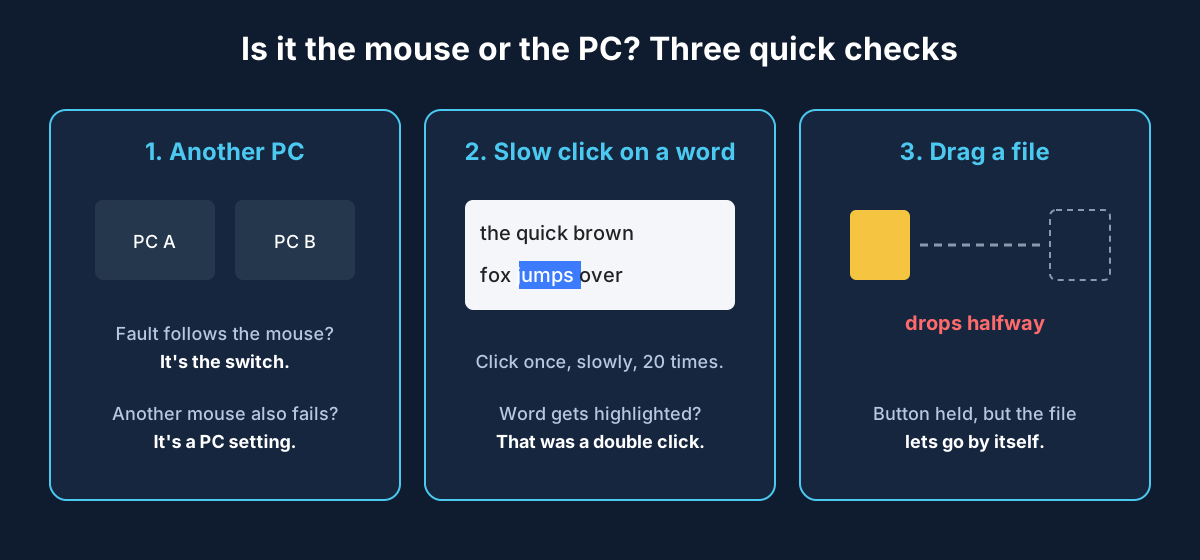
- Plug the mouse into a different computer, or try a different mouse on yours. If the problem follows the mouse, it's the mouse. If a different mouse also double clicks, it's a setting or software on the PC.
- Try a different USB port, ideally one on the back of the PC rather than a hub or keyboard pass-through.
- Do a slow click test. Open Notepad, type a few words, and single-click slowly on one word 20 times. Each click should just move the cursor. If a word gets highlighted (that's what a double click does), the mouse sent two clicks.
You can also hold the left button down and drag a file across the desktop. If it drops by itself before you let go, the switch is losing contact while held, which is the same fault.
How to stop your mouse from double clicking on Windows
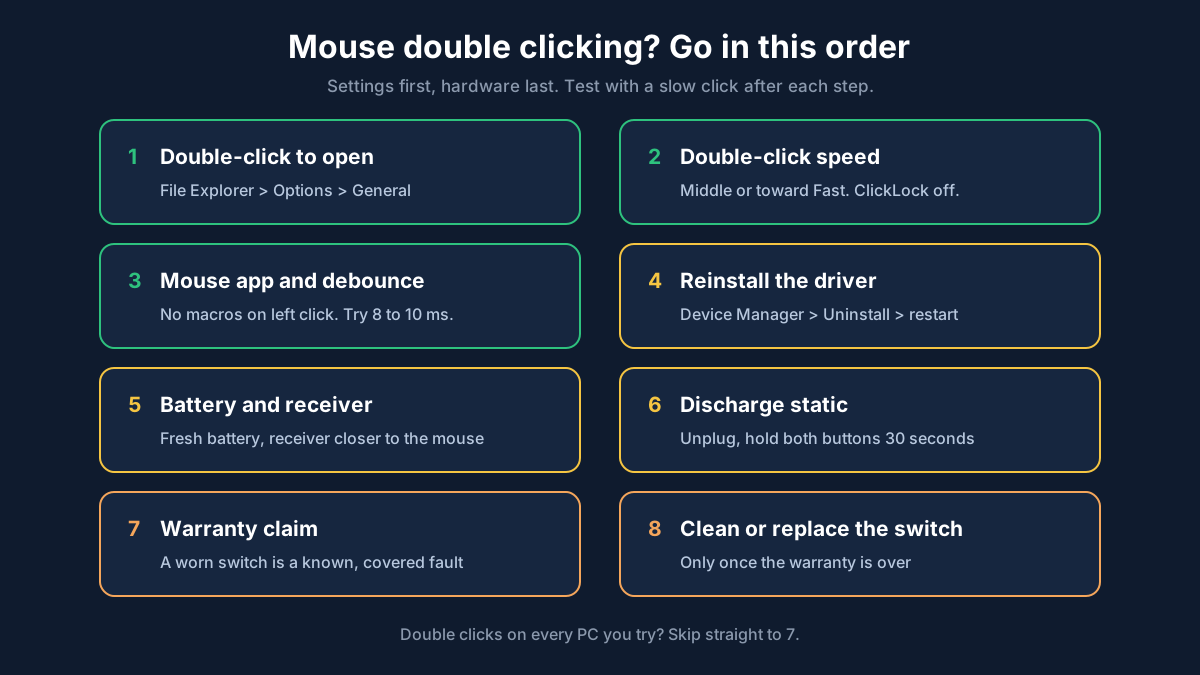
1. Turn off single-click to open
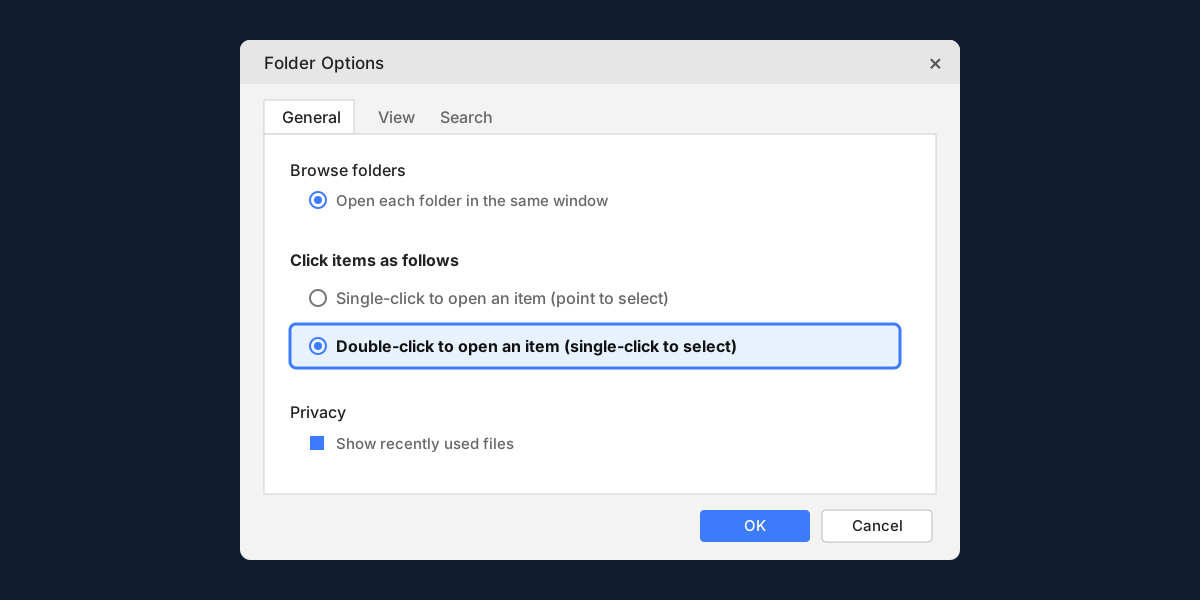
If files open the moment you click them once, Windows might be set to open items with a single click. That's not really the mouse double clicking, but it feels the same.
On Windows 11 and 10, open File Explorer, click the three dots (Windows 11) or the View tab (Windows 10), then Options. On the General tab, under Click items as follows, pick Double-click to open an item (single-click to select) and click OK.
2. Change the double-click speed
Open Control Panel and go to Hardware and Sound > Mouse (or search for "mouse settings", then click Additional mouse settings). On the Buttons tab you'll see Double-click speed with a slider and a little folder to test on.
If the slider is far to the left (slow), Windows treats two clicks up to almost a second apart as one double click. Move it to the middle or a bit toward Fast, click Apply, and try the folder. It should open only when you deliberately double click it.
This doesn't fix a worn switch, by the way. A chattering switch sends its two clicks a few milliseconds apart, which is faster than any slider setting. But it does fix the "I clicked twice, slowly, and it opened" problem.
While you're there, check ClickLock isn't turned on. It makes the button act as if it's still held down after a short press, which messes with dragging.
3. Check your mouse software
If you have a gaming mouse or a Logitech mouse, open its app (G Hub, Logi Options+, Razer Synapse, SteelSeries GG, Corsair iCUE). Look at what the left button is assigned to. It should be Primary click or Left click, not a macro, and there shouldn't be anything like "double click" or "turbo" on it. If you're not sure, reset the profile to default.
Some of these apps also have a debounce time setting (sometimes called click delay or switch debounce). Raising it slightly, say from 2 ms to 8 or 10 ms, can hide switch chatter on a mouse that's starting to fail. It's a good stop-gap.
If your mouse is a Microsoft one, or you think a driver is the issue, Microsoft's Windows support site has mouse troubleshooting steps worth a look too.
4. Update or reinstall the mouse driver
Right-click the Start button and open Device Manager. Expand Mice and other pointing devices, right-click your mouse, and choose Uninstall device. Unplug the mouse, restart the PC, and plug it back in. Windows will put a clean driver on.
5. Check the battery and receiver (wireless mice)
A low battery causes all sorts of strange behaviour, double clicks included. Put in a fresh battery or charge it fully. Then move the USB receiver closer: a USB extension cable or a front port works much better than a port on the back of a tower sitting under the desk, especially next to USB 3 drives, which can interfere with 2.4 GHz receivers.
6. Discharge static
Unplug the mouse (or take the battery out), then hold down both the left and right buttons for about 30 seconds. Plug it back in. It's an odd one, but it fixes some cheaper mice that start clicking on their own.
Mouse double clicking on a Mac
The same idea applies. On a Mac go to System Settings > Accessibility > Pointer Control and look at Double-click speed. If it's set very slow, nudge it toward fast. If you're using a third-party mouse with its own app, check the button assignments there too. And try the mouse on a Windows PC or another Mac to see if the problem goes with it.
When it's the switch: what you can do
If the mouse double clicks on every computer you try, and settings make no difference, the switch is worn. You've got four options.
Use the warranty. Logitech, Razer, Corsair, SteelSeries and Microsoft all treat a double-clicking switch as a known fault, and many mice come with two or three years of warranty. It's the first thing to check. Logitech has a page on double-click issues that walks through a claim.
Swap buttons for a while. If you're right-handed and the right button still works, you can swap the buttons in Settings > Bluetooth & devices > Mouse > Primary mouse button. It's clumsy, but it'll get you through until a replacement shows up.
Clean the switch. Sometimes compressed air into the gap around the left button, while clicking it repeatedly, clears dirt that's causing bad contact. It's quick and free, so it's worth a go. It won't fix a tired spring though.
Replace or re-tension the switch. If you're handy with a small screwdriver (and for a replacement switch, a soldering iron), you can open the mouse and either bend the metal leaf back into shape or solder in a new switch. Switches cost very little. The screws are often hidden under the mouse feet, so you'll need new feet afterwards. Only do this once the warranty is gone, because opening it usually voids it.
Frequently asked questions
Why does my mouse keep double clicking?
Usually because the switch under the left button is worn and bounces, sending two clicks for one press. Less often it's a Windows setting (single-click to open, or a very slow double-click speed), mouse software, or a low battery on a wireless mouse.
Can a mouse double clicking be fixed?
Yes. Settings and software problems are fixed in a few minutes. A worn switch can be covered under warranty, hidden with a higher debounce time in the mouse app, cleaned, or replaced.
How do I know if my mouse is double clicking?
Click once, slowly, on a single word in Notepad or a document. If the whole word gets highlighted, the mouse sent a double click. Dragging a file and having it drop on its own is another sign.
Is a double-clicking mouse a hardware problem?
If it happens on every computer you plug it into, yes, it's the switch. If another mouse also double clicks on your PC, it's a setting or software on that computer.
Will changing the double-click speed stop it?
It stops slow clicks being read as a double click. It won't stop a failing switch, because the switch's two clicks are only milliseconds apart.
While you're testing your gear
If you're sorting out a whole desk setup, you can check your other bits here too: the online microphone test for your mic, the speaker and headphone test for left and right audio, and the webcam test before your next call.
Test your microphone now
Record a 10-second clip, play it back and hear exactly how you sound.