
Check your input, then listen to a short recording before your next call.
Open the free microphone testYou sit down, start typing, and nothing happens. Or half the letters show up, or one key repeats forever, or the keyboard light on your laptop just won't come on. It feels like the keyboard died, but most of the time it hasn't. A setting got switched on by accident, a battery ran out, or a receiver lost its pairing.
This guide covers the three cases people search for most: a MacBook keyboard not working, a laptop keyboard not working on Windows (including ASUS backlight problems), and a wireless keyboard not working while the mouse still works. First, a two-minute check to find out which kind of problem you have.
Why is my keyboard not working?
These are the usual causes, roughly from most to least common:
- An accessibility setting is on. Filter Keys on Windows and Slow Keys or Mouse Keys on a Mac make keys seem dead or slow. Holding Shift too long turns Filter Keys on without you noticing.
- Wireless problems. Flat batteries, a receiver in the wrong port, Bluetooth paired to another device, or the keyboard set to a different channel.
- Wrong keyboard layout or Fn lock. Keys type the wrong characters, or the top row changes brightness instead of typing F1 to F12.
- A driver or software glitch. Common after an update, or when a keyboard app (Logitech, ASUS, Razer and others) crashes.
- Dirt or liquid. Crumbs under one key, or a spill that kills a whole row.
- Hardware failure. A loose ribbon cable inside a laptop or a worn-out keyboard. Real, but less common than people think.
First, test which keys are actually dead
Before changing anything, find out exactly what's failing. That one fact points to the cause.
- Open a plain text editor. Notepad on Windows, TextEdit on a Mac. Press every letter, number and symbol key in order and watch what appears.
- Use the on-screen keyboard to see key presses. On Windows press Windows + Ctrl + O (or search for "On-Screen Keyboard"). Keys light up when you press them on the real keyboard. On a Mac, open System Settings > Keyboard > Input Sources, turn on Show Input menu in menu bar, then choose Show Keyboard Viewer from that menu.
- Try the keyboard before Windows or macOS loads. Restart and press the BIOS key (often F2, F10 or Delete) on a Windows laptop. If the BIOS menu responds to the keyboard, the hardware works and your problem is in the operating system.
- Try another keyboard or computer. Plug a USB keyboard into the laptop, or the external keyboard into another PC. If the fault follows the keyboard, it's the keyboard.
What the results tell you
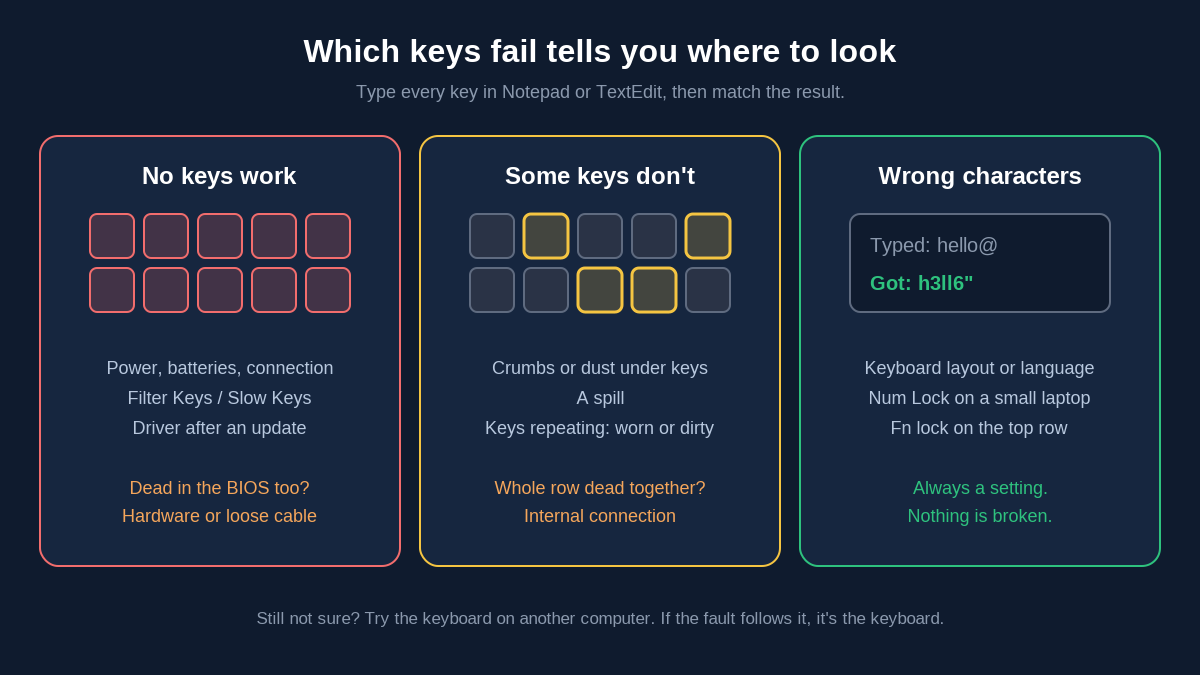
- Nothing works at all: check power, batteries, the connection and Filter Keys or Slow Keys. If the keyboard also does nothing in the BIOS, it's hardware or a loose connection inside.
- Some keys work, some don't: dirt under the keys, a spill, or a failing keyboard. A whole row or block going dead together usually means a damaged internal connection.
- Keys work but type the wrong thing: a layout, language or Fn lock issue. That's always a setting, never broken hardware.
- Keys repeat or type twice: key repeat settings, debris, or a key that's starting to fail.
Laptop keyboard not working on Windows
Go through these in order. After each one, type a sentence in Notepad to check.
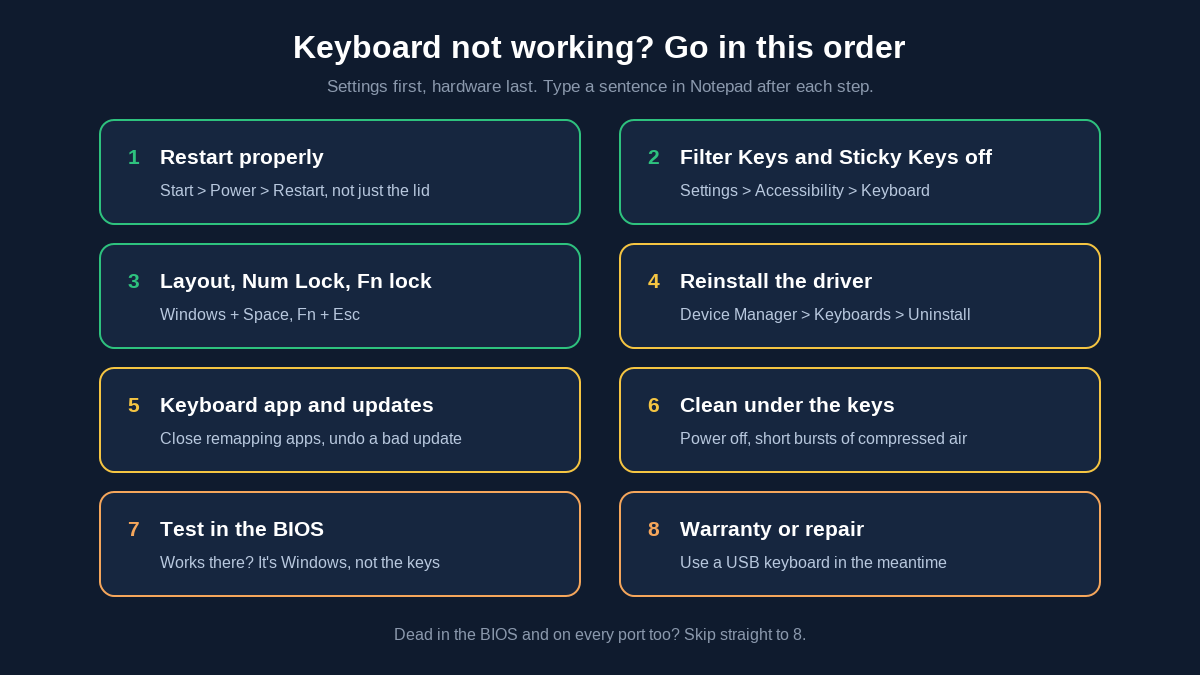
1. Restart properly
Don't just close the lid. Click Start > Power > Restart. A restart clears a stuck keyboard driver more often than any other fix. If the keyboard is completely dead and you can't log in, use the on-screen keyboard from the accessibility icon on the sign-in screen.
2. Turn off Filter Keys and Sticky Keys
This is the big one. Filter Keys makes Windows ignore short or repeated key presses, so the keyboard seems to work only when you hold a key down. Holding the right Shift key for eight seconds turns it on, and lots of people do that by accident.
Go to Settings > Accessibility > Keyboard on Windows 11 (or Settings > Ease of Access > Keyboard on Windows 10) and turn off Filter keys, Sticky keys and Toggle keys. While you're there, turn off the keyboard shortcuts for them too, so it can't happen again. Microsoft's page on mouse and keyboard problems in Windows covers the same settings.
3. Check the layout, Num Lock and Fn lock
If letters come out as numbers or symbols, check these three things:
- Layout: press Windows + Space to cycle through installed layouts, and remove any you don't use in Settings > Time & language > Language & region. A US and UK layout swap the @ and " keys, for example.
- Num Lock: on smaller laptops, Num Lock can turn the right side of the letters (U, I, O, J, K, L) into a number pad.
- Fn lock: if the top row changes volume or brightness instead of typing F1 to F12, press Fn + Esc (the most common Fn lock shortcut) or check the laptop's settings app.
4. Reinstall the keyboard driver
Right-click Start, open Device Manager and expand Keyboards. Right-click your keyboard (often "Standard PS/2 Keyboard" on a laptop or "HID Keyboard Device" on a USB one), pick Uninstall device, then restart. Windows puts the driver back on its own.
If there's a yellow warning icon, or the laptop keyboard isn't listed at all, run Windows Update and install the chipset and keyboard drivers from your laptop maker's support site.
5. Check the keyboard app and recent updates
Gaming and manufacturer keyboard apps (Armoury Crate, Logitech Options+, Razer Synapse, Lenovo Vantage and others) can remap or block keys. Close the app completely and test again. If the keyboard stopped right after a Windows update, go to Settings > Windows Update > Update history > Uninstall updates and remove the most recent one.
6. Clean under the keys
Turn the laptop off, tip it at an angle and use short bursts of compressed air along each row. For a key that sticks, gently press around its edges. Don't pull laptop keycaps off unless you know how, as the clips break easily. If you spilled something, shut the laptop down, unplug it, turn it upside down and leave it to dry for at least a day before trying again.
7. When it's hardware
If the keyboard doesn't work in the BIOS either, or a whole row is dead after a drop or spill, the problem is the keyboard or the ribbon cable that connects it. Use a USB or wireless keyboard in the meantime, and contact the manufacturer if the laptop is still under warranty. On many laptops the keyboard is part of the top case, so a repair shop quote is worth getting before you decide.
ASUS keyboard backlight not working
ASUS laptops get their own section, because backlight problems on them are so common.
- Use the right shortcut. Most ASUS laptops use Fn + F7 to turn the backlight on or cycle the brightness. ROG and TUF gaming laptops often use Fn + F2/F3 or the arrow keys. Look for a small keyboard-with-light icon on the keys.
- Plug in the charger. Some models dim or switch off the backlight on battery saver or low battery.
- Check MyASUS or Armoury Crate. Lighting settings in these apps override the keys. Make sure the backlight isn't set to off or to switch off after a few seconds.
- Reinstall the ASUS System Control Interface. In Device Manager > System devices, uninstall it, restart, then install the latest version from your model's ASUS support page.
- Reset the BIOS defaults and update the BIOS. Enter the BIOS with F2 at startup, load the defaults, and update BIOS and drivers through MyASUS.
ASUS's own keyboard backlight troubleshooting guide walks through the same steps, including the EC reset. Not every ASUS laptop has a backlit keyboard, so if there's no backlight icon on any key, check your model's specs before trying all of this.
MacBook keyboard not working
These steps work for MacBook Air, MacBook Pro and Apple's Magic Keyboard.
1. Turn off Slow Keys and Mouse Keys
On a Mac, these are the most common reasons keys stop responding:
- Slow Keys makes the Mac wait before accepting a key press, so quick taps are ignored. Go to System Settings > Accessibility > Keyboard and turn it off.
- Mouse Keys turns some letter keys and the number pad into mouse controls. Turn it off in System Settings > Accessibility > Pointer Control, or press Option + Command + F5 and untick it.
Apple's guide if your Mac doesn't respond to key presses lists these too. Note that Caps Lock has a small built-in delay on purpose, so a light tap may not switch it on.
2. Check the input source
If keys type the wrong characters, click the input menu in the menu bar and pick the right layout. Remove ones you don't use in System Settings > Keyboard > Input Sources > Edit. Also check Keyboard > Keyboard Shortcuts > Function Keys if the top row does the wrong thing.
3. Restart, then try safe mode
Restart the Mac first. If the keyboard is still unresponsive, start up in safe mode, which stops third-party apps and login items from loading. On an Apple silicon Mac, shut down, press and hold the power button until you see startup options, select your disk, then hold Shift and click Continue in Safe Mode. On an Intel Mac, hold Shift while it starts.
If the keyboard works in safe mode, an app is the problem. Keyboard remappers, clipboard tools and some security or remote-access apps are the usual suspects.
4. MacBook Air keyboard not working: check for dust
MacBook Air and MacBook Pro models from roughly 2015 to 2019 used a thin "butterfly" keyboard, and one crumb can stop a key working or make it type twice. Apple's suggested approach is to hold the MacBook at about a 75-degree angle (nearly upright) and spray compressed air across the keys in a left-to-right sweep, then turn it to its side and repeat.
If a key still sticks or repeats after that, take it to Apple or an authorised repair shop. On these models the keyboard is part of the top case, so it's not a DIY job.
5. Reset the SMC (Intel Macs only)
On Intel MacBooks, a System Management Controller reset can fix a dead keyboard or backlight. With the Mac shut down, hold Shift + Control + Option on the left side and the power button for 10 seconds, then release and turn it on. Apple silicon Macs (M1 and newer) don't have this. A full shutdown and a 30-second wait does the same job.
6. Magic Keyboard or other external keyboard
For an external keyboard on a Mac, connect it with its USB-C or Lightning cable. That charges it and pairs it again. Check System Settings > Bluetooth to see it's connected and the battery isn't flat. If it works on another Mac but not yours, remove it from the Bluetooth list and pair it fresh.
Wireless keyboard not working but mouse is working
This one confuses people, because if the mouse works, surely the receiver is fine? Not always. The keyboard and mouse can each have their own receiver, their own batteries and their own pairing, even when they came in the same box.
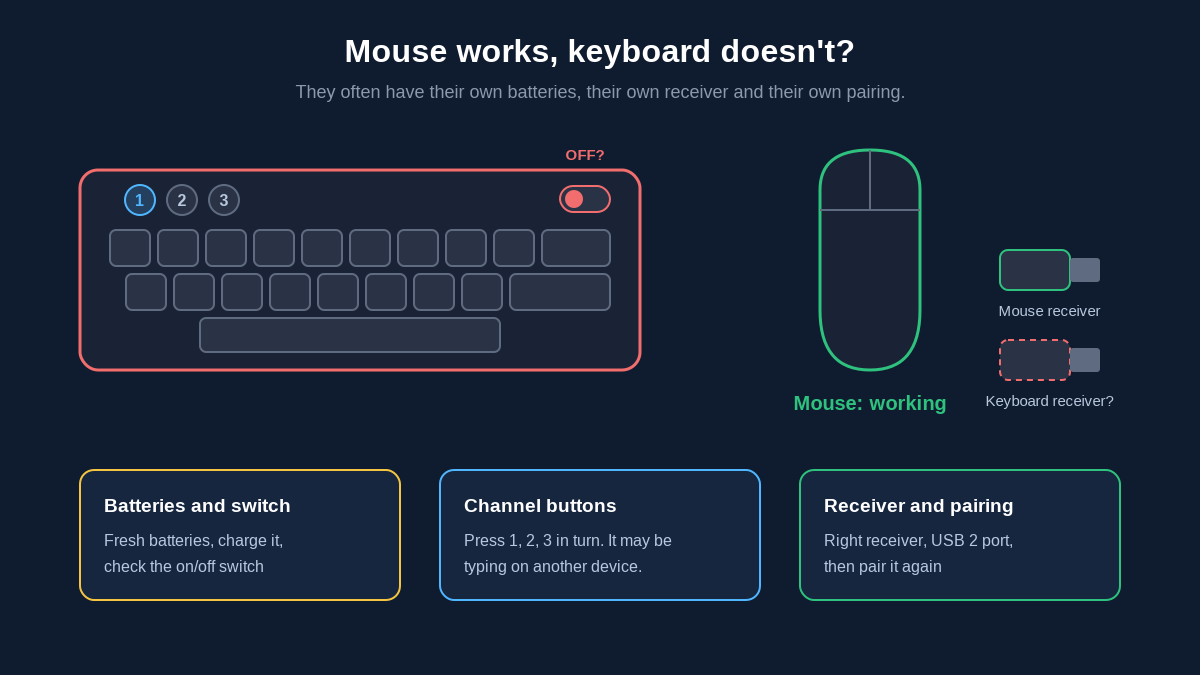
- Change the keyboard's batteries. Keyboards often last a year or more on one set, so people forget they have batteries at all. Use fresh ones, not ones from the drawer. Rechargeable keyboards need charging, and many still type while plugged in.
- Check the power switch. Most wireless keyboards have a small on/off switch on the top edge or the underside, and it gets knocked off in a bag.
- Check the channel. Keyboards with Easy-Switch or channel buttons (marked 1, 2, 3) can connect to several devices. If you pressed one by accident, the keyboard is typing on another computer or tablet. Press each channel button and test.
- Find the right receiver. If the set came with two USB receivers, the keyboard's one might be the one that isn't plugged in. Logitech's Unifying and Bolt receivers can hold both devices, but only if both were paired to that receiver.
- Move the receiver closer. USB 3 ports, monitors, and metal desks can interfere with 2.4 GHz receivers. Use a USB 2 port on the front of the PC or a short USB extension cable so the receiver sits on the desk.
- Pair it again. For Bluetooth keyboards, remove the keyboard in Settings > Bluetooth & devices (Windows) or System Settings > Bluetooth (Mac) and pair it fresh. For receivers, use the maker's pairing app, such as Logi Options+ or Logitech's Unifying software.
If none of that works, test the keyboard on another computer. If it's dead there too, it's the keyboard.
Frequently asked questions
Why is my keyboard not working all of a sudden?
Most often Filter Keys (Windows) or Slow Keys (Mac) got turned on, a wireless keyboard's batteries ran out, or a driver got stuck after an update. Restart, check those accessibility settings, and change the batteries before anything else.
How do I fix my keyboard not typing?
Restart the computer, turn off Filter Keys or Slow Keys, check that the keyboard is connected and powered, then reinstall its driver in Device Manager on Windows. If it doesn't work in the BIOS or on another computer either, it's a hardware fault.
Why is my MacBook keyboard not working but the trackpad is?
Usually Slow Keys or Mouse Keys is on, an app is grabbing the keyboard (test in safe mode), or dirt is under the keys on a butterfly-keyboard MacBook. On an Intel MacBook, an SMC reset is also worth a try.
How do I turn on the keyboard backlight on an ASUS laptop?
Press Fn + F7 on most ASUS laptops, or Fn + F2/F3 or Fn + up/down arrow on many ROG and TUF models. If nothing happens, plug in the charger, check MyASUS or Armoury Crate, and reinstall the ASUS System Control Interface driver.
Why does my wireless mouse work but not the keyboard?
They often have separate batteries, separate receivers or separate pairing. Change the keyboard's batteries, check its power switch and channel buttons, then pair it again with its own receiver or over Bluetooth.
Can I use my laptop if the keyboard is broken?
Yes. Plug in any USB or Bluetooth keyboard and it works straight away. For signing in, Windows and macOS both have an on-screen keyboard in the accessibility menu on the login screen.
Check the rest of your setup
If your mouse is acting up too, see why a mouse keeps double clicking or run the mouse double click test. And while you're sorting out your desk, the online microphone test, the speaker and headphone test and the webcam test check the rest of your gear in a few seconds, right in your browser. If the webcam test shows a black screen, see how to fix a camera that's not working.
Test your microphone now
Record a 10-second clip, play it back and hear exactly how you sound.