
Check your input, then listen to a short recording before your next call.
Open the free microphone testXbox has no "Test microphone" button. There's no recording you can play back and no level meter in Settings, so the only way to know your mic works is to see the console react when you talk. The good news is that the console does show you, if you know where to look.
This guide shows you how to connect a mic to Xbox the right way, how to test your mic on Xbox in under a minute, and what to do when the mic works but your friends still can't hear you. Everything here applies to Xbox Series X, Xbox Series S and Xbox One.
How to connect a mic to Xbox
Before testing, make sure the mic is connected in a way the console actually supports. A lot of "my Xbox mic doesn't work" problems are really "this mic was never going to work on Xbox."
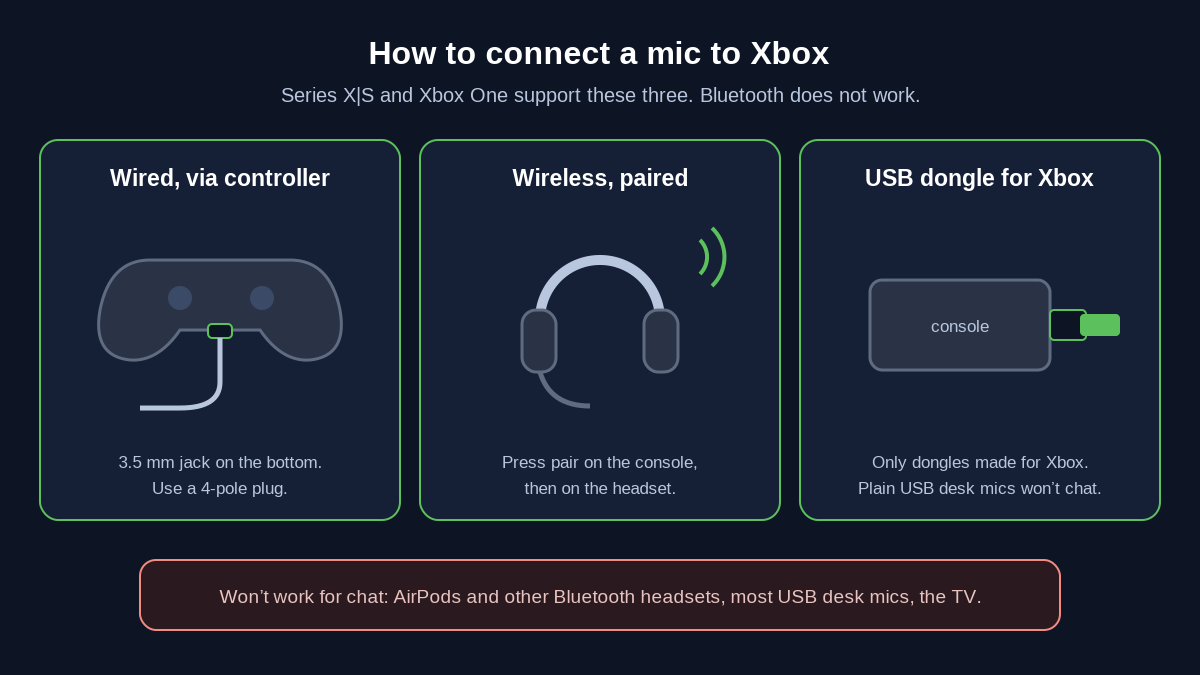
Wired headset through the controller
Plug the headset's 3.5 mm plug into the jack at the bottom of the controller. Push it in firmly: a plug that's only half in usually gives you game sound but no mic. Use a 4-pole plug (three black rings on the metal tip). Headphones with a 3-pole plug have no microphone wire at all.
Original Xbox One controllers from 2013 and 2014 don't have a 3.5 mm jack. Those need the Xbox One Stereo Headset Adapter, which clips onto the bottom of the controller and has its own mute button.
Xbox Wireless Headset and other wireless headsets
The official Xbox Wireless Headset and many third-party "Designed for Xbox" headsets pair straight to the console, like a controller: press the pair button on the console, then hold the pair button on the headset. Others come with a USB dongle you plug into the console. Either way, the console treats them as a headset with a mic.
What does not work
- Bluetooth headsets and AirPods. Xbox consoles don't support Bluetooth audio, so the mic won't connect at all.
- Most USB desk microphones. A USB mic that works on your PC usually won't work for party chat on Xbox. Only headsets and adapters built for Xbox are supported. If you want to use a studio mic, you need an Xbox-compatible audio interface or mixer.
- The TV or a soundbar mic. These aren't used for chat.
On Xbox One, a connected Kinect can also be used as a mic. As soon as you plug in a headset, the headset mic takes over.
How to test your mic on Xbox
Here are three ways to test your mic on Xbox, quickest first. Do the first one even if you're in a hurry, because it tells you the most.
1. Start a party on your own and watch the ring
This is the closest thing Xbox has to a mic test.
- Press the Xbox button on your controller to open the guide.
- Go to Parties & chats and select Start a party. You don't need to invite anyone.
- Talk at a normal volume and watch your gamerpic in the party.
A ring lights up around your gamerpic while the console is receiving sound from your mic. If it flickers as you speak and goes dark when you stop, the mic works.
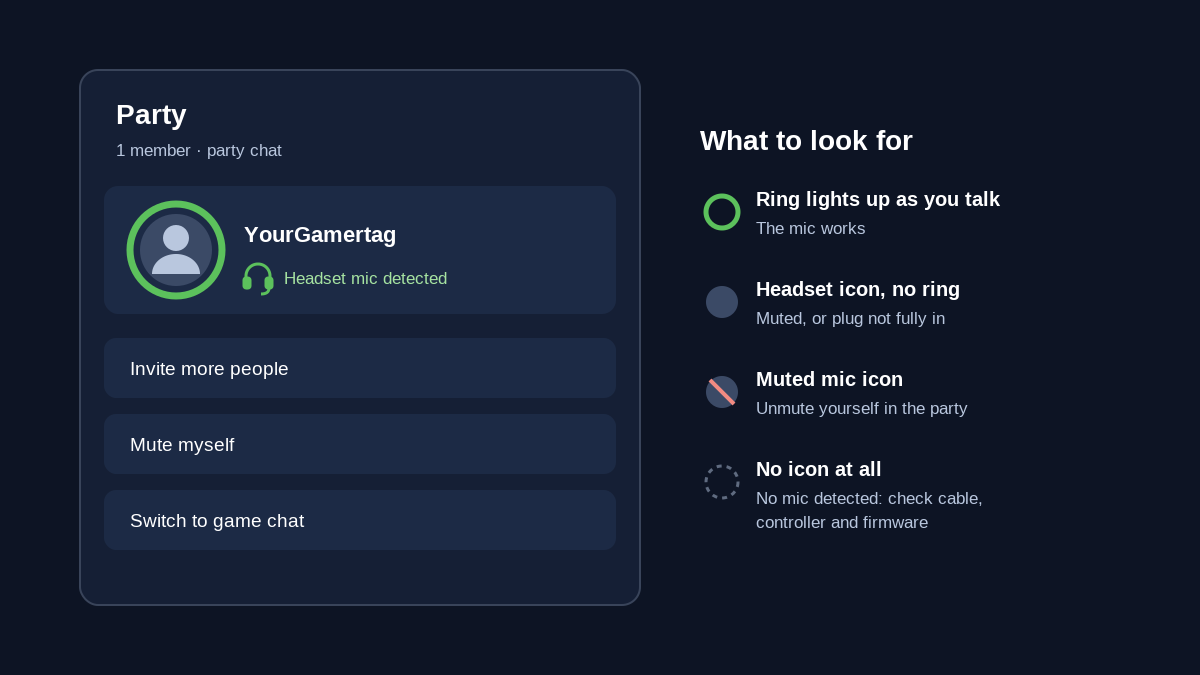
Also look at the icon next to your name. A headset icon means a headset mic is detected. A muted mic icon means you're muted in the party: select your name and unmute. If there's no icon at all, the console doesn't see a mic.
2. Hear yourself with mic monitoring
Mic monitoring plays your own voice back into your headset, so you can hear how loud and clear you sound.
- Press the Xbox button and go to Audio & music (the speaker icon in the guide). The audio controls only show while a headset is connected.
- Turn up Mic monitoring and talk.
You can find the same setting under Profile & system > Settings > General > Volume & audio output. If you hear your voice, the mic and the headset are both working. If you hear crackles or your voice cuts in and out, check the cable and plug.
Some third-party headsets do their mic monitoring (often called sidetone) inside the headset instead, so the Xbox slider has no effect. Check the headset's own buttons or app.
3. Test the headset on a phone or PC
If the console shows nothing at all, find out whether it's the Xbox or the headset. Plug the same headset into a phone or laptop with a 3.5 mm jack (or pair a wireless one with its dongle) and open our free online mic test. Click Allow, talk and watch the level bar, then record a few seconds and play it back. Nothing is uploaded.
- The mic works on the phone or PC: the headset is fine, so the problem is the controller, the console settings or privacy. Go to the fixes below.
- The mic is silent there too: the headset's mic, cable or mute switch is the problem.
What the results tell you
- Ring lights up, but friends say they can't hear you: the mic works. It's privacy settings, party chat routing, the game's own voice chat, or someone has muted you. See mic works but nobody can hear you.
- Headset icon but no ring: the mic is detected but muted, or the plug isn't fully in.
- No headset icon at all: the console doesn't see the mic. Start with the cable, controller and firmware.
Xbox mic not working? Fix it in this order
Test again with an empty party after each step, and stop as soon as the ring lights up.
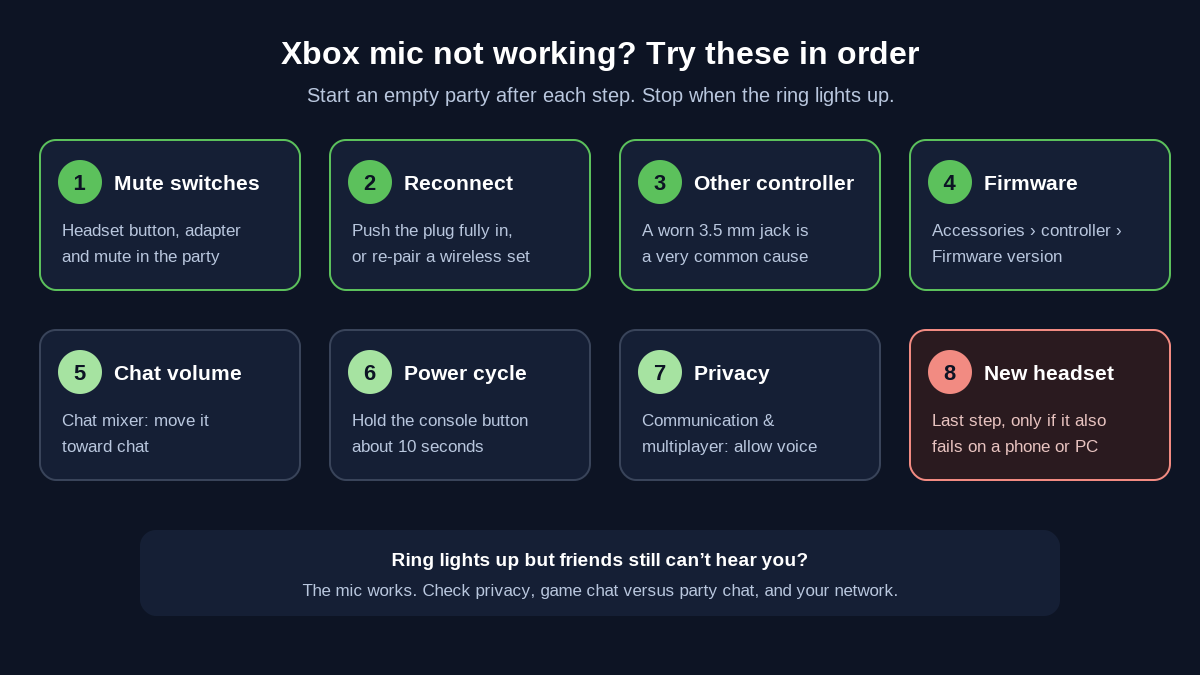
1. Check every mute switch
There can be three separate mutes: a button or switch on the headset (often with a red or orange light), the mute button on the Stereo Headset Adapter if you use one, and mute in the party. On many headsets, flipping the boom mic up also mutes it. Check all of them.
2. Reconnect the plug or re-pair the headset
Unplug the headset from the controller, then push it back in until it clicks. For a wireless headset, turn it off, wait 10 seconds, turn it on, and pair it again if it doesn't reconnect on its own.
3. Try a different controller
If you have a second controller, plug the headset into that one. A worn 3.5 mm jack on the controller is a very common cause of a mic that only works if you hold the cable at an angle.
4. Update the controller and headset
Xbox delivers fixes for headset audio through firmware updates.
- Go to Profile & system > Settings > Devices & connections > Accessories.
- Select your controller, then ... (More options) and Firmware version.
- Install the update if one is available.
The Xbox Wireless Headset is updated the same way. Third-party headsets often update through the maker's own app on Xbox or PC.
5. Turn up the headset's chat volume
Go to Profile & system > Settings > Devices & connections > Accessories, select your controller and look at the audio options, including the chat mixer, which balances game sound against chat. If game sound is drowning out your friends, move it toward chat.
6. Power cycle the console
Hold the Xbox button on the front of the console for about 10 seconds until it turns off completely, unplug it for a moment, then turn it back on. This clears a stuck audio or party service more often than you'd expect.
7. Check your privacy settings
If the ring lights up now but friends still can't hear you, the mic is fine and your account may be blocking voice chat. Allow voice under Communication & multiplayer, as described in privacy and online safety settings below.
8. Try another headset
If a different headset works on the same controller, and your headset failed the phone or PC test above, the headset mic is faulty. Check whether it's still under warranty.
Mic works but nobody can hear you
If the ring lights up in an empty party but friends still hear nothing, the problem isn't the mic. Check these in order.
Privacy and online safety settings
Your Xbox account controls who can talk to you and who you can talk to. If voice is blocked, the mic works but nobody hears it.
- Go to Profile & system > Settings > Account > Privacy & online safety.
- Select Xbox privacy, then View details & customize.
- Open Communication & multiplayer and allow voice and text for Everybody or Friends, depending on who you play with.
- If you play with people on PC or other consoles, also allow cross-network voice and text.
On a child account, these settings can be locked. A parent needs to change them in the Xbox Family Settings app or on the family account.
Party chat versus game chat
Party chat and in-game voice chat are separate. While you're in a party, the game usually can't hear you. In the party, select Switch to game chat (or simply leave the party), and check the game's own voice chat setting. Many games have their own mute, push-to-talk and open-mic options.
Party chat output
If you can't hear your friends, go to Profile & system > Settings > General > Volume & audio output and check Party chat output. Set it to Headset or Headset & speakers. If it's set to speakers only, chat comes out of the TV.
Network and muted players
Party chat needs a working connection between players. In Profile & system > Settings > General > Network settings, select Test network connection. A Strict NAT type can stop you from hearing some players. Also check that your friend hasn't muted or blocked you by mistake.
For official Xbox steps, see troubleshoot audio problems in parties and troubleshoot your Xbox Wireless Headset on Xbox Support.
Frequently asked questions
How do I test my mic on Xbox?
Press the Xbox button, go to Parties & chats and start a party on your own. Talk and watch your gamerpic: a ring lights up while the console hears your mic. To hear yourself, turn up Mic monitoring under Audio & music in the guide.
How do I test my mic on Xbox One?
The steps are the same as on Series X|S: start an empty party and watch for the ring around your gamerpic. If your Xbox One controller has no 3.5 mm jack, you need the Stereo Headset Adapter first.
Can I hear myself on Xbox to test my mic?
Yes, if your headset supports it. Turn up Mic monitoring in the guide's Audio & music panel or in Settings > General > Volume & audio output. Some headsets handle this themselves as "sidetone".
Why does my Xbox mic work in a party but not in a game?
Party chat takes over your mic. Switch to game chat or leave the party, then check the game's voice chat settings and your Communication & multiplayer privacy settings.
Can I use a USB mic or AirPods on Xbox?
AirPods and other Bluetooth headsets don't work, because Xbox doesn't support Bluetooth audio. Most standard USB microphones don't work for chat either. Use a headset made for Xbox, a wired headset in the controller, or an Xbox-compatible audio interface.
More help
For connecting mics on other consoles and devices, see how to connect and set up a microphone. If your headset also has problems on PC or your phone, read headphones not working and our main guide to fixing a microphone that is not working.
Test your microphone now
Record a 10-second clip, play it back and hear exactly how you sound.